


Creating UML state diagrams can be a time-consuming task—especially for beginners learning the intricacies of state transitions, events, and actions. But with the Visual Paradigm AI Chatbot, you can generate accurate, professional-grade UML state diagrams in seconds, just by describing what you need in plain language.
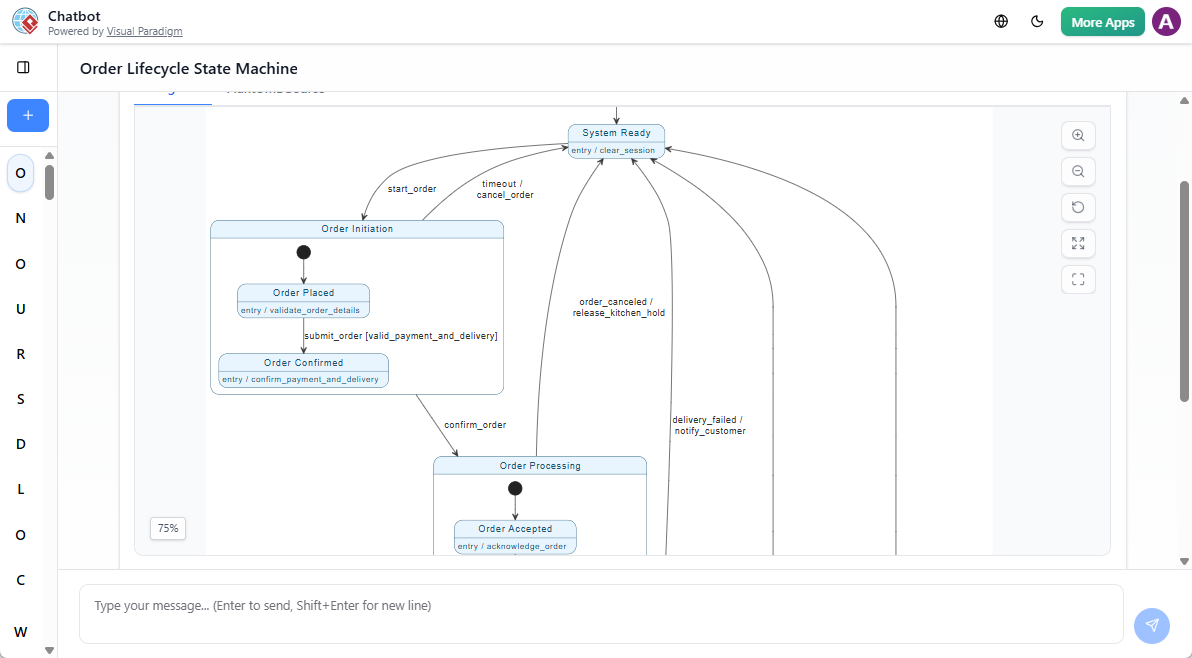
This guide walks you through how to use the AI Chatbot to generate UML state diagrams efficiently, whether you’re a student, developer, or software architect. No complex syntax. No steep learning curve. Just clear, visual results.
✅ Why Use the AI Chatbot for UML State Diagrams?
UML state diagrams model the behavior of a system or object over time, showing how it responds to events and changes states. Traditionally, building these diagrams requires understanding:
-
States and transitions
-
Entry/exit actions
-
Guards and triggers
-
Initial and final states
The AI Chatbot removes the friction. It interprets natural language inputs and translates them into structured, valid UML state diagrams—complete with proper notation and layout.
This is especially helpful for:
-
Students learning UML concepts
-
Developers prototyping system behavior
-
Teams documenting complex workflows
-
Anyone needing fast, visual feedback without manual diagramming
🛠️ Step-by-Step: How to Generate a UML State Diagram
Step 1: Open the Visual Paradigm AI Chatbot
Launch the AI Chatbot from your Visual Paradigm Desktop or Online environment. You’ll see a clean chat interface with a welcome message and suggested prompts.
Step 2: Describe Your System in Plain Language
Instead of drawing boxes and arrows, type a clear description of the system or object you want to model.
Example prompt:
“Create a UML state diagram for a user login process with states: ‘Logged Out’, ‘Entering Credentials’, ‘Validating’, ‘Logged In’, and ‘Session Expired’. Include transitions triggered by ‘Enter Username’, ‘Enter Password’, ‘Submit’, ‘Authentication Success’, ‘Authentication Failure’, and ‘Session Timeout’.”
The AI will analyze your request, identify the relevant states and transitions, and generate a diagram using standard UML notation.
Step 3: Review the Generated Diagram
The chatbot displays the state diagram directly in the conversation window. You’ll see:
-
Circular states with labels
-
Directed arrows showing transitions
-
Event triggers and optional guards
-
Initial state (solid circle) and final state (double circle)
The diagram is interactive—hovering over elements may show tooltips or additional details.
Step 4: Refine the Diagram with Follow-Up Requests
You don’t need to start over. Use natural language to modify the diagram.
Examples of refinements:
-
“Add an action ‘Encrypt Password’ when transitioning from ‘Entering Credentials’ to ‘Validating’.”
-
“Change the guard on the ‘Submit’ transition to [Username not empty].”
-
“Add a ‘Reset Form’ action when returning from ‘Authentication Failure’ to ‘Entering Credentials’.”
-
“Show the ‘Logged In’ state as a composite state with substates ‘Active’ and ‘Idle’.”
Each follow-up request updates the diagram in real time, giving you immediate visual feedback.
🔍 Real-World Use Cases
1. Modeling a Smart Thermostat
“Create a UML state diagram for a smart thermostat with states: ‘Off’, ‘Heating’, ‘Cooling’, ‘Idle’, and ‘Maintenance Mode’. Transitions occur when temperature exceeds set points or when a user adjusts settings.”
The AI generates a diagram showing how the device switches between modes based on sensor input and user interaction.
2. Documenting a Ticket Booking Workflow
“Generate a UML state diagram for a movie ticket booking system. States include: ‘Available’, ‘Reserved’, ‘Confirmed’, ‘Cancelled’, and ‘Expired’. Transitions happen on ‘Book’, ‘Confirm’, ‘Cancel’, and ‘Timeout’.”
This helps clarify the lifecycle of a booking and ensures all edge cases are considered.
3. Prototyping a Mobile App Feature
“Create a state diagram for a ‘Dark Mode’ toggle in a mobile app. States: ‘Off’, ‘Transitioning’, ‘On’. Events: ‘Toggle Switch’, ‘System Theme Change’.”
Useful for UI/UX teams to align on behavior before development.
📌 Key Features That Make It Work
🤖 Conversational AI Interface
Type naturally—no UML syntax required. The AI understands phrases like “add a transition when” or “show what happens if.”
🎨 Built-in UML Renderer
The AI uses a dedicated renderer trained on UML standards. Diagrams follow official notation, ensuring clarity and consistency.
🔄 Iterative Editing
Modify the diagram through conversation. No need to export, re-import, or re-draw.
🔄 Seamless Integration with Visual Paradigm
For users with a license, you can import the generated state diagram directly into Visual Paradigm Desktop or Online. From there, you can:
-
Add constraints or comments
-
Link to other diagrams
-
Export to PDF, PNG, or SVG
-
Use in formal documentation or presentations
This creates a smooth workflow from idea to final model.
💡 Pro Tips for Better Results
-
Be specific about states and triggers. Instead of “when something happens,” name the exact event.
-
Include edge cases. Mention timeouts, errors, or invalid inputs to make the diagram more robust.
-
Use context from previous messages. Refer back to earlier parts of the conversation: “Based on the current transitions, add a recovery path after failure.”
-
Break complex systems into smaller diagrams. Model one component at a time to avoid clutter.
🧠 Learning UML with the AI Chatbot
If you’re new to UML, the AI Chatbot acts as a real-time tutor. You can:
-
Ask: “What’s the difference between a state and a transition?”
-
Request: “Show me an example of a composite state.”
-
Test: “Generate a simple state diagram for a light switch.”
The AI responds with clear explanations and instant visual examples—making abstract concepts tangible.
This is how the AI Chatbot supports active learning: you ask, you see, you adjust, and you understand.
⚠️ What to Keep in Mind
-
Accuracy depends on input quality. The AI is powerful but not infallible. Double-check complex logic.
-
Not a replacement for formal modeling. Use it for ideation and prototyping. For production-level documentation, import into Visual Paradigm for deeper validation.
-
Internet connection required. The chatbot relies on cloud-based AI services.
-
Free trial limitations. Chat history and exports are not saved during trial. Upgrade for full access.
🔄 Workflow Summary
| Step | Action |
|---|---|
| 1 | Open the Visual Paradigm AI Chatbot |
| 2 | Type a clear description of your system |
| 3 | Review the generated UML state diagram |
| 4 | Refine using follow-up prompts |
| 5 | (Optional) Import into Visual Paradigm for further editing |
This workflow reduces diagram creation time from hours to minutes—without sacrificing quality.
📌 Final Thoughts
Generating UML state diagrams doesn’t have to be a manual, error-prone process. With the Visual Paradigm AI Chatbot, you can focus on what the system should do, not how to draw it.
Whether you’re documenting a feature, teaching UML concepts, or designing system behavior, the AI Chatbot delivers accurate, visual results quickly—enabling faster iteration and clearer communication.
Start with a simple request. Watch the diagram appear. Refine it. Share it. That’s how modern modeling works.
💬 “The best way to learn UML is to use it. The best way to use it is to make it easy.”
— Visual Paradigm AI Chatbot Philosophy