


This guide provides a complete, step-by-step walkthrough for creating C4 Container Diagrams using Visual Paradigm, leveraging both manual design and AI-powered generation. It also explains how Container Diagrams fit into the broader C4 Model hierarchy and offers best practices to ensure accuracy and clarity.
🔷 What is a C4 Container Diagram?
A C4 Container Diagram (Level 2) is a high-level architectural diagram that visualizes the internal structure of a single system by showing its major containers—such as web applications, mobile apps, databases, microservices, and external systems—and how they interact.
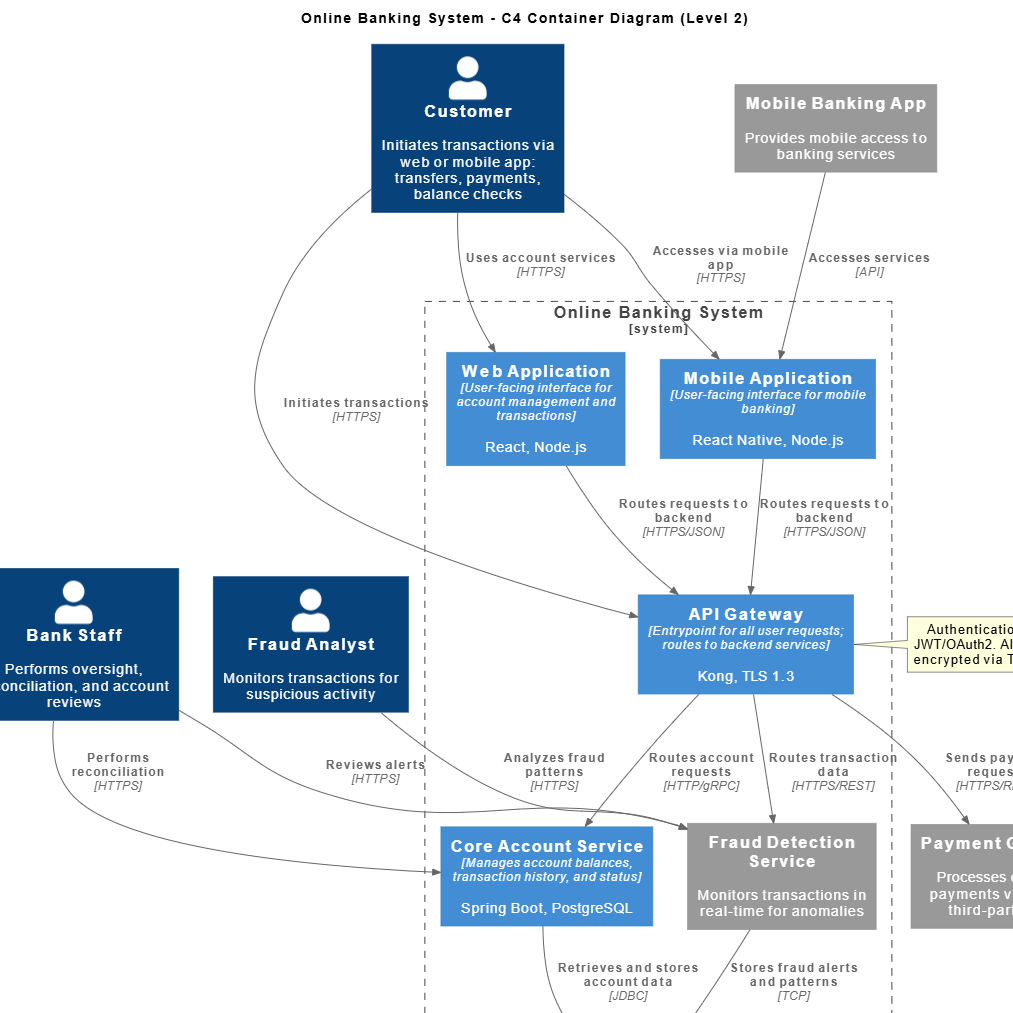
It “zooms in” from the Context Diagram (Level 1), which shows the system in its environment, to reveal key technical components and their relationships.
🔷 Why Use C4 Container Diagrams?
-
Improve communication between technical and non-technical stakeholders.
-
Clarify system boundaries and responsibilities.
-
Support decision-making in architecture, scalability, and integration planning.
-
Serve as a foundation for deeper analysis at Level 3 (Components) and Level 4 (Deployment).
🔷 How Container Diagrams Relate to Other C4 Levels
| C4 Level | Purpose | Relationship to Container Diagram |
|---|---|---|
| Level 1: Context | Shows the system and its external users/interactions. | The Container Diagram is a zoomed-in view of the single system block from the Context Diagram. |
| Level 2: Container | Breaks down the system into major technical building blocks (containers). | This is the focus of this guide. |
| Level 3: Component | Details internal components within each container. | Each container in the diagram can be expanded into a Component Diagram. |
| Level 4: Deployment | Shows how containers are deployed across physical or cloud infrastructure. | Container Diagrams show communication flow; Deployment Diagrams show physical hosting (e.g., AWS EC2, Kubernetes pods). |
✅ Pro Tip: Always ensure consistency across C4 levels. A change in the Container Diagram should be reflected in Component and Deployment diagrams.
🔷 Step-by-Step Guide to Creating a C4 Container Diagram in Visual Paradigm
✅ Step 1: Open Visual Paradigm and Create a New Diagram
-
Launch Visual Paradigm.
-
Go to Diagram > New.
-
In the New Diagram dialog:
-
Select C4 Model from the category list.
-
Choose Container Diagram.
-
Click OK.
-
📌 This opens a blank canvas with the C4-specific stencil palette.
✅ Step 2: Model the Key Components
Use the C4 Stencil Set (available in the toolbar) to add the following elements:
🧑💻 People (Actors)
-
Represent users or external systems interacting with your system.
-
Example:
Customer,Admin,Payment Gateway.
📦 Containers
Add major logical or physical units of your system:
-
Web Application (e.g.,
Customer Portal) -
Mobile App (e.g.,
iOS App,Android App) -
APIs / Microservices (e.g.,
Order Service,User Management Service) -
Database (e.g.,
PostgreSQL,MongoDB) -
External Systems (e.g.,
Stripe,Google Maps API)
💡 Best Practice: Limit containers to 5–10 key ones. Avoid over-complexity.
✅ Step 3: Define Relationships Between Containers
Use arrows to show interaction flows between containers:
| Arrow Type | Meaning |
|---|---|
| Solid arrow with label | API call (e.g., HTTP POST /orders) |
| Dashed arrow with label | Data access (e.g., SQL Query) |
| Bidirectional arrow | Two-way communication (e.g., OAuth token exchange) |
🛠 Example:
Customer Portal→Order Service:HTTP POST /create-order
Order Service→Database:INSERT INTO orders
Use legends or notes to explain common protocols (e.g., REST, gRPC, WebSocket).
✅ Step 4: Add Technology Stack Details
Enhance clarity by labeling containers with their technology stack:
-
Spring Boot (Java) -
Node.js + Express -
PostgreSQL 15 -
Dockerized microservice -
AWS S3 bucket
✅ Use stereotype notation or inline labels for clean presentation.
✅ Step 5: Leverage AI-Powered Diagram Generation (Optional but Powerful)
Visual Paradigm offers AI Diagram Generation to create diagrams from natural language descriptions.
🔧 Method 1: Using AI Diagram Generator (via Tools Menu)
-
Go to Tools > AI Diagram Generation.
-
Select C4 Model as the diagram type.
-
Enter a clear description of your system, e.g.:
“A web-based e-commerce platform where customers browse products, place orders via a React frontend, and authenticate using OAuth. Orders are processed by a Spring Boot microservice that stores data in a PostgreSQL database. The system integrates with Stripe for payments and uses Redis for caching.”
-
Click Generate.
-
Review and refine the output.
⚠️ Important: AI may misinterpret intent or include irrelevant elements. Always verify the result.
🔧 Method 2: Use C4-PlantUML Studio
-
Visit: C4-PlantUML Studio
-
Write your system description in PlantUML syntax.
-
Generate a C4 diagram instantly.
-
Import into Visual Paradigm for editing.
📌 PlantUML syntax allows precise control and is ideal for versioning and automation.
🔧 Method 3: Use Visual Paradigm’s AI Chatbot
Watch the official tutorial:
AI-Powered C4 Diagram Generation in Visual Paradigm
This video demonstrates how to use the AI assistant to generate diagrams from text.
🔷 Best Practices for Effective C4 Container Diagrams
| Practice | Why It Matters |
|---|---|
| Keep it simple | Focus on major containers and key interactions. Avoid unnecessary detail. |
| Use consistent naming | Use clear, unambiguous names (e.g., User Service, not UserService1). |
| Label all interactions | Every arrow should have a descriptive label. |
| Use color and grouping | Group related containers (e.g., all databases) visually. |
| Document assumptions | Add a note explaining scope, constraints, or external dependencies. |
| Review with team members | Ensure alignment across developers, architects, and stakeholders. |
🔷 Common Pitfalls to Avoid
| Mistake | Solution |
|---|---|
| Including too many containers | Stick to 5–10 high-level building blocks. |
| Using vague labels (e.g., “calls API”) | Be specific: “HTTP GET /users/{id}” |
| Confusing containers with components | Remember: containers are deployable units; components are internal parts. |
| Ignoring AI inaccuracies | Always validate AI-generated diagrams manually. |
| Forgetting to link to other C4 levels | Ensure your Container Diagram can be expanded into Component and Deployment diagrams. |
🔷 Conclusion
Creating a C4 Container Diagram in Visual Paradigm is a powerful way to communicate system architecture clearly and effectively. Whether you choose to manually design the diagram using the specialized C4 stencil or leverage AI tools for rapid prototyping, the goal remains the same: to visualize the system’s core technical structure in a way that supports collaboration, planning, and long-term maintainability.
Always remember: AI is a helper, not a replacement. Double-check outputs, align with team understanding, and use the diagram as a living artifact that evolves with your system.
📚 Reference List
- AI-Powered C4 Diagram Generation in Visual Paradigm: A step-by-step video tutorial demonstrating how to use Visual Paradigm’s AI chatbot to generate C4 diagrams from natural language descriptions.
- Visual Paradigm Releases: AI Diagram Generator Complete C4 Model: Official release notes detailing the integration of AI into C4 diagram creation, including new features and improvements.
- Beginner’s Guide to C4 Model Diagrams: A comprehensive introduction to the C4 Model, covering all four levels with practical examples and tips for beginners.
- C4 Container Diagram: A Definitive Guide to Visualizing Your Software’s Building Blocks with AI: In-depth guide on creating and refining Container Diagrams using AI tools, including best practices and common use cases.
- C4 Model – Container Diagrams: The official C4 Model website, providing authoritative definitions, examples, and principles for Container Diagrams.
- C4 Deployment Diagram: A Definitive Guide to Mapping Your Infrastructure with AI: Explains how Deployment Diagrams complement Container Diagrams by showing physical hosting and infrastructure.
- Visual Paradigm – C4 Deployment Diagram: Additional documentation on deploying containers across environments, useful for understanding the relationship between Container and Deployment levels.
- C4-PlantUML Studio: A tool that allows users to generate C4 diagrams using PlantUML syntax, ideal for developers who prefer code-driven modeling.
✅ Now you’re ready to create professional, accurate, and insightful C4 Container Diagrams in Visual Paradigm!