


Whether it’s a technical UML model or a high-impact marketing graphic, your cloud-based visuals now have a direct home in your documentation.
Introduction: The Unified Cloud Workflow
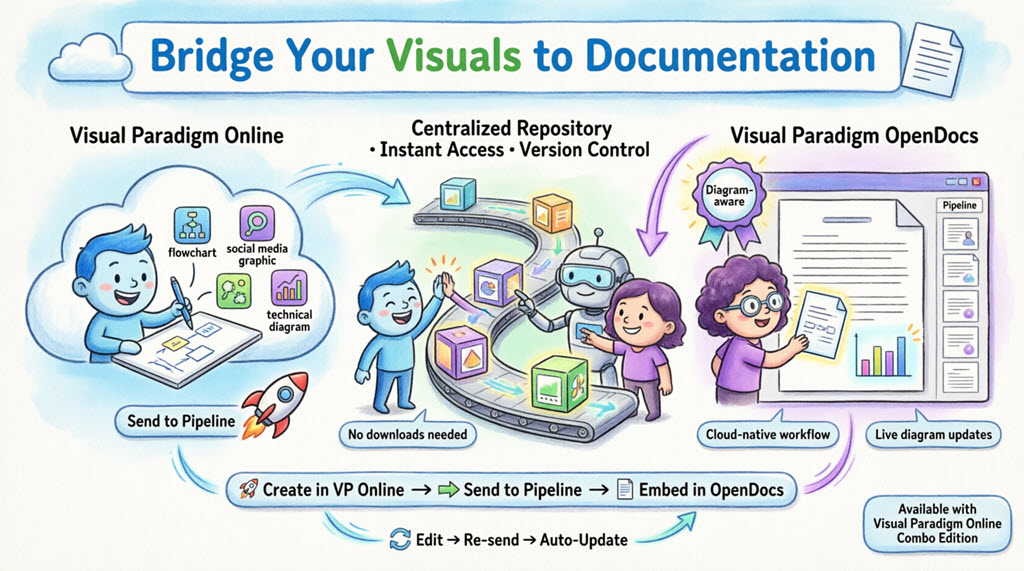
We are thrilled to announce that Visual Paradigm Online now supports a direct integration with Visual Paradigm OpenDocs. This update allows you to bridge the gap between our versatile cloud-based diagramming tool and your centralized knowledge management platform. Now, any visual you create online—from intricate technical diagrams to eye-catching social media graphics—can be sent instantly to OpenDocs using the Pipeline.
This integration is perfect for teams who need to move fast. Create your design in your browser, send it to the Pipeline, and immediately embed it into your project documentation. It eliminates the need to download images to your local machine, keeping your workflow entirely in the cloud.
Note: This feature is available to users with a Visual Paradigm Online Combo Edition subscription.
What is Visual Paradigm OpenDocs?
OpenDocs is our premier knowledge and document management platform. Unlike standard word processors, OpenDocs is “diagram-aware.” It integrates a full diagramming engine directly into the document editor, allowing you to insert, view, and even re-edit visuals without leaving the page. By connecting Visual Paradigm Online to OpenDocs, your cloud diagrams become living parts of your documentation.
Understanding the Pipeline
The Pipeline acts as your personal “Asset Transit Hub.” It is a centralized repository that stores your diagrams and graphics (which we call “artifacts”) so they can be easily shared between different applications in the Visual Paradigm ecosystem. When you “Send to Pipeline” from Visual Paradigm Online, you are placing that artifact into a space where OpenDocs can instantly see it and use it as an input for your documents.
Prerequisites
Before you begin, ensure you have:
- ✅ Visual Paradigm Online Combo Edition subscription
- ✅ Access to Visual Paradigm OpenDocs
- ✅ An active internet connection (all operations are cloud-based)
Step-by-Step: Sending Visuals from VP Online to OpenDocs
Moving your work from the cloud editor to your document is simple and intuitive:
Step 1: Open Your Diagram
Open your diagram or graphic in Visual Paradigm Online.
Step 2: Export to Pipeline
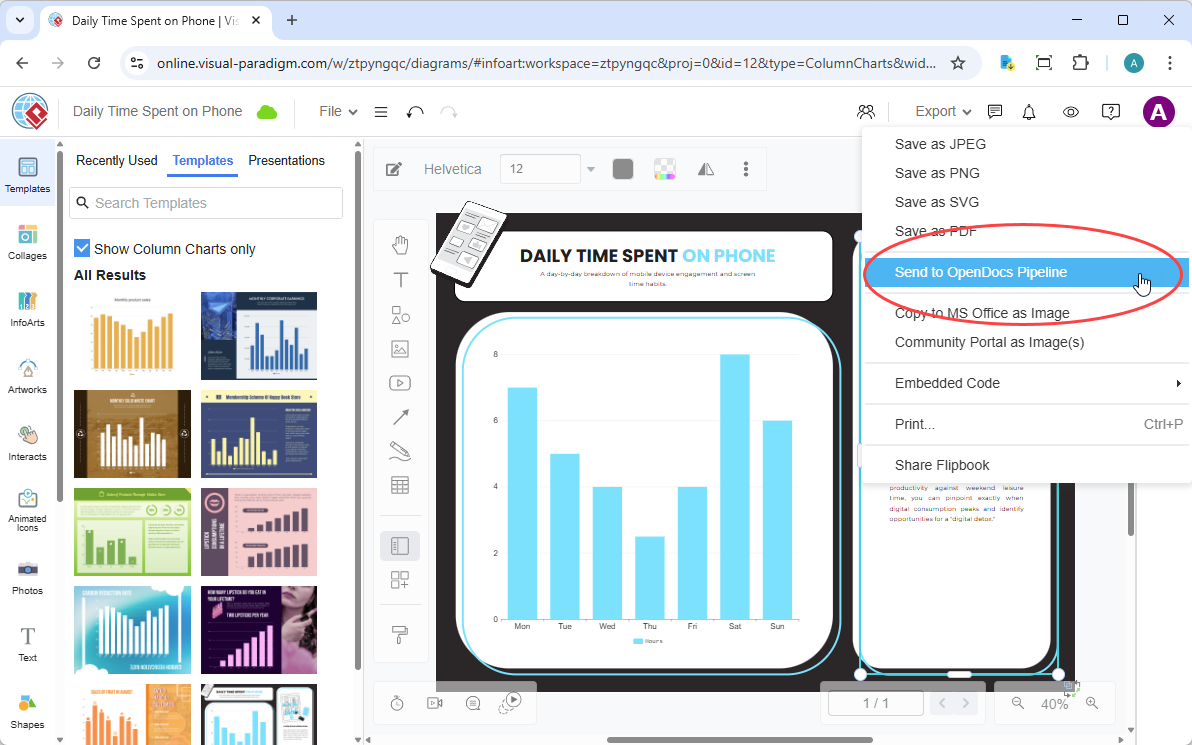
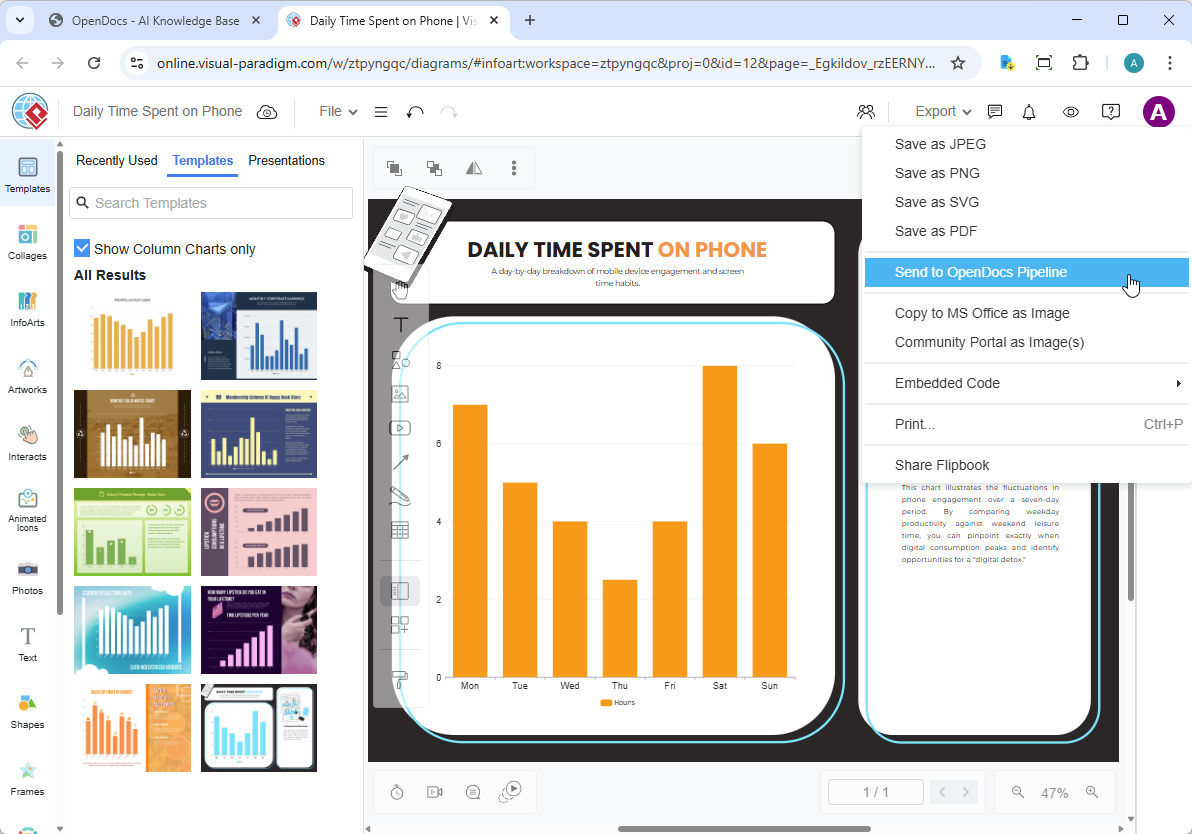
In the top menu, select Export > Send to OpenDocs Pipeline.
Step 3: Add Optional Comments
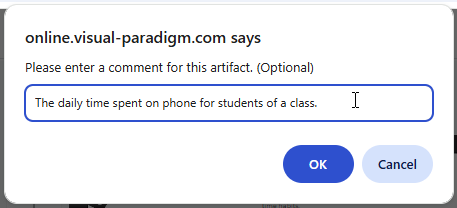
(Optional) Add a comment to describe the artifact. This makes it easier to find later in the Pipeline pane.
Step 4: Confirm Export
Confirm the export. Your visual is now securely stored in the Pipeline.
Embedding Your Artifacts in OpenDocs
Once your diagram is in the Pipeline, you can place it anywhere in your knowledge base:
Step 1: Open Document Editor
Open any document page in OpenDocs and click Edit.

Step 2: Position Cursor
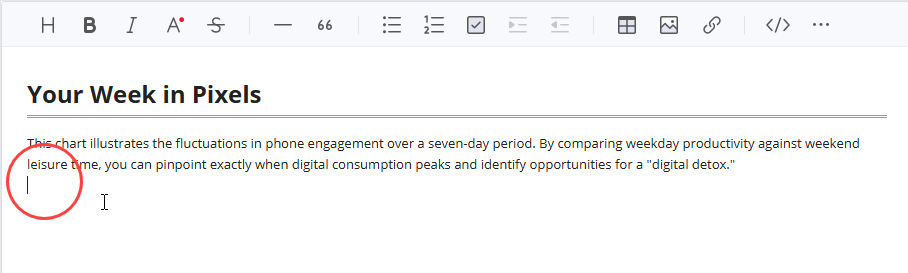
Click on the page where you want to insert the diagram.
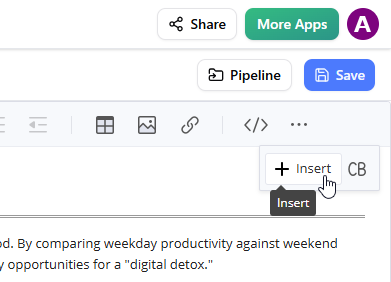
Step 3: Access Insert Menu
On the toolbar, click Insert.
Step 4: Select from Pipeline
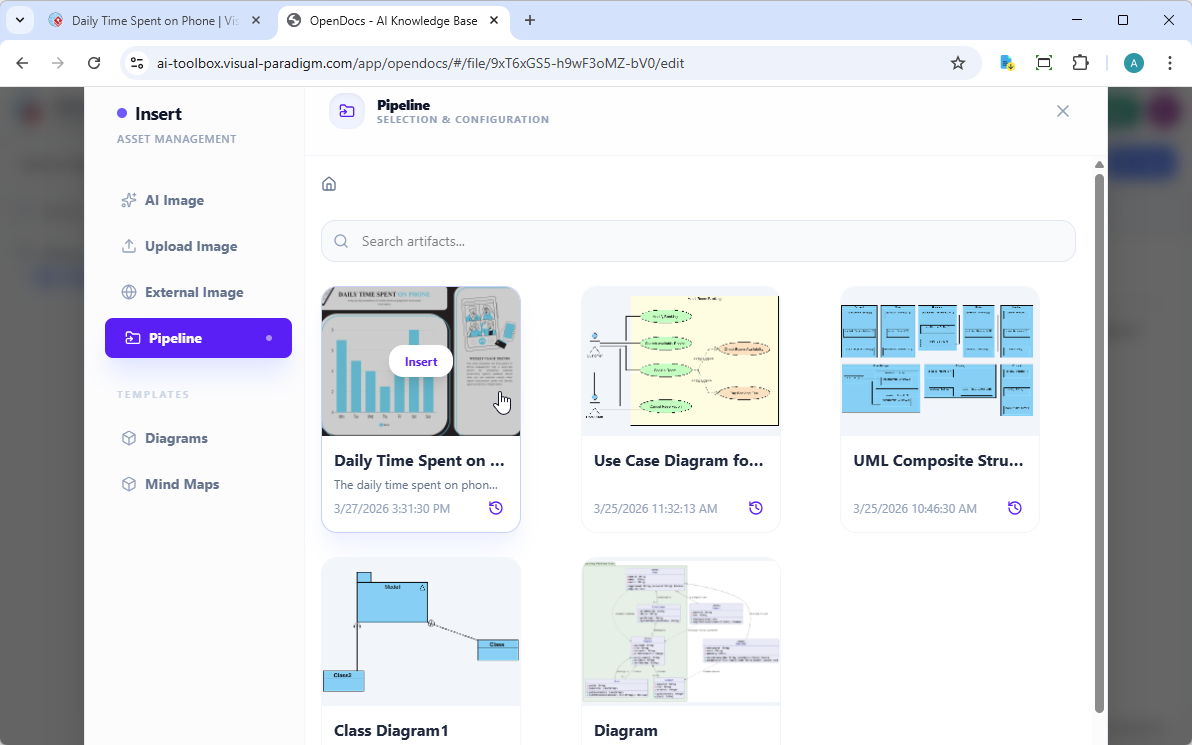
In the Insert window, select Pipeline from the left-hand sidebar. Your sent diagrams will appear here.
Step 5: Insert Diagram
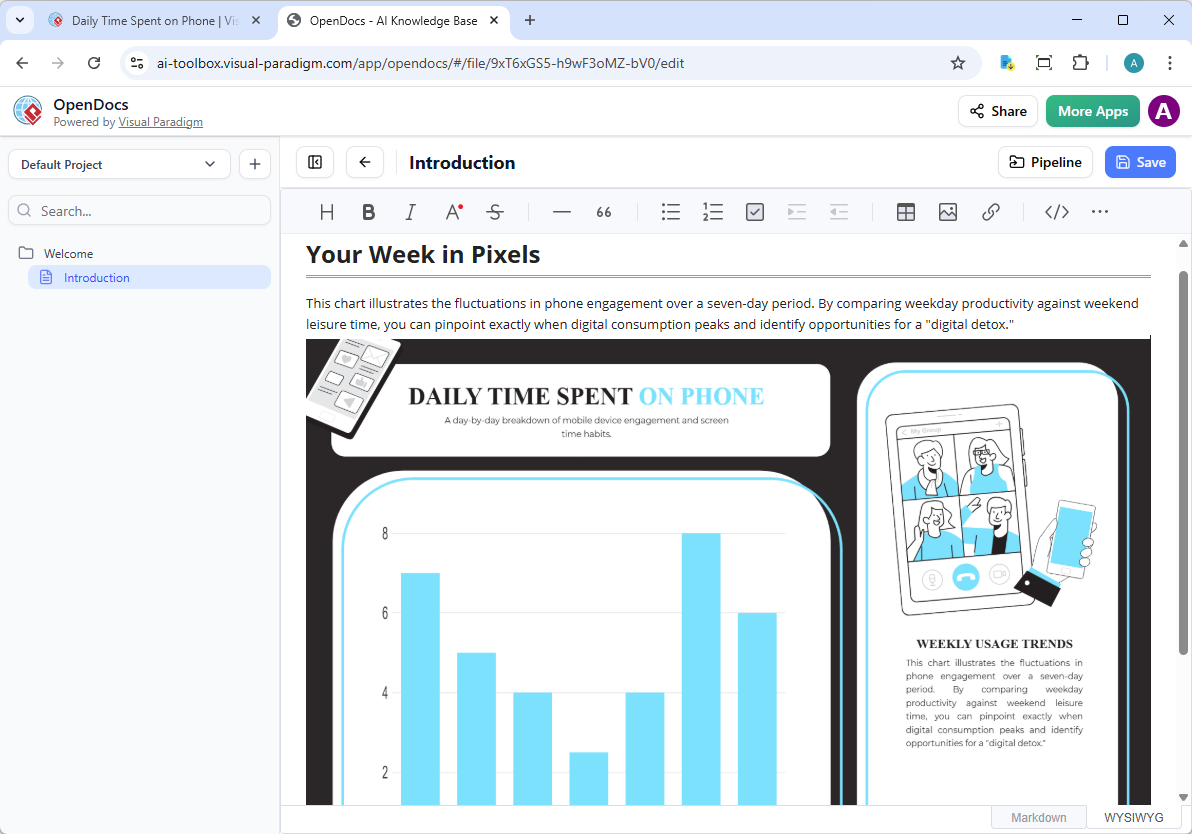
Click on the diagram to insert the image directly at your cursor position.
Keeping Documentation in Sync: Updating Artifacts
One of the most powerful aspects of this integration is the ability to update your documentation as your models evolve. If you need to make changes to a diagram already in OpenDocs, follow these steps:
Step 1: Open the Source Diagram
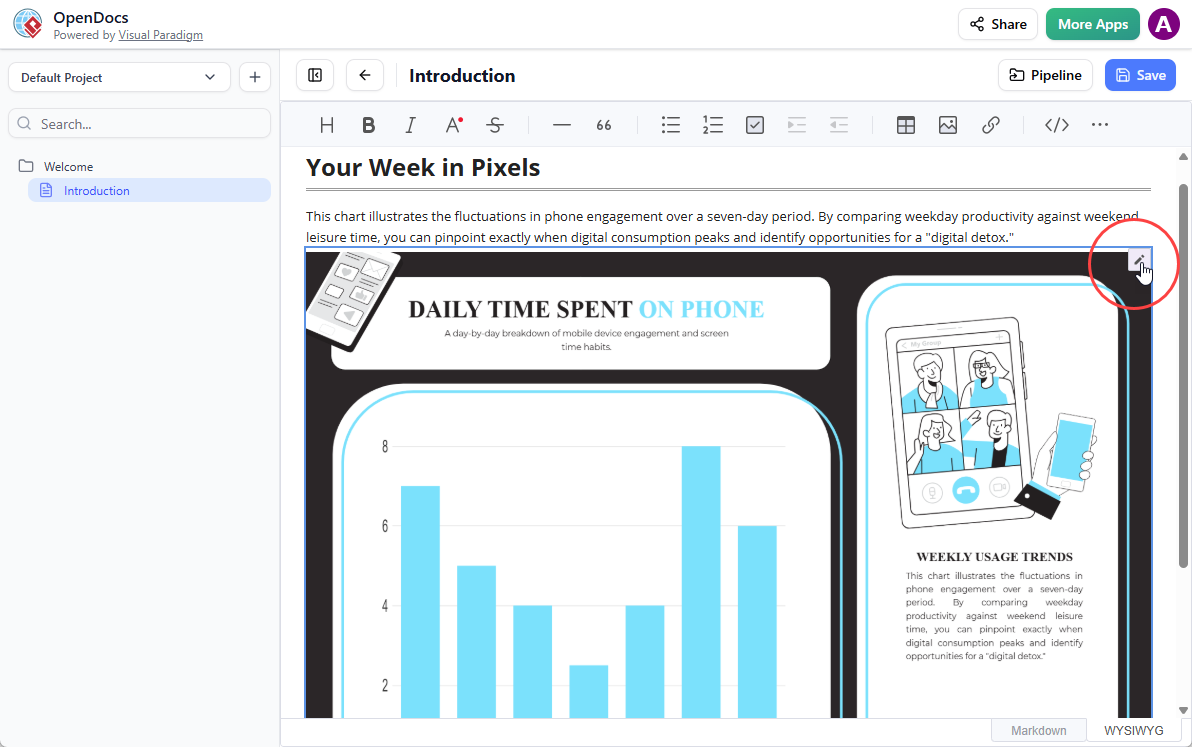
In OpenDocs, click the Edit icon at the top right of the diagram image to open the Edit Diagram window.
Step 2: Edit and Re-send
Modify your diagram in Visual Paradigm Online. Once finished, select Export > Send to OpenDocs Pipeline from the top menu again.
Step 3: Access Pipeline Pane
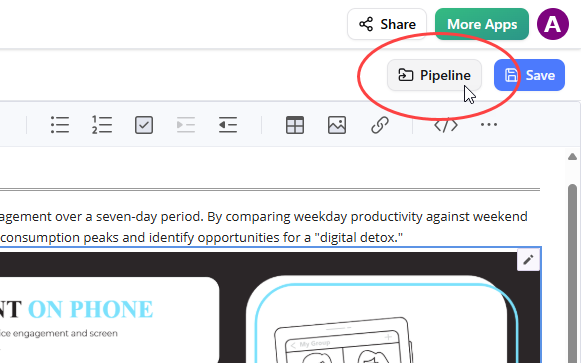
Back in the OpenDocs editor, click Pipeline at the top right.
Step 4: Find Updated Artifacts
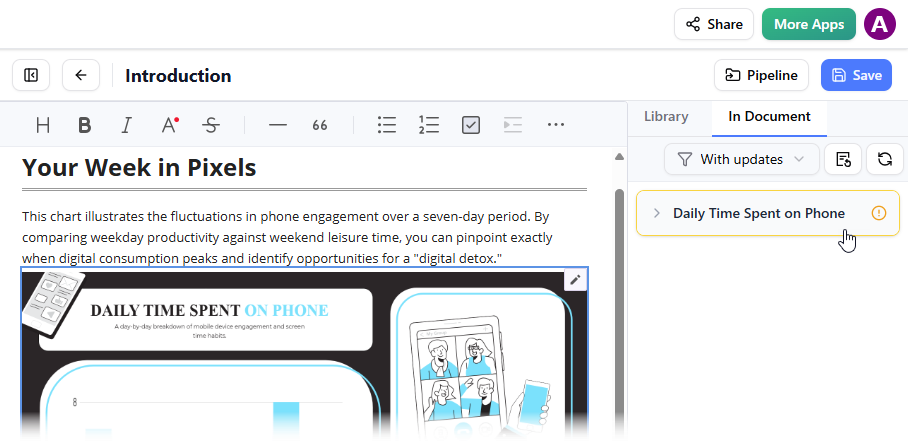
Open the In Document tab. The filter “With updates” is active and the pane is now listing the artifacts modified. Click on the visual just modified.
Step 5: Update to Latest Revision
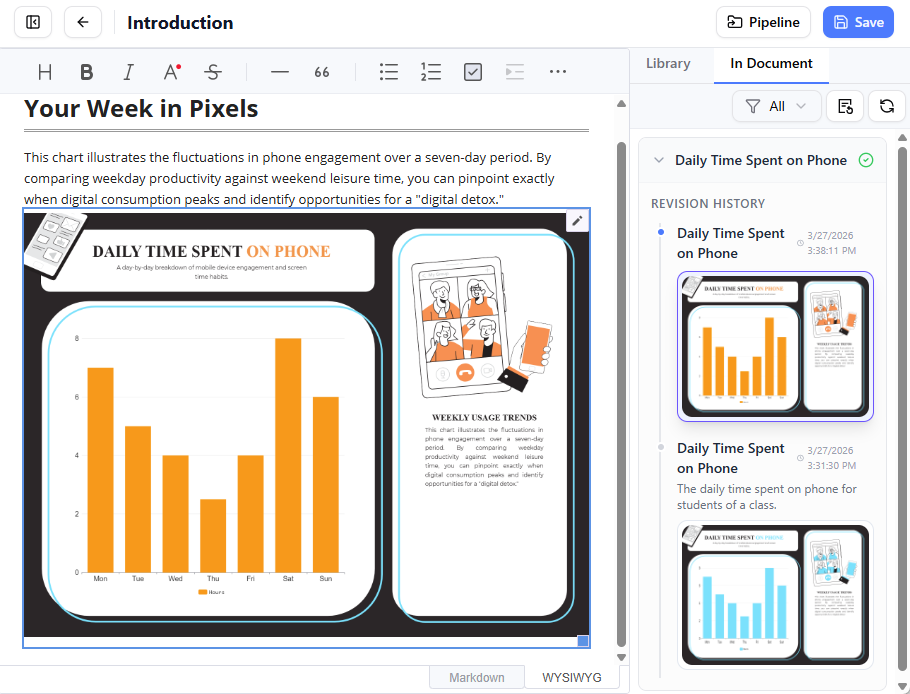
You can see the available revisions for the selected visual. Click on the latest revision to instantly swap the old diagram for the updated version. Or you can click on Update to latest revision directly.
Benefits and Use Cases
Primary Purpose
The primary purpose of this integration is to bridge the gap between specialized modeling tools and centralized project documentation, creating a “unified cloud workflow”.
Key Benefits
🎯 All-in-One Knowledge Hub
Consolidates complex technical diagrams and written narratives into a single, searchable platform.
🔄 Living Documentation
Unlike static image exports, diagrams sent through the Pipeline maintain a connection to the source model. You can re-edit the source and instantly Update to latest revision in OpenDocs to keep everything in sync.
⚡ Eliminates Manual Friction
Removes the need to download, save, and manually re-upload image files whenever a small change is made to a diagram.
🤖 AI-Enhanced Workflow
You can use Visual Paradigm’s AI Chatbot to generate diagrams from text prompts and send them immediately to OpenDocs via the same Pipeline.
👥 Role-Based Collaboration
Allows specialized modelers to work in VP Online while technical writers work in OpenDocs, with both contributing to a unified “single source of truth”.
Quick Start Checklist
- Verify you have Visual Paradigm Online Combo Edition
- Create or open your diagram in VP Online
- Use Export > Send to OpenDocs Pipeline
- Add descriptive comments (optional but recommended)
- Open your OpenDocs document
- Click Edit and position your cursor
- Use Insert > Pipeline to add your diagram
- Save your document
Troubleshooting Tips
Can’t find the “Send to OpenDocs Pipeline” option?
- Ensure you have a Combo Edition subscription
- Check that you’re logged into the correct account
Diagram not appearing in Pipeline?
- Refresh the Pipeline pane in OpenDocs
- Verify the export completed successfully
- Check your internet connection
Can’t update to latest revision?
- Ensure you re-sent the modified diagram to Pipeline
- Check that you’re viewing the “In Document” tab with “With updates” filter active
Related Resources
Official Documentation
Related Releases
- Exporting diagrams from Visual Paradigm Desktop to OpenDocs
- Exporting diagram images from Visual Paradigm Chatbot to OpenDocs
- Visual Paradigm Online to OpenDocs Export
Reference List
User Experience Sharing Journey
- New Feature: Send Your Visual Paradigm Online Creations Directly to OpenDocs: Official release announcement detailing the direct integration between Visual Paradigm Online and OpenDocs through the Pipeline, including step-by-step instructions and workflow benefits.
- Exporting Diagrams from Visual Paradigm Desktop to OpenDocs: Comprehensive guide on syncing desktop-created diagrams to OpenDocs, demonstrating the Pipeline’s versatility across different Visual Paradigm products.
- Exporting Diagram Images from Visual Paradigm Chatbot to OpenDocs: Tutorial on leveraging AI-generated diagrams from the Chatbot and seamlessly integrating them into OpenDocs documentation via the Pipeline.
Absolutely Beginners Guide
- Mastering the Pipeline in Visual Paradigm OpenDocs: A Complete Guide to Streamlined Knowledge Management: In-depth tutorial covering Pipeline fundamentals, artifact management, and best practices for maintaining synchronized documentation across the Visual Paradigm ecosystem.
- Visual Paradigm OpenDocs: The Complete Guide to AI-Powered Knowledge Management and Diagram Generation: Comprehensive beginner’s resource exploring OpenDocs features, AI integration capabilities, and practical workflows for creating living documentation with embedded diagrams.
- Visual Paradigm OpenDocs Features Overview: Official product page detailing OpenDocs capabilities as a diagram-aware knowledge management platform, including integration points with other Visual Paradigm tools.
Ready to streamline your documentation workflow?