Introduction
In today’s fast-paced software development landscape, IT teams face a critical challenge: how to maintain comprehensive, technically accurate documentation while ensuring that knowledge is accessible to diverse stakeholders—from developers and architects to business leaders and clients. Traditional documentation workflows often force teams to choose between powerful technical tools and user-friendly publishing platforms, creating silos that hinder collaboration and knowledge sharing.
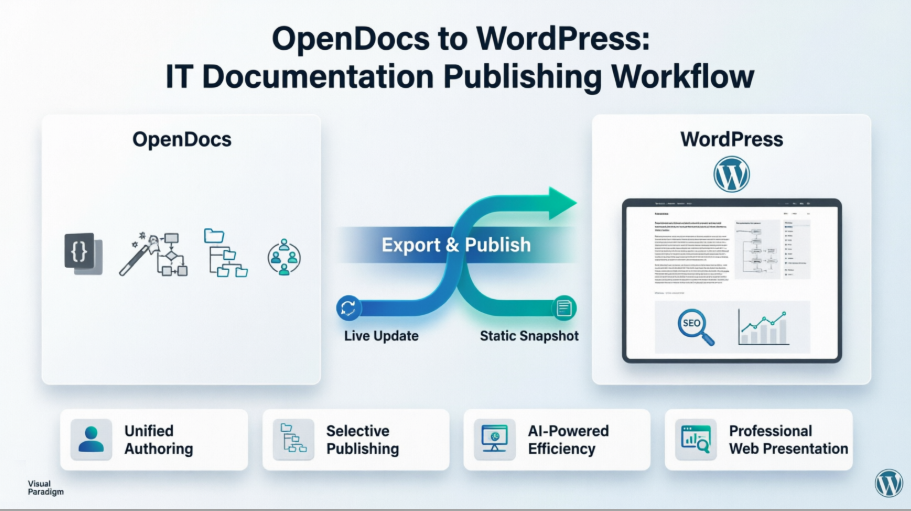
Visual Paradigm OpenDocs, combined with WordPress integration, offers a transformative solution. This guide explores how IT software development teams can leverage OpenDocs’ AI-powered knowledge management capabilities alongside WordPress—the world’s most popular content management system—to create a seamless, professional documentation experience that serves both technical and general corporate audiences. Whether you’re publishing architecture blueprints, API references, sprint retrospectives, or onboarding guides, this workflow ensures your content is structured, visual, and effortlessly shareable.
Why OpenDocs + WordPress Is a Game-Changer for IT Teams
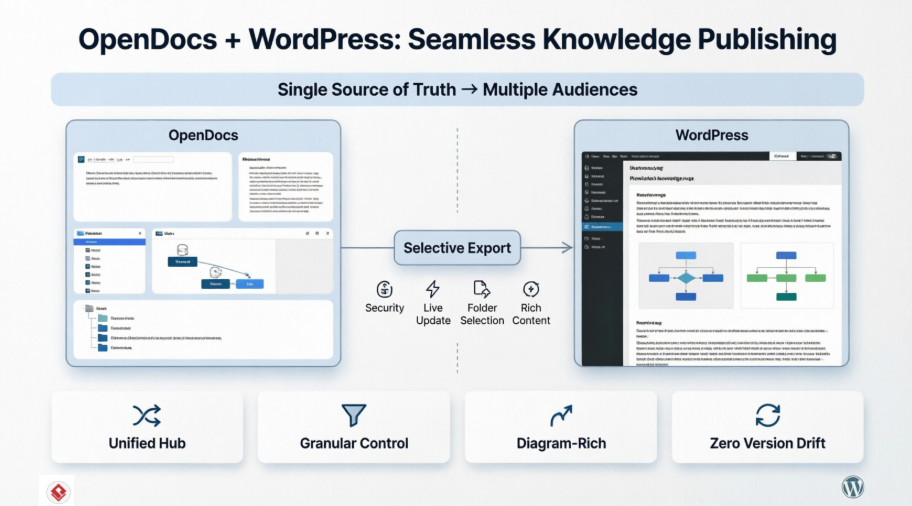
OpenDocs is an intelligent knowledge management platform that combines a powerful Markdown editor with built-in professional diagramming capabilities. When integrated with WordPress, it becomes a publishing engine that transforms technical knowledge into polished, web-ready content—without manual copying, screenshotting, or format conversion.
Key Benefits for Development Teams:
-
Unified Authoring: Write technical documentation with code blocks, diagrams, and Markdown formatting in one place.
-
AI-Powered Efficiency: Generate flowcharts, UML diagrams, and ERDs instantly using natural language prompts.
-
Selective Publishing: Share only relevant subsets of your knowledge base with specific audiences.
-
Professional Presentation: Publish diagram-rich content that maintains visual fidelity on any WordPress theme.
-
No Installation Required: Access your documentation hub from any browser; publish to any WordPress host (WP Engine, WordPress.com, etc.).
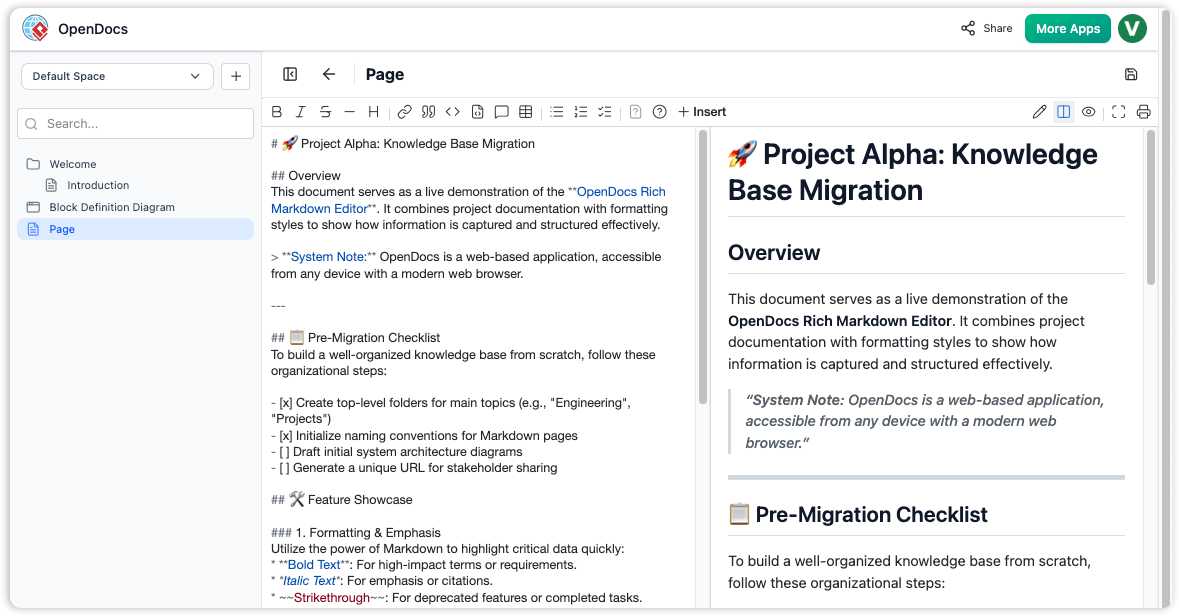
OpenDocs Markdown editor interface showing a split-pane view with a technical document in raw Markdown on the left and a live formatted preview on the right.
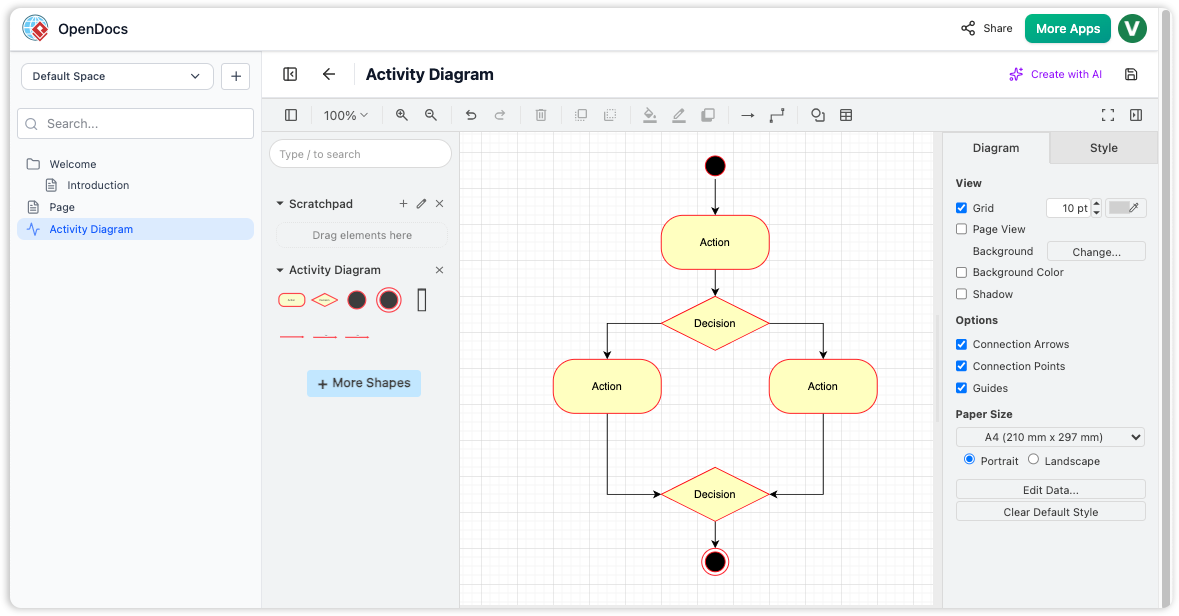
OpenDocs interface showing the integrated diagram editor with a sample Activity Diagram featuring actions, decisions, and flow connectors.
Setting Up OpenDocs for Your Development Team
Step 1: Initialize Your Knowledge Base
-
Launch OpenDocs at https://ai-toolbox.visual-paradigm.com/app/opendocs/
-
Create a new project with a descriptive name (e.g., “Engineering Knowledge Hub”)
-
Establish a hierarchical folder structure that mirrors your team’s workflow:
📁 Engineering Knowledge Hub
├── 📁 Architecture
│   ├── 📄 System Context Diagram
│   └── 📄 Deployment Architecture
├── 📁 APIs
│   ├── 📄 REST API Reference
│   └── 📄 Authentication Flow
├── 📁 Processes
│   ├── 📄 Sprint Workflow
│   └── 📄 Code Review Guidelines
└── 📁 Onboarding
    ├── 📄 New Developer Checklist
    └── 📄 Tool Setup Guide
Step 2: Create Rich, Visual Documentation
Use the Rich Markdown Editor to write technical content with:
-
Code syntax highlighting
-
Tables, lists, and callouts
-
Embedded diagrams created with the integrated editor
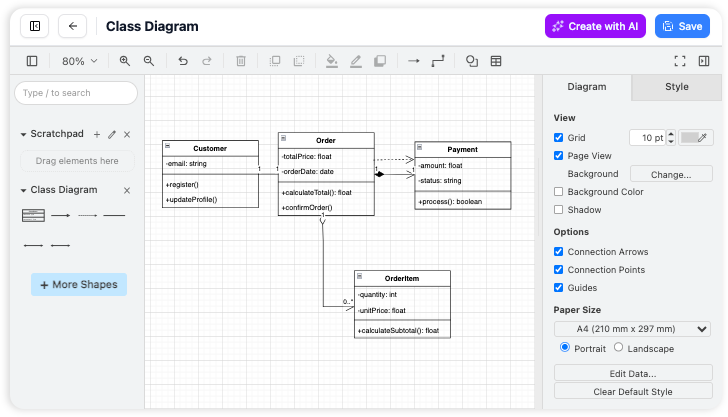
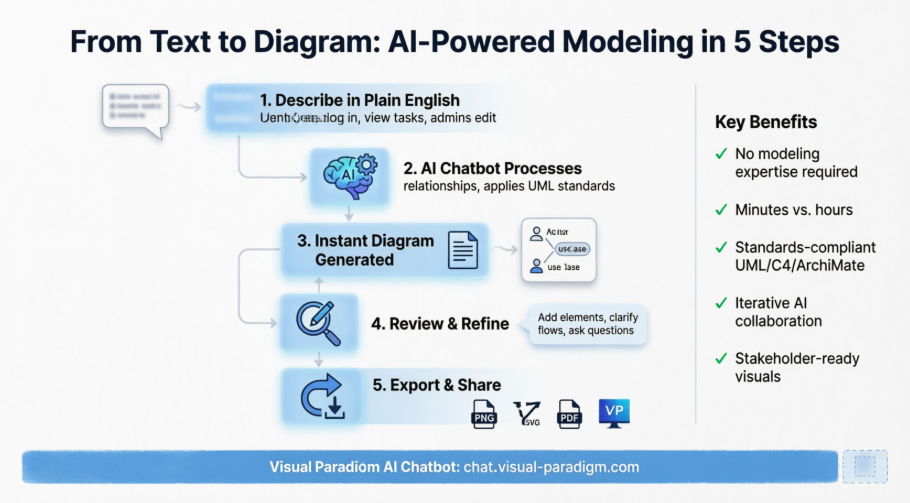
Create diagrams directly within your documentation workspace.
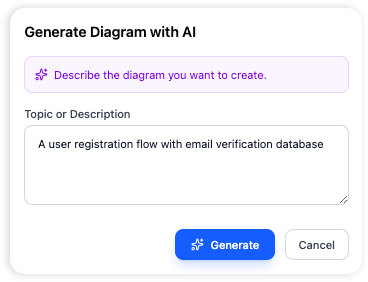
Generate professional diagrams instantly using AI prompts.
Step 3: Leverage AI for Faster Content Creation
-
Type
"Create a sequence diagram for user login with OAuth2"to auto-generate a UML diagram -
Use the AI Content Assistant to draft onboarding guides or summarize technical specs
-
Iterate quickly: refine diagrams and text in the same interface
Step-by-Step: Exporting OpenDocs Content to WordPress
Prerequisites
-
An active OpenDocs account
-
A WordPress site (self-hosted or managed hosting)
-
Administrator access to your WordPress dashboard
The Export Workflow
1. Open Your Knowledge Base & Initiate Sharing
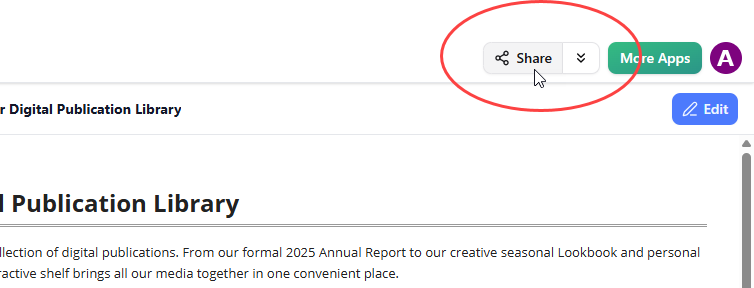
Click the Share button at the top right corner of your OpenDocs workspace.
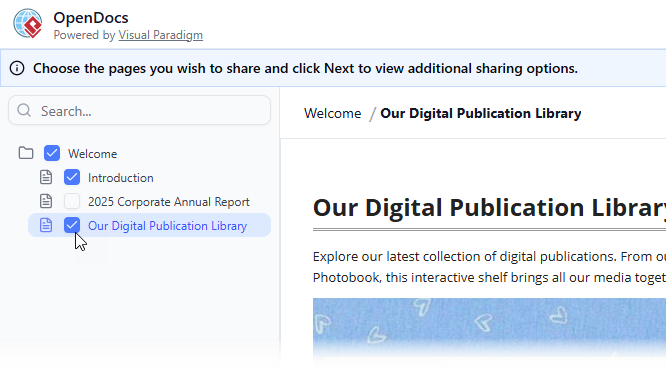
2. Select Pages for Publication
In the left panel, tick checkboxes for the exact pages (and sub-pages) you want to publish. Exclude sensitive internal notes or work-in-progress content.
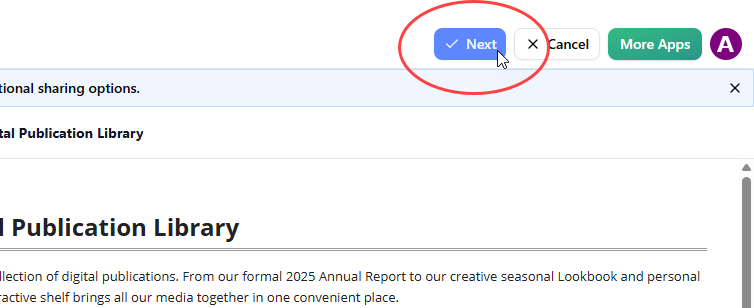
3. Configure Sharing Settings
Click Next, then:
-
Add a clear description (e.g., “Public API Documentation v2.1”)
-
Choose Sharing Mode:
-
Static Snapshot: Frozen version ideal for releases or compliance archives
-
Live Update: Content stays synchronized with future OpenDocs edits
-
-
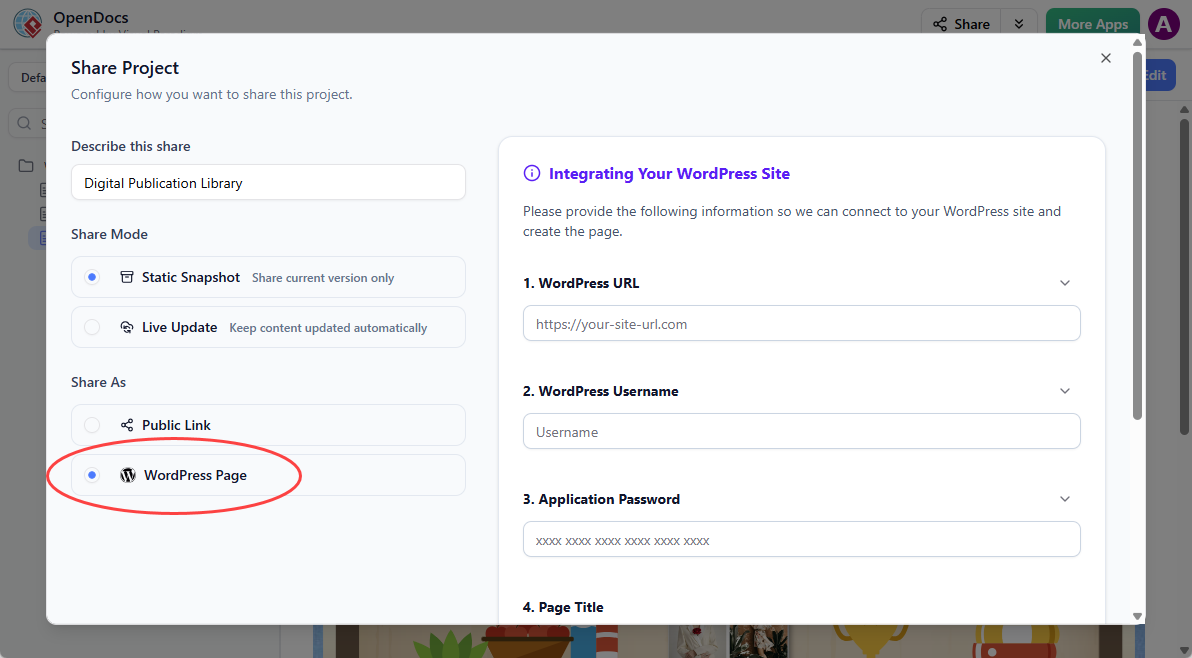
Under Share As, select WordPress Page
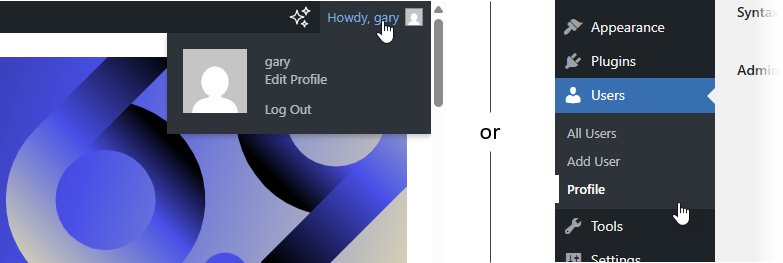
4. Prepare WordPress Application Password
In your WordPress dashboard:
-
Navigate to Users → Profile
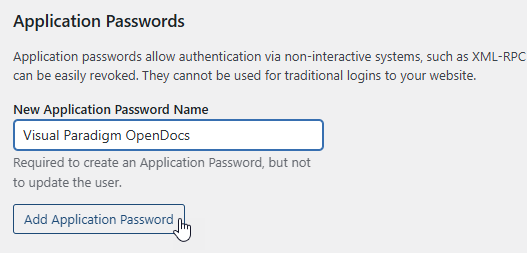
-
Scroll to Application Passwords
-
Enter a name like “Visual Paradigm OpenDocs” and click Add Application Password
-
Copy the generated password immediately (it won’t be shown again)

5. Complete Connection in OpenDocs
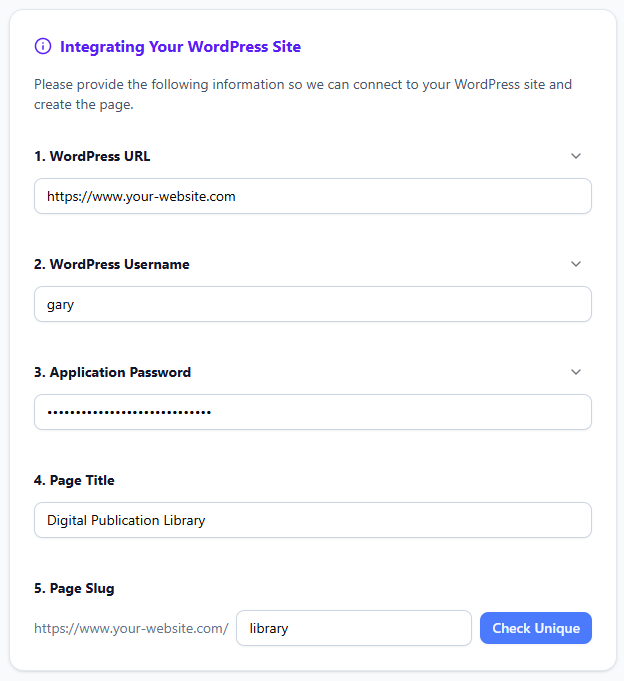
Back in OpenDocs, fill in:
-
WordPress URL: Your site base URL (e.g.,
https://www.your-company.com) -
WordPress username: Your admin username
-
Application Password: The password you just copied
-
Page title: The title that will appear on your WordPress site
-
Page slug: URL-friendly identifier (e.g.,
api-reference-2026)
6. Publish
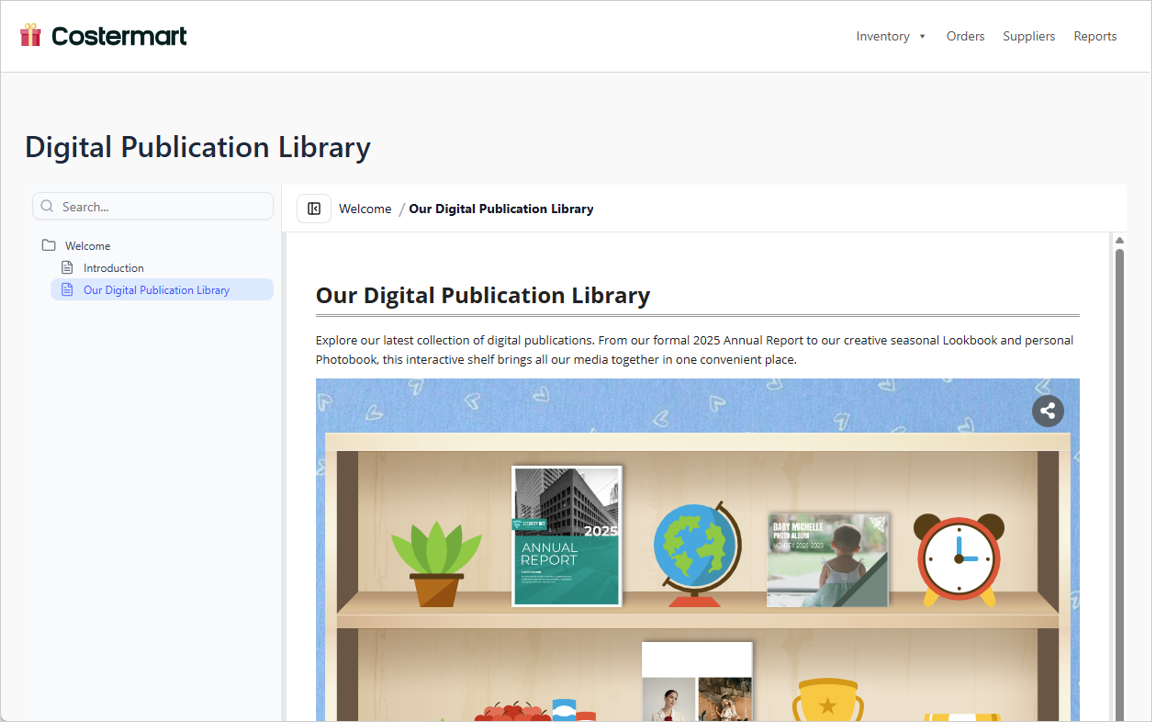
Click Check Unique, then Publish to WordPress. The process typically completes in seconds.

Visit your new WordPress page to verify the embedded content:
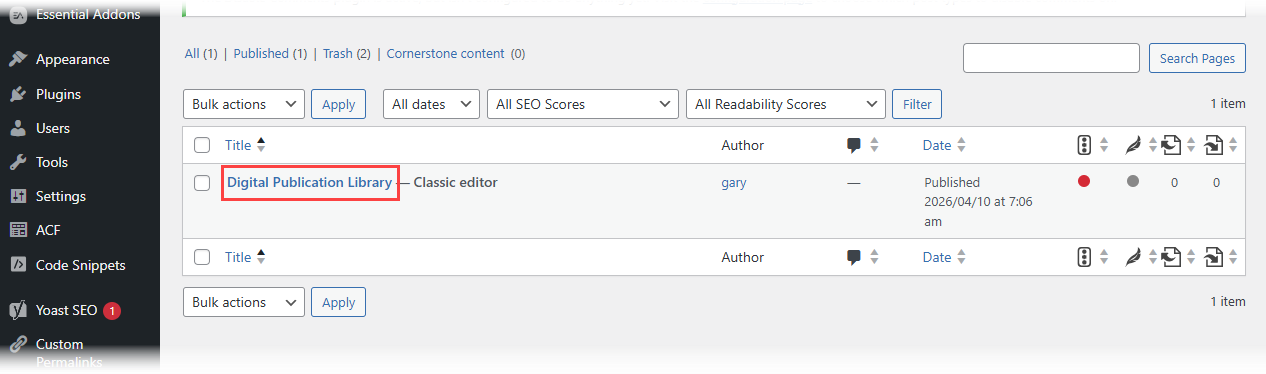
You can further customize the page under Pages in your WordPress admin:
Security Note: Visual Paradigm never stores your Application Password. For future shares, you can reuse the saved connection or generate a new password in WordPress.
Best Practices for Mixed Content Publishing
1. Structure Content for Dual Audiences
-
Technical readers: Include detailed diagrams, code snippets, and architecture notes
-
Business stakeholders: Add executive summaries, process overviews, and visual flowcharts
-
Use OpenDocs folders to separate internal vs. external content before publishing
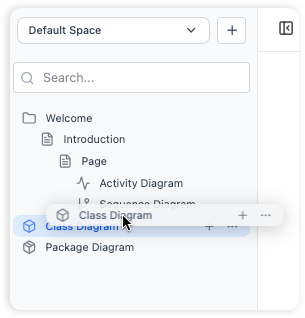
Organize your knowledge base with a scalable, nested folder structure.
2. Optimize Diagrams for Web Display
-
Use clear labels and legible fonts in your diagrams
-
Prefer vector-based diagrams (SVG) for sharp rendering on all devices
-
Test published pages on mobile to ensure diagrams remain readable
3. Maintain Content Freshness
-
For evolving documentation (e.g., API references), use Live Update mode
-
For milestone releases (e.g., v1.0 architecture), use Static Snapshot to preserve historical accuracy
-
Document the publication date and version in the WordPress page metadata
4. Enhance WordPress Pages with Native Features
After publishing from OpenDocs, leverage WordPress capabilities:
-
Add SEO meta descriptions and featured images
-
Integrate with analytics tools (Google Analytics, Matomo)
-
Enable comments or feedback forms for stakeholder input
-
Use WordPress categories/tags to cross-link with other corporate content
Managing Live Updates vs. Static Snapshots
| Feature | Live Update Mode | Static Snapshot Mode |
|---|---|---|
| Content Sync | Automatically reflects OpenDocs edits | Frozen at time of publish |
| Best For | Living documentation, API references, runbooks | Release notes, compliance docs, archived projects |
| Version Control | Single source of truth in OpenDocs | Historical record preserved in WordPress |
| Stakeholder Experience | Always sees latest version | Sees consistent, unchanging content |
Recommendation: Use Live Update for internal team documentation and Static Snapshot for client-facing or regulatory content where auditability is required.
Security and Access Control Considerations
Protecting Sensitive Information
-
Before publishing: Audit selected pages to exclude credentials, internal URLs, or proprietary algorithms
-
WordPress permissions: Restrict published pages to logged-in users if needed using WordPress membership plugins
-
OpenDocs sharing: Generate read-only links for internal review before public WordPress publication
Enterprise-Grade Workflows
-
Draft in OpenDocs: Technical writers and architects collaborate internally
-
Review cycle: Share a read-only OpenDocs link with security/legal teams
-
Publish selectively: Export only approved content to WordPress
-
Monitor access: Use WordPress analytics to track engagement with published docs
Troubleshooting Common Integration Issues
Issue: WordPress Page Shows Blank or Broken Diagrams
-
Solution: Ensure your WordPress theme supports embedded iframes. Test with a default theme (e.g., Twenty Twenty-Four). Clear browser cache after publishing.
Issue: Application Password Authentication Fails
-
Solution: Verify the password was copied correctly. Regenerate a new Application Password in WordPress if needed. Ensure your WordPress site allows REST API access.
Issue: Published Page Styling Looks Off
-
Solution: OpenDocs content is embedded responsively. If styling conflicts occur, add custom CSS in WordPress to adjust container width or font sizing.
Issue: Live Updates Not Reflecting Changes
-
Solution: Confirm the OpenDocs source pages were saved after edits. Check that the WordPress page wasn’t manually edited (which can break the sync link).
WordPress Page Export vs. Embed Code: Choosing the Right Option
OpenDocs offers two publishing methods. Here’s how to decide:
✅ Choose WordPress Page Export When:
-
You want a dedicated, clean URL for your documentation (e.g.,
yourcompany.com/api-docs) -
You prefer automatic page creation without manual WordPress setup
-
You’re publishing to a WordPress site exclusively
✅ Choose HTML Embed Code When:
-
You want to insert OpenDocs content into an existing WordPress page or blog post
-
You’re publishing to a non-WordPress website (e.g., custom React app, SharePoint)
-
You need pixel-perfect placement within a larger page layout
Both methods support page selection, Static/Live modes, and secure sharing. Learn more about embed codes in the OpenDocs Embed HTML Code Tutorial.
Conclusion
The integration of Visual Paradigm OpenDocs with WordPress represents a significant leap forward for IT teams seeking to democratize technical knowledge. By combining OpenDocs’ AI-powered authoring, diagramming, and hierarchical organization with WordPress’s unparalleled publishing flexibility, development teams can finally bridge the gap between deep technical documentation and broad corporate communication.
This workflow empowers teams to:
-
Create once, publish anywhere: Author rich, visual documentation in OpenDocs and distribute tailored views to diverse audiences
-
Maintain a single source of truth: Keep master documentation centralized while sharing context-appropriate subsets
-
Scale with confidence: From startup sprints to enterprise architecture, the folder-based structure grows with your needs
-
Enhance collaboration: Stakeholders access professional, up-to-date documentation without installing specialized tools
As software systems grow more complex, the ability to communicate architecture, processes, and decisions clearly becomes a competitive advantage. With OpenDocs and WordPress, your documentation doesn’t just record knowledge—it actively enables better decisions, faster onboarding, and stronger alignment across your organization.
Ready to transform your documentation workflow?
Start Building & Sharing Your Knowledge Base with OpenDocs
References
-
OpenDocs – Visual Paradigm: Official feature overview of OpenDocs, including Markdown editing, diagram integration, and knowledge organization capabilities.
-
Visual Paradigm OpenDocs: The Complete Guide to AI-Powered Knowledge Management and Diagram Generation: Comprehensive third-party guide covering setup, AI features, and best practices for knowledge management.
-
OpenDocs AI-Powered Knowledge Platform Release Announcement: Official release notes detailing OpenDocs’ core capabilities, AI diagram generation, and platform architecture.
-
OpenDocs – AI-Powered Knowledge Management Platform: Landing page with feature highlights, use cases, and direct access to the OpenDocs application.
-
Visual Paradigm OpenDocs: The Complete Developer’s Guide to AI-Powered Technical Documentation: Developer-focused tutorial covering API documentation workflows, code integration, and team collaboration patterns.
-
Sync AI Diagrams to OpenDocs via Pipeline Guide: Technical guide for integrating diagrams from Visual Paradigm Desktop and other tools into OpenDocs via the Pipeline feature.
-
Visual Paradigm Online to OpenDocs Export Tutorial: Step-by-step instructions for exporting diagrams from Visual Paradigm Online into OpenDocs knowledge bases.
-
AI Diagram to OpenDocs Pipeline Integration: Documentation on using AI-generated diagrams within the OpenDocs ecosystem and syncing across Visual Paradigm tools.
-
OpenDocs Page-Based Sharing Update: Release notes covering selective page sharing, WordPress integration, and secure link generation features.