
Mastering Process Modeling: A Step-by-Step Guide to Creating Flowcharts with Visual Paradigm
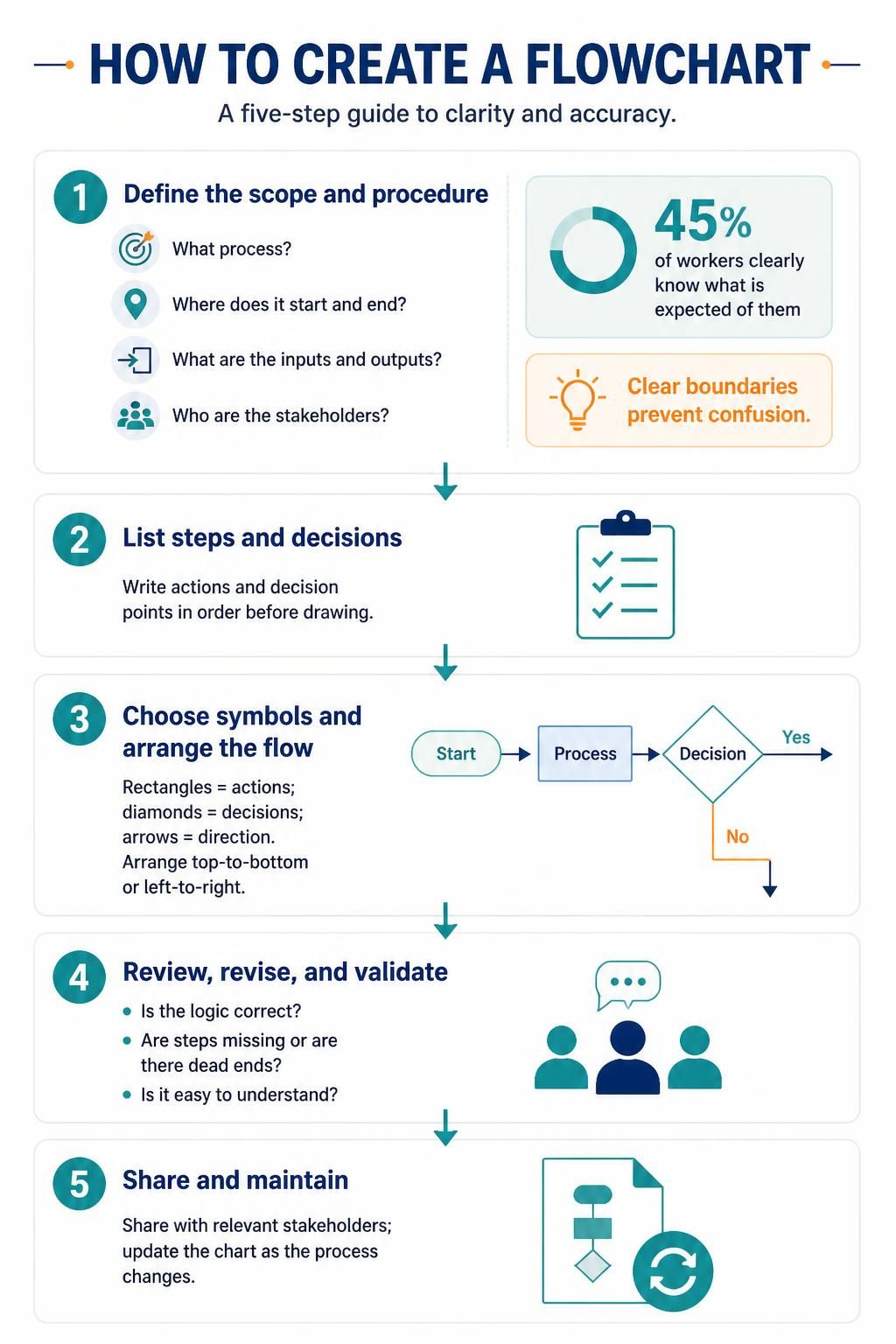
Creating a clear, effective flowchart is an essential skill for business analysts, software architects, and process engineers. However, as the infographic suggests, a flowchart involves significantly more than just drawing shapes; it requires a structured methodology to ensure logical accuracy. In this tutorial, we will explore how to translate the five-step methodology into a professional visual model using Visual Paradigm, specifically leveraging the power of VPasCode to automate the creation of complex diagrams.
Step 1: Define the Scope and Procedure
Before a single line is drawn, the foundation must be laid. The first step emphasizes identifying the process boundaries, inputs, outputs, and stakeholders. This phase is critical because clarity upfront prevents confusion later—statistics show that only 45% of workers clearly know what is expected of them, making defined boundaries crucial.
When preparing your model in Visual Paradigm, you are essentially defining the Context Diagram or the Level 0 Data Flow Diagram (DFD). You must decide:
- What process are you mapping? (The system boundary)
- Where does it start and end? (Terminators)
- Who are the stakeholders? (External entities)
Step 2: List the Steps and Decisions
Once the scope is defined, the next logical step is to break the process down into individual actions and decision points. The guide suggests writing them out in a linear list first. This “linearization” helps organize the logical flow before visualizing it.
In a coding-based modeling environment like VPasCode, this linear list becomes your code script. Instead of manually dragging and dropping shapes on a canvas, you describe the logic in a text-based language. For example, you might list a sequence of “Check Inventory” followed by a decision “Is Stock Available?” This prepares the logic for the algorithmic generation of the diagram.
Step 3: Choose the Right Symbols and Arrange the Flow
This step is the core of standard flowcharting. You must assign the appropriate symbol to each step in your list. The industry-standard mapping includes:
- Rectangles: Used for process steps or actions.
- Diamonds: Used for decision points (Yes/No branches).
- Arrows: Connectors that show the direction of flow.
The arrangement is typically top-to-bottom or left-to-right. Using VPasCode, you can enforce this layout automatically by specifying the direction in your script.
Here is an example of how you might translate the “List Steps” concept into VPasCode syntax to generate a flowchart:
flowchart TD
    Start([Start])
    CheckStock{Check Inventory}
    UpdateStock([Update Database])
    NotifyUser([Notify Customer])

    Start --> CheckStock
    CheckStock -- "In Stock" --> UpdateStock
CheckStock -- "Out of Stock" --> NotifyUserStep 4: Review, Revise, and Validate
Once the draft is generated, the guide advises sharing it with team members to validate the logic. Key questions to ask during this phase include: “Is the logic correct?”, “Are there any missing steps or dead ends?”, and “Is it easy to understand?”.
Visual Paradigm supports this collaborative workflow through Contextual Comments. You can attach comments directly to specific nodes or connectors in the diagram. This allows stakeholders to provide feedback on specific steps (e.g., “The ‘Approve’ logic here seems too restrictive”) without disrupting the underlying model data.
Step 5: Share and Maintain
The final step involves distributing the final flowchart via a shared workspace link. Processes are dynamic, not static; therefore, maintaining the accuracy of the chart is vital. By using a centralized platform like Visual Paradigm, you ensure that the “Source of Truth” is always updated.
Remember that processes change. If a new decision point is introduced in the real world, your VPasCode script should be updated to reflect this, and the diagram will regenerate automatically, ensuring your documentation remains synchronized with reality.