Introduction
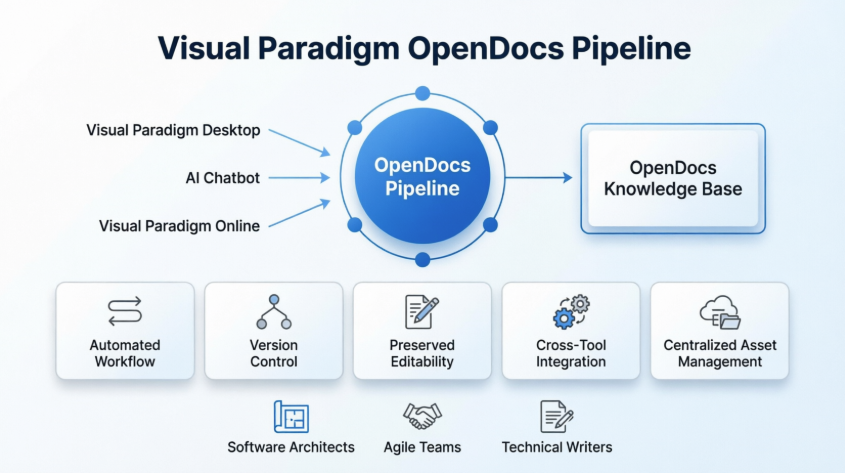
Visual Paradigm’s OpenDocs Pipeline is a centralized “Asset Transit Hub” designed to bridge the gap between technical modeling and documentation. It allows teams to move diagrams seamlessly from creation tools—like Visual Paradigm Desktop, Visual Paradigm Online, or AI Chatbots—directly into their OpenDocs knowledge base without the need for manual image exporting or re-uploading.
Build Your Better Knowledge Base with OpenDocs
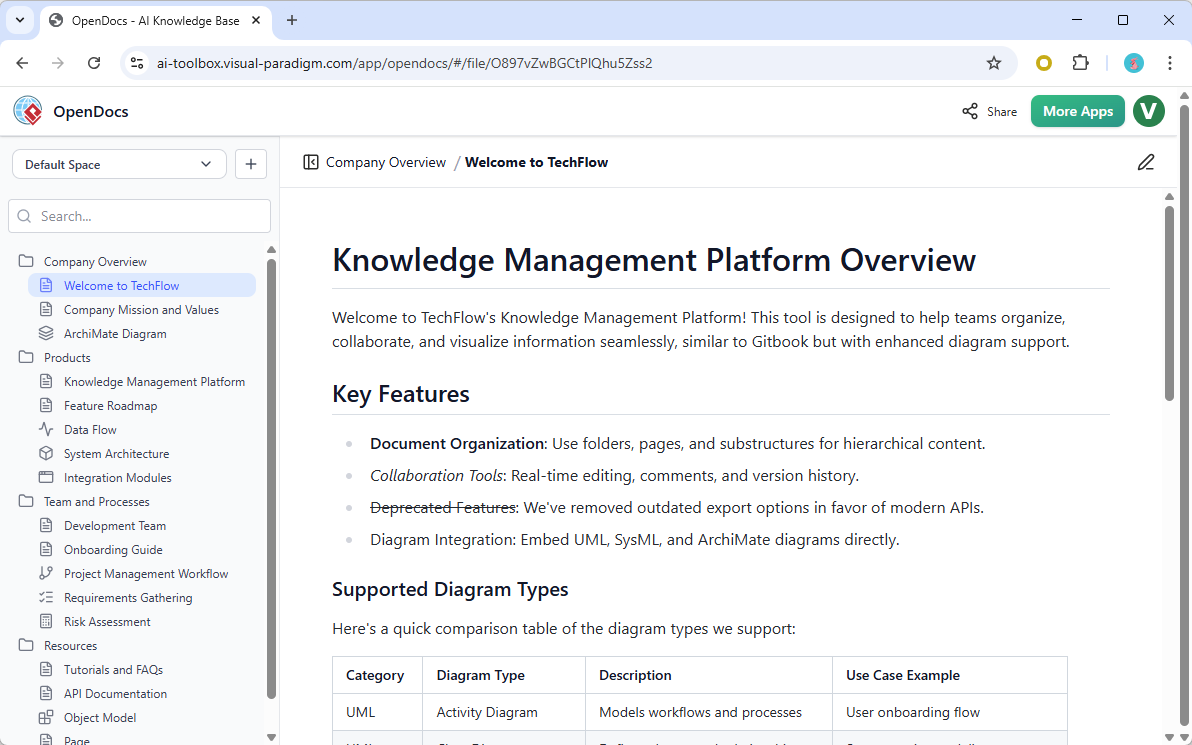
Stop losing important notes. OpenDocs combines easy writing with professional drawing tools so you can organize your projects and share them with one link.
Try It Now
Primary Uses of the Pipeline
The Pipeline is essentially the “connective tissue” that transforms static documentation into a dynamic, living knowledge base.
Automated Workflow
It eliminates the friction of exporting diagrams as image files. You can create a diagram in Visual Paradigm Desktop or the AI Chatbot, select “Send to OpenDocs Pipeline,” and immediately insert it into your document.
Version Control & Synchronization
When a model evolves, the Pipeline tracks revisions. You can update a diagram in the source editor and “swap” to the latest version in OpenDocs with one click, ensuring your documentation always reflects the current design.
Preserved Editability
Unlike a standard screenshot, diagrams sent through the Pipeline maintain a link to the original model. You can open the source diagram directly from OpenDocs to make refinements.
Cross-Tool Integration
It allows artifacts generated in one part of the ecosystem—such as an AI-generated UML diagram—to become the input for another, like a technical manual or system specification.
Centralized Asset Management
Instead of files being scattered across local machines, the Pipeline acts as a secure cloud repository for all “artifacts” (diagrams, flowcharts, architecture models).
Who is it for?
-
Software Architects & Engineers: To keep system architecture diagrams in sync with technical documentation.
-
Agile Teams: To rapidly prototype ideas using AI and immediately incorporate them into living project wikis.
-
Technical Writers: To collaborate with modelers who work in specialized desktop tools while the writers manage the text in the web-based OpenDocs platform.
Why Visual Paradigm
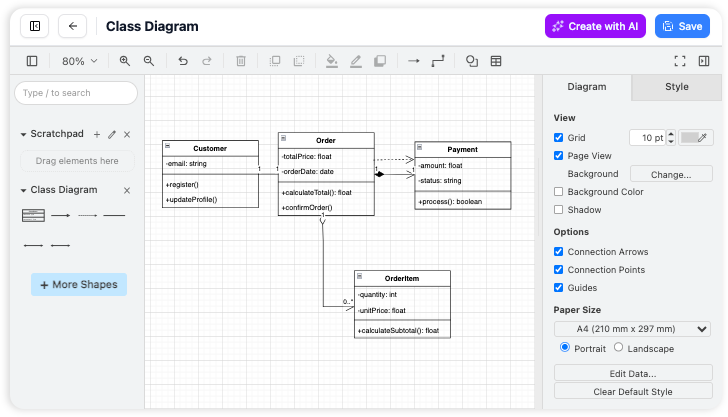
Diagram Editor
We’ve built a better way. We put a powerful drawing tool right inside your editor so you can create visuals and write your text in the exact same place. It’s one single home for all your work, keeping your focus sharp and your project organized without ever needing to switch tabs.
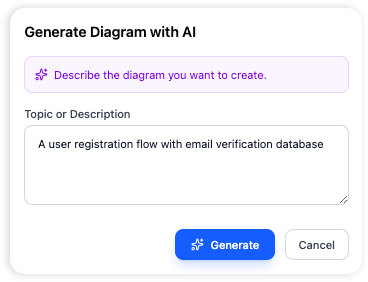
AI-Powered Diagram Generation
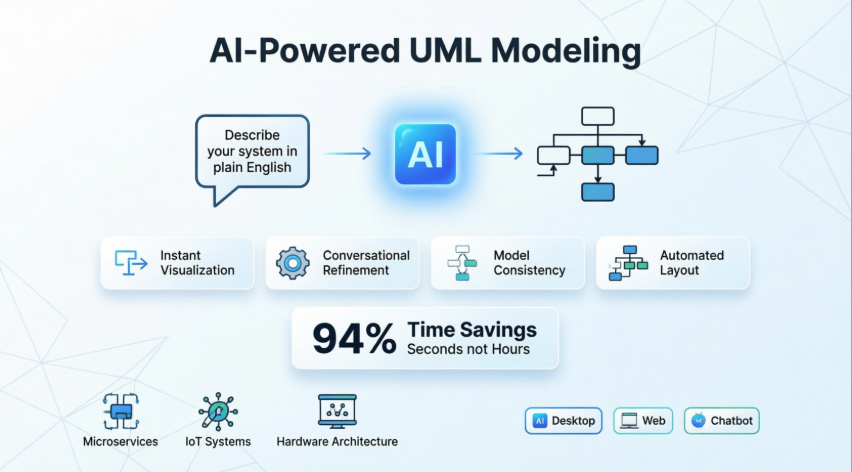
Forget spending an hour dragging boxes and alignment lines. With our AI-Powered Diagram Generator, you just type a simple sentence—like “Create a flowchart for our refund process”—and the tool builds the entire diagram for you instantly.
Understanding the Pipeline: A Complete Overview
The Pipeline is a secure, centralized repository for “artifacts”—the valuable assets you create across the Visual Paradigm ecosystem. Whether you’re working on enterprise architecture, agile development, or system design, the Pipeline serves as the essential hub to store, manage, and transfer these artifacts between different Visual Paradigm tools.
Think of it as the connective tissue between Visual Paradigm Desktop (where you create and refine diagrams) and OpenDocs (where you build comprehensive documentation). The Pipeline allows outputs from one tool—like an AI-generated UML diagram—to become inputs for another, such as a technical manual or system specification document.
When Should You Use the Pipeline?
The Pipeline is designed for scenarios where you need to:
-
Transfer diagrams from Desktop to documentation: After creating or refining diagrams in Visual Paradigm Desktop Professional Edition, use the Pipeline to move them into your OpenDocs knowledge base
-
Maintain version control: When your models evolve and you need to keep documentation synchronized with the latest diagram revisions
-
Collaborate across teams: When multiple stakeholders need access to both the visual models and their contextual documentation
-
Leverage AI-generated diagrams: After using Visual Paradigm Desktop’s AI diagram generation feature to quickly visualize concepts, send them directly to OpenDocs for elaboration
-
Create living documentation: When your documentation needs to evolve alongside your models throughout the project lifecycle
Why the Pipeline is Essential for Modern Knowledge Management
1. Eliminates Manual Export/Import Workflows
Traditional documentation processes require exporting diagrams as images, uploading them to document platforms, and manually replacing them when changes occur. The Pipeline automates this entirely, removing friction and reducing the risk of outdated diagrams in your documentation.
2. Preserves Editability
Unlike static image exports, diagrams sent through the Pipeline maintain their connection to the source model. This means you can re-edit diagrams directly from OpenDocs without losing fidelity or starting from scratch.
3. Enables Version Control
The Pipeline tracks revisions automatically. Every time you send an updated diagram, it creates a new revision in the repository, allowing you to maintain a complete history and swap between versions as needed.
4. Bridges the Concept-to-Docs Gap
By integrating AI-assisted modeling with professional knowledge management, the Pipeline enables teams to move from initial ideas to comprehensive, shared knowledge bases in minutes rather than hours.
5. Centralizes Asset Management
Instead of scattered files across multiple platforms, the Pipeline provides a single source of truth for all your modeling artifacts, making it easier to manage, locate, and reuse diagrams across projects.
How to Use the Pipeline: Step-by-Step Guides
Exporting Diagrams from Visual Paradigm Desktop to OpenDocs
Step 1: Prepare Your Diagram
Open the diagram you wish to send in Visual Paradigm Desktop. This could be a diagram you created manually or one generated using the AI diagram generation tool.
Step 2: Send to Pipeline
Right-click on the diagram and select Export > Send to OpenDocs Pipeline.
Step 3: Save Your Project
When prompted, save your project by clicking OK. This ensures your diagram is properly versioned in the Pipeline.
Step 4: Add Context (Optional)
Enter a comment to help identify the version or purpose of the artifact. This comment will be visible in the Pipeline pane within OpenDocs, making it easier for team members to understand the diagram’s context.
Step 5: Confirm Export
Confirm the export to send your diagram to the cloud-based Pipeline repository.
Exporting from Visual Paradigm Online to OpenDocs
Moving your work from the cloud editor to your document is simple and intuitive:
-
Open your diagram or graphic in Visual Paradigm Online.
-
In the top menu, select Export > Send to OpenDocs Pipeline.
-
(Optional) Add a comment to describe the artifact. This makes it easier to find later in the Pipeline pane.
-
Confirm the export. Your visual is now securely stored in the Pipeline.
Using AI Chatbot to Generate and Send Diagrams
Step 1: Generate Your Diagram
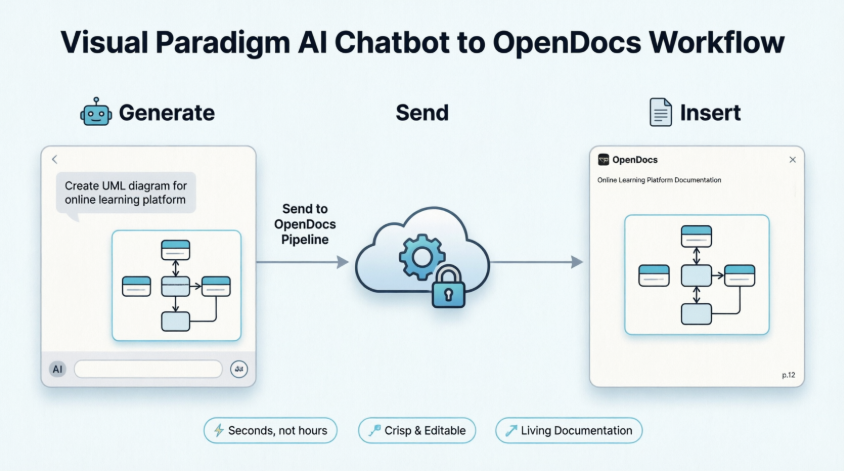
Create or refine your diagram (UML, flowchart, architecture, BPMN, etc.) in the AI Chatbot. Once the AI has produced the visual you need, click Export and select Send to OpenDocs Pipeline.
Step 2: Insert into OpenDocs
Go to your desired document page in OpenDocs and enter the editor. Click Insert on the toolbar and select Pipeline. Your AI-generated diagram will be waiting for you in the asset list.
Step 3: Finalize Your Document
Select the diagram to insert it instantly at your cursor position. The result is a crisp, professional visual perfectly integrated into your knowledge base.
Inserting Pipeline Artifacts into OpenDocs
Once your diagram is in the Pipeline, integrating it into your documentation is straightforward:
Step 1: Enter Edit Mode
Open any document page in OpenDocs and click Edit.
Step 2: Position Your Cursor
Click on the page where you want to insert the diagram.
Step 3: Access the Insert Menu
On the toolbar, click Insert.
Step 4: Select from Pipeline
In the Insert window, select Pipeline from the left-hand sidebar. Your sent diagrams will appear here, ready for insertion.
Step 5: Insert the Diagram
Click on the diagram to insert the image directly at your cursor position.
Keeping Documentation in Sync: Updating Artifacts
One of the Pipeline’s most powerful features is its ability to keep your documentation synchronized with evolving models.
Step 1: Open the Source Diagram
In OpenDocs, click the Edit icon at the top right of the diagram image to open the Edit Diagram window.
Copy the diagram link provided. In Visual Paradigm Desktop, go to Project > Open, paste the link, and the software will open the source model for you.
Step 2: Edit and Re-send
Modify your diagram in Visual Paradigm Desktop. Once finished, right-click the diagram and select Export > Send to OpenDocs Pipeline again. This creates a new revision of the artifact automatically.
Step 3: Swap to the Latest Revision
Back in the OpenDocs editor, click Pipeline at the top right.
You will see the artifacts currently used on that page. Select the diagram to see a list of revisions. Simply click on the latest revision to instantly swap the old diagram for the updated version.
Why the Pipeline Makes OpenDocs More Practical for Knowledge Management
1. Creates a True Single Source of Truth
The Pipeline eliminates the problem of scattered diagram versions across different platforms. By centralizing all artifacts in one repository that both Desktop and OpenDocs can access, teams always work with the most current version. This is critical for knowledge management, where outdated information can lead to costly mistakes.
2. Enables Collaborative Knowledge Building
Different team members excel at different tasks—some are skilled modelers, others are technical writers. The Pipeline allows each person to work in their preferred environment while contributing to a unified knowledge base. Modelers can focus on Visual Paradigm Desktop, while documentation specialists can work in OpenDocs, with the Pipeline seamlessly connecting their work.
3. Supports Agile Documentation Practices
In agile environments, requirements and designs evolve rapidly. The Pipeline’s revision tracking and easy update mechanism mean documentation can keep pace with development. Teams no longer face the choice between “documentation that’s current” and “documentation that exists”—they can have both.
4. Reduces Cognitive Load
By automating the transfer of diagrams between tools, the Pipeline frees team members from mundane file management tasks. This allows them to focus on what matters: creating accurate models and writing clear documentation. The optional commenting feature also provides context without requiring separate communication channels.
5. Facilitates Knowledge Transfer
When onboarding new team members or transitioning projects, the Pipeline provides a complete, versioned history of how models evolved alongside their documentation. This historical context is invaluable for understanding design decisions and system evolution.
6. Integrates AI-Assisted Workflows
The Pipeline fully supports Visual Paradigm’s AI diagram generation capabilities. Teams can rapidly prototype ideas using AI, refine them manually, and immediately incorporate them into living documentation—all without leaving the Visual Paradigm ecosystem. This accelerates the entire knowledge creation process.
7. Ensures Professional Quality
Available in Visual Paradigm Professional Edition and above, the Pipeline integration ensures that only professional-grade tools are used for enterprise knowledge management. This maintains quality standards while providing the flexibility modern teams need.
Explore the world of OpenDocs
OpenDocs is the main place where Visual Paradigm brings AI visual modeling to life. To see how all our tools work together, check out the full guide here:
ORGANIZE
Keep Your Files in Order
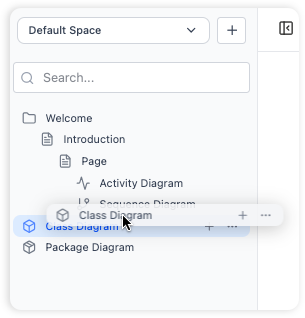
OpenDocs acts as your primary information organizer, letting you build a tree-like folder system that makes sense to you. It’s perfect for heavy-duty document management without the headache.
-
Folder Trees
Create folders inside folders to keep projects separate. -
Drag and Drop
Move your files around just like you do on your computer desktop.
WRITE
Simple Writing and Live Previews
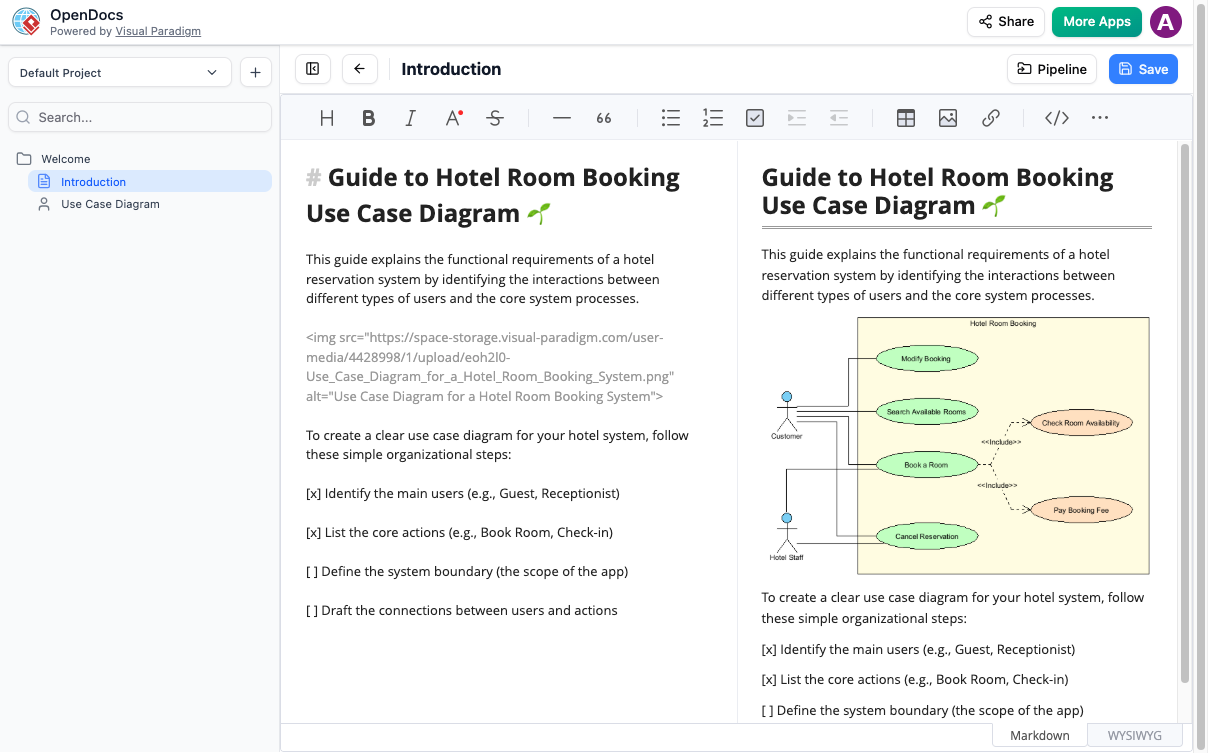
Our built-in Markdown editor lets you format text fast without ever touching your mouse. It is the ultimate note-taking app for people who want to focus on their words.
-
Live View
See exactly what your finished page looks like while you type it. -
Code & Tables
Easily add technical details, lists, and code blocks for project documentation.
VISUALIZE
Professional Charts Made Simple
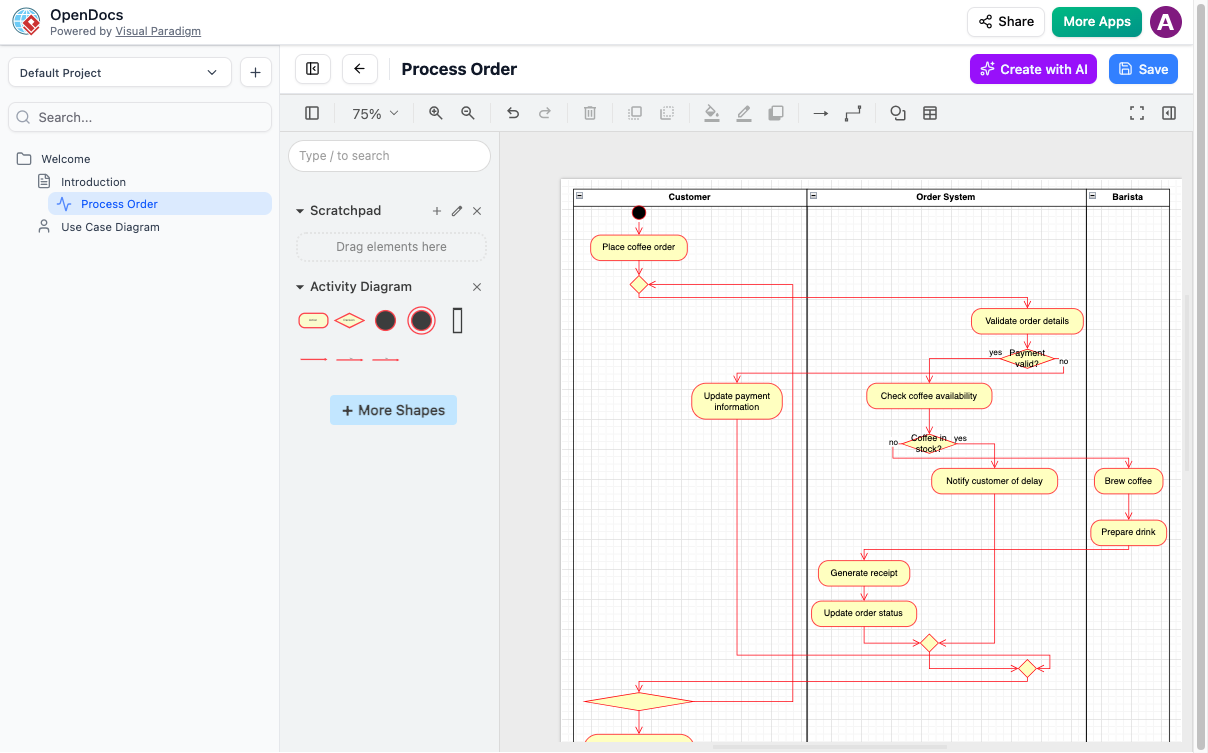
Go beyond just text with a built-in diagram tool. Create visual documentation that helps people understand complex ideas at a glance.
-
Shape Library
Choose from hundreds of shapes to build flowcharts or mind maps. -
Built-in Editor
You don’t need separate software; create your drawings right inside your page.
Key Features
Write and Draw
Mix text and charts in one spot.
Find Things Fast
Keep files in easy-to-use folders.
Share with Ease
Send your work via a secure link.
What kind of drawings can I make?
Almost anything! You can make flowcharts, mind maps, and technical system maps using our visual tools.
Do I need to download software?
Why You’ll Love the AI Workflow
-
Unmatched Efficiency: Go from an abstract idea to a perfectly placed diagram in seconds.
-
Crisp Visuals: Maintain high-resolution clarity without the blurriness of manual screenshots.
-
Web-Based Simplicity: No installation required—everything works directly in your browser.
-
Living Documentation: Use the Pipeline to manage and update your AI-generated artifacts effortlessly.
Advanced Features: AI-Powered Diagram Generation
OpenDocs now supports various AI-powered diagram generators, including:
-
UML Deployment Diagrams: Model the physical deployment of software artifacts across hardware nodes, servers, devices, and cloud infrastructure
-
Flowcharts: Automatically generate process flows from text descriptions
-
Entity Relationship Diagrams (ERD): Create database schema diagrams from natural language
-
Data Flow Diagrams (DFD): Visualize system data flows with AI assistance
-
Component Diagrams: Map software architecture and module relationships
-
And many more diagram types
Conclusion
The Pipeline feature transforms OpenDocs from a simple documentation platform into a comprehensive knowledge management system that grows with your models. By eliminating the barriers between diagram creation and documentation, it enables teams to build living knowledge bases that remain accurate, accessible, and valuable throughout the project lifecycle.
Whether you’re documenting enterprise architecture, agile development processes, or complex system designs, the Pipeline ensures your visual models and textual documentation evolve together—creating a true single source of truth for your entire organization.
Ready to build your knowledge base?
Note: Pipeline integration requires Visual Paradigm Professional Edition or above for Desktop users, or Visual Paradigm Online Combo Edition for cloud-based workflows.
References
- Visual Paradigm Online to OpenDocs Export: This guide explains how to export diagrams and graphics from Visual Paradigm Online directly to OpenDocs using the Pipeline feature, enabling seamless cloud-based workflow between diagramming and documentation.
- Mastering the Pipeline in Visual Paradigm OpenDocs: A Complete Guide to Streamlined Knowledge Management: This comprehensive guide explores the Pipeline feature, explaining how it serves as a centralized repository for artifacts, bridges diagram creation and documentation, enables version control, and transforms knowledge management workflows.
- Sync AI Diagram to OpenDocs Pipeline Guide: A step-by-step guide on synchronizing AI-generated diagrams with OpenDocs in real time, ensuring consistency and up-to-date documentation across projects and teams.
- AI Diagram to OpenDocs Pipeline: This release introduces the integration between Visual Paradigm AI Chatbot and OpenDocs, allowing users to generate professional diagrams through conversation and instantly send them to documentation using the “Send to OpenDocs Pipeline” feature.
- AI Deployment Diagram Generator – OpenDocs: This update introduces AI-powered deployment diagram generation in OpenDocs, enabling users to create UML deployment diagrams from natural language descriptions for modeling system architecture and infrastructure.