


New Introduction: Bridging the Gap Between Ideas and Architecture
In today’s fast-paced software development landscape, the ability to quickly translate abstract requirements into clear, visual models is a superpower. Whether you’re a business analyst gathering stakeholder needs, a product manager defining user stories, or a developer validating system design, diagrams serve as the universal language that aligns teams and prevents costly misunderstandings.
Traditionally, creating professional UML diagrams required specialized training, expensive tools, and hours of manual effort. But what if you could describe your system in plain English—and have an AI instantly generate a standards-compliant diagram? That’s no longer science fiction. With Visual Paradigm’s AI-powered chatbot, turning text requirements into polished diagrams is now accessible to everyone, regardless of technical background.
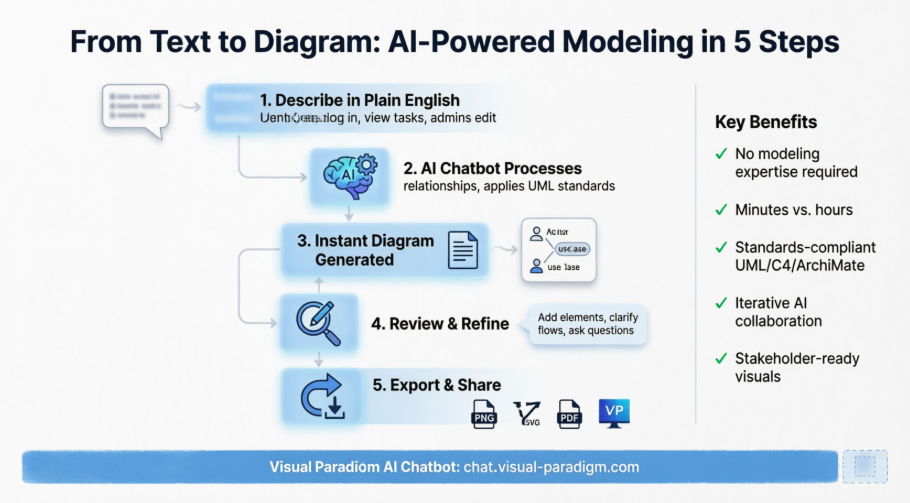
This comprehensive guide walks absolute beginners through every step of using AI to generate UML diagrams, compares specialized AI modeling tools against general-purpose LLMs, and provides practical guidelines to get the most accurate, useful results. By the end, you’ll be confidently transforming vague requirements into actionable visual models.
Why This Matters for Analysts and Consultants
Documenting systems used to take hours of meetings, notes, and sketching. Today, requirements come as text—sometimes messy, sometimes vague. Most teams don’t have time to translate those into visual models.
An AI diagram generator solves that by understanding the structure of your requirements and translating them into clear, accurate diagrams—whether it’s a use case, sequence, or activity flow.
This isn’t just about saving time. It’s about making documentation accessible, actionable, and understandable for everyone—from developers to stakeholders.
When to Use the AI Chatbot for Diagramming
You should use this tool when:
-
A team has written requirements but lacks visual modeling expertise.
-
A project starts with a document or email exchange containing user stories, features, or workflows.
-
You need to explain a system to a non-technical audience.
-
You’re in the early stages of system design and want to validate assumptions quickly.
For example, a new product manager might write:
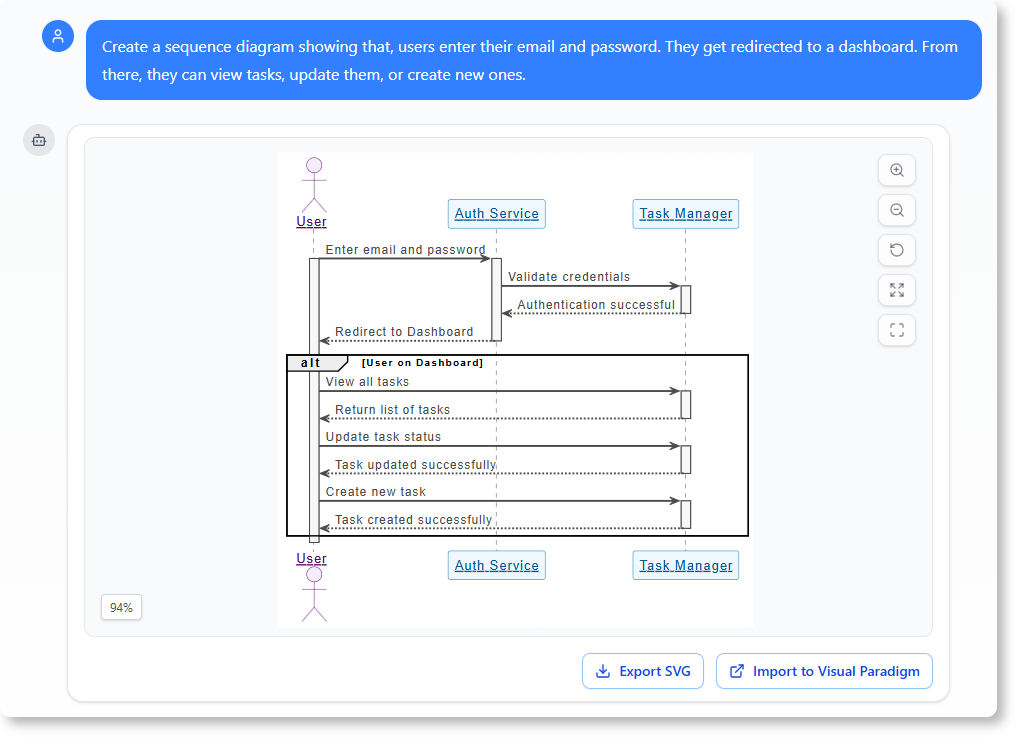
“Users enter their email and password. They get redirected to a dashboard. From there, they can view tasks, update them, or create new ones.”
That’s enough to generate a UML use case diagram or a sequence diagram—without any modeling experience.
Visual Paradigm Chatbot vs. General LLM: What’s the Difference?
While general-purpose large language models (like ChatGPT, Claude, or Gemini) can describe diagrams or even generate Mermaid/PlantUML code, Visual Paradigm’s AI chatbot is purpose-built for professional modeling. Here’s how they compare:
| Feature | General LLM | Visual Paradigm AI Chatbot |
|---|---|---|
| Diagram Output | Text description or code snippet (requires rendering) | Native, editable UML/C4/ArchiMate diagram |
| Standards Compliance | Variable; may produce non-standard syntax | Enforces UML 2.5+, C4, ArchiMate specifications |
| Iterative Refinement | Context window limits; may lose earlier instructions | Persistent session with diagram-aware context |
| Export & Integration | Manual copy/paste; limited format options | Direct export to VP Desktop, PNG, SVG, PDF, or shareable link |
| Domain Intelligence | Broad knowledge; may hallucinate modeling concepts | Trained on modeling best practices, patterns, and anti-patterns |
| Validation | No structural validation | AI checks for completeness, consistency, and UML rules |
| Learning Curve | Requires prompt engineering for diagram code | Natural language; no modeling syntax needed |
Bottom line: Use a general LLM for brainstorming or quick sketches. Use Visual Paradigm’s AI chatbot when you need production-ready, standards-compliant diagrams that integrate into professional workflows.
Step-by-Step Tutorial for Absolute Beginners
No prior modeling experience? No problem. Follow these simple steps to generate your first AI-powered diagram.
Step 1: Access the Visual Paradigm AI Chatbot
Open your web browser and navigate to https://chat.visual-paradigm.com/. No installation or account setup is required to start experimenting.
Step 2: Describe Your System in Plain Language
Think about the system you want to model. Write a concise description using everyday language. Focus on:
-
Actors: Who interacts with the system? (e.g., User, Admin, External API)
-
Actions: What can they do? (e.g., log in, create task, view report)
-
Data: What information is involved? (e.g., email, password, task status)
-
Flow: What happens first, next, and last?
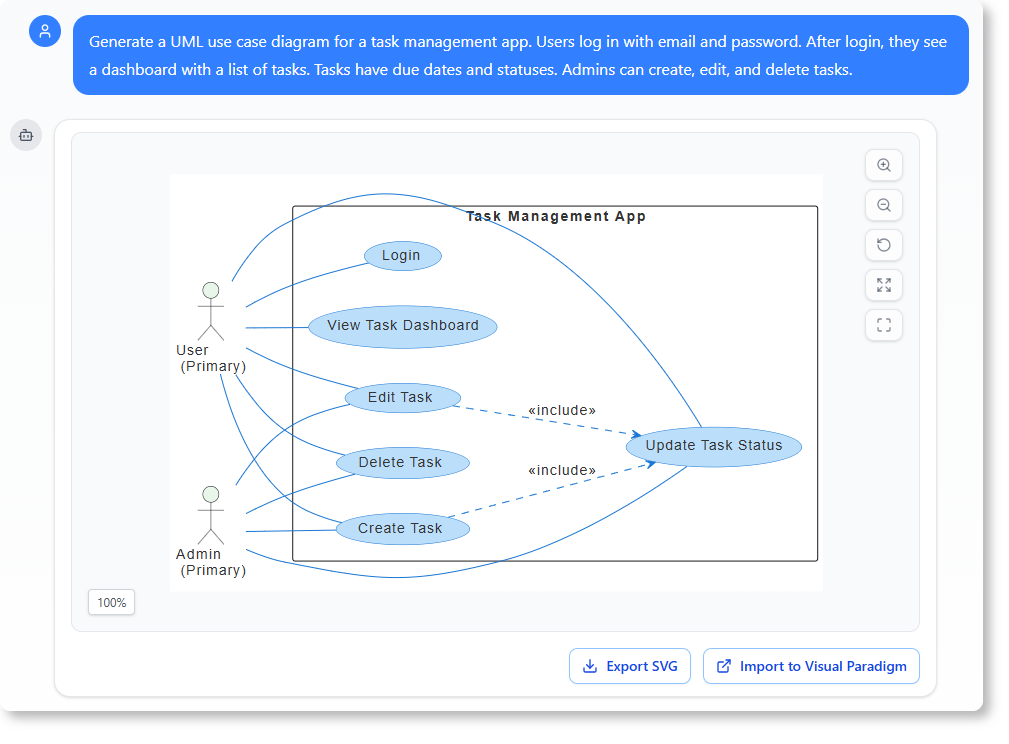
Example prompt for a task management app:
“Generate a UML use case diagram for a task management app. Users log in with email and password. After login, they see a dashboard with a list of tasks. Tasks have due dates and statuses. Admins can create, edit, and delete tasks.”
Step 3: Watch the AI Generate Your Diagram
The chatbot processes your request in seconds. It:
-
Identifies key actors and use cases
-
Maps relationships (include, extend, generalization)
-
Applies UML styling conventions
-
Renders a clean, interactive diagram
You’ll see the diagram appear directly in the chat interface, ready to review.
Step 4: Review and Refine Iteratively
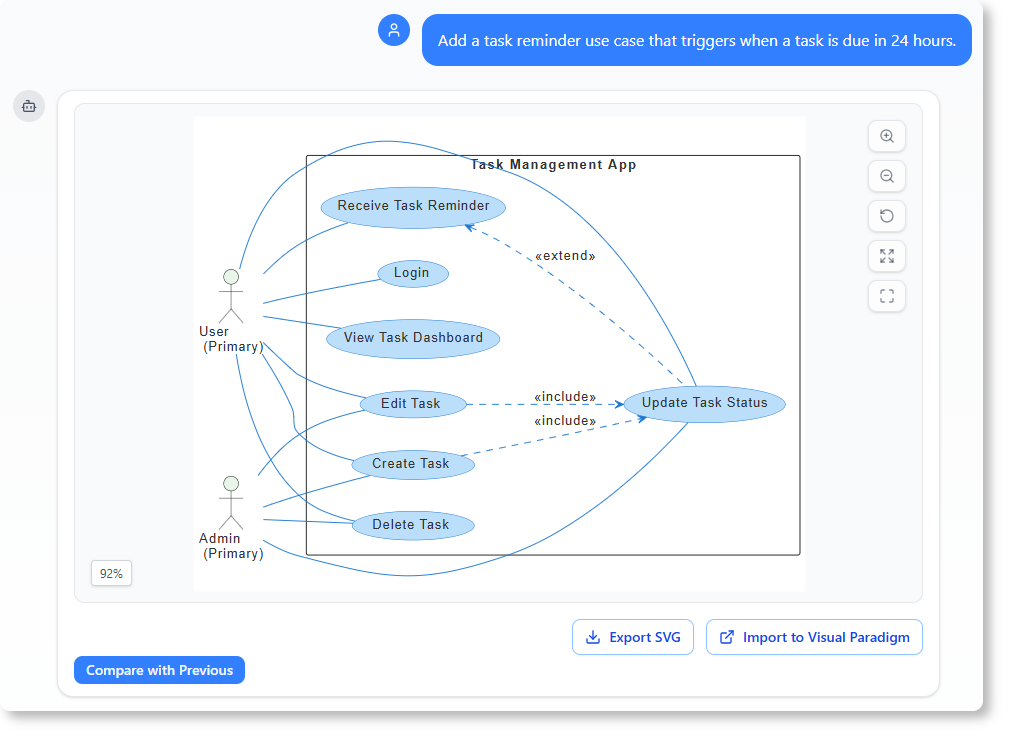
Don’t settle for the first output. Treat the AI as a collaborative partner:
-
Add missing elements: “Add a task reminder use case that triggers when a task is due in 24 hours.”
-
Clarify relationships: “Show that ‘Edit Task’ extends ‘View Task’.”
-
Request explanations: “Explain how the login flow works in this diagram.”
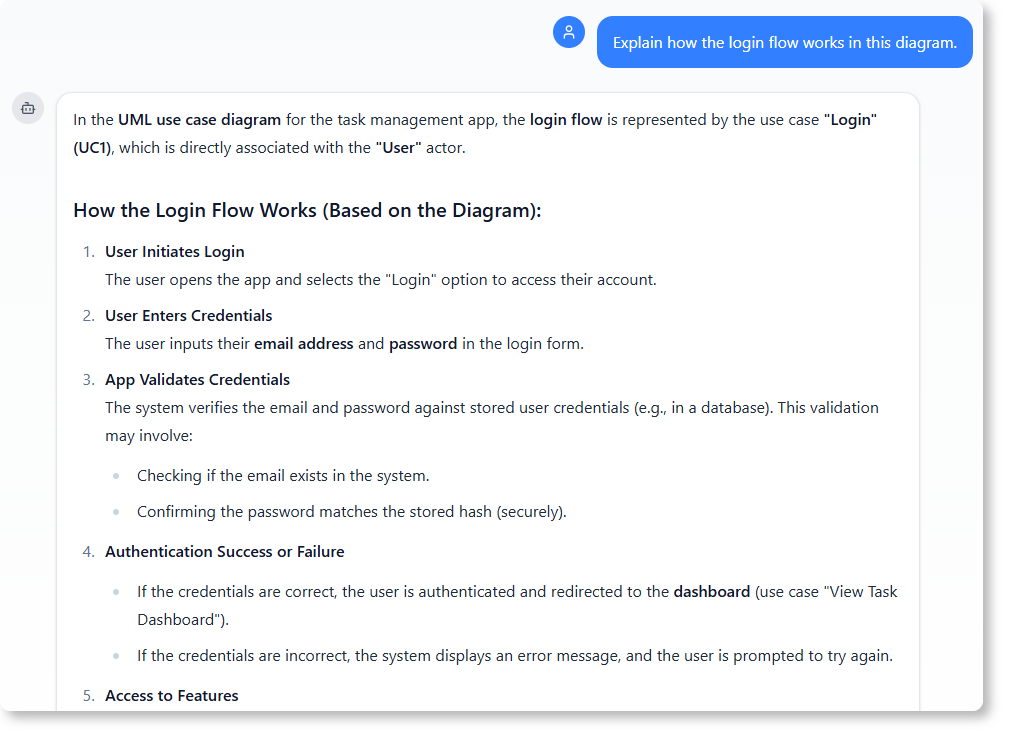
The AI responds with updated diagrams or plain-language explanations, deepening your understanding.
Step 5: Export or Continue Editing
Once satisfied, you have multiple options:
-
Download: Export as PNG, SVG, or PDF for presentations
-
Share: Generate a public link for stakeholder review
-
Import: Open directly in Visual Paradigm Desktop for advanced editing
-
Continue: Ask follow-up questions to expand the model
Click here to read the complete Chat History.
Guidelines for Best Results: Prompt Engineering for Diagrams
To get the most accurate, useful diagrams from the AI chatbot, follow these practical guidelines:
✅ Do:
-
Be specific about diagram type: “Generate a sequence diagram for user login” yields better results than “Show me how login works.”
-
List actors explicitly: “Actors: Customer, Payment Gateway, Admin” helps the AI structure relationships correctly.
-
Define boundaries: Clarify what’s in-scope (“Only show the web app, not mobile”) to avoid overly complex outputs.
-
Use iterative refinement: Start broad, then add details in follow-up prompts.
-
Request explanations: Ask “Why did you connect these two use cases?” to learn modeling principles.
❌ Avoid:
-
Vague descriptions: “Make a diagram for an app” lacks the context the AI needs.
-
Overloading prompts: Don’t ask for 5 diagram types in one message; focus on one at a time.
-
Assuming AI knows your domain: Briefly explain niche terms (“SSO means single sign-on via OAuth”).
-
Skipping validation: Always review the generated diagram for logical consistency before sharing.
Pro Tip: The “Three-Sentence Rule”
For best results, structure your initial prompt in three parts:
-
Goal: “Generate a [diagram type] for [system name].”
-
Key elements: “Actors: X, Y. Main functions: A, B, C.”
-
Constraints: “Exclude mobile app. Focus on web interface only.”
Example:
“Generate a UML class diagram for an e-commerce order system. Key classes: Customer, Order, Product, Payment. Relationships: Customer places Order; Order contains Products; Payment processes Order. Exclude shipping and inventory modules for now.”
What Makes This AI-Powered Modeling Software Unique?
Unlike traditional tools that require templates or formal syntax, this AI chatbot for diagramming listens to natural language and responds with accurate, professional diagrams.
It supports a wide range of modeling standards, including:
-
UML (class, sequence, use case, activity)
-
C4 (system context, deployment)
-
ArchiMate (enterprise architecture)
-
Business frameworks (SWOT, Eisenhower Matrix, Ansoff Matrix)
Whether you’re a consultant explaining a system to a client or a developer verifying a design, the tool helps turn requirements into diagrams in minutes.
This is especially powerful for teams that:
-
Don’t have dedicated modelers
-
Work in fast-moving, text-heavy environments
-
Need to share ideas with non-technical stakeholders
How It Helps with System Documentation
Using the AI chatbot means you can generate AI-powered system documentation directly from text. You don’t need to write a full requirement document first. You can start with a conversation.
For instance:
“Generate a deployment diagram for a web app with a frontend, backend, and database.”
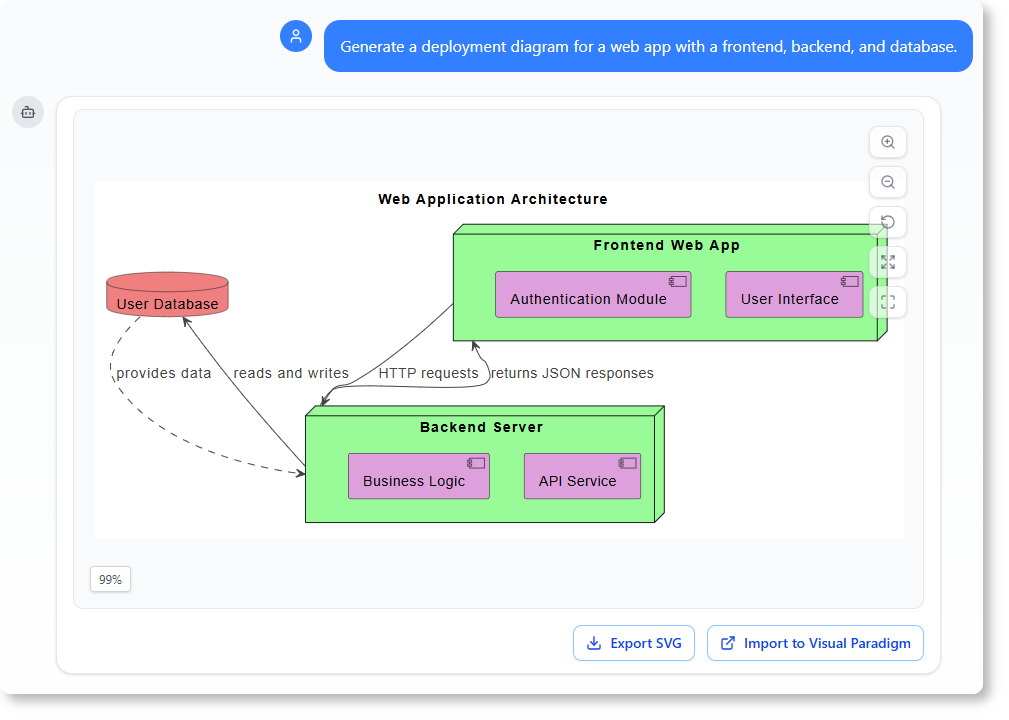
The AI creates a deployment diagram showing the components and their connections. You can then use that as the foundation for your technical design.
You can also ask follow-up questions like:
-
“How would I add a load balancer to this setup?”
-
“What are the responsibilities of the backend service?”
-
“Can you explain the data flow between the frontend and database?”
Each question opens a new layer of understanding—making documentation not just a record, but an active conversation.
Compare: Traditional Modeling vs. AI-Driven Modeling
| Feature | Traditional Approach | AI-Powered Modeling |
|---|---|---|
| Time to generate diagram | Hours (manual drafting) | Minutes (from natural language) |
| Requires modeling knowledge | Yes | No – just describe the system |
| Accuracy | Depends on user input | AI validates structure and relationships |
| Collaboration | Limited to meetings | Real-time clarification with chat |
| Accessibility | Tech-heavy | Anyone with a basic understanding of business processes |
Where to Use It in Your Workflow
-
During requirement gathering: Turn meeting notes or emails into diagrams.
-
In client presentations: Show a system design based on their written input.
-
For internal reviews: Share a generated diagram to validate assumptions.
-
When onboarding new team members: Give them a visual map of how the system works.
The tool doesn’t replace human judgment—it acts as a smart assistant that turns complex ideas into visual clarity.
Getting Started Is Simple
-
Go to chat.visual-paradigm.com.
-
Type your system description in plain English.
-
Ask the AI to generate a diagram (e.g., “Draw a sequence diagram for user login”).
-
Review, refine, or ask follow-up questions.
-
Share the result or import it into your desktop tool for further editing.
You don’t need to know UML or modeling terms. You just need to describe what you want to see.
Frequently Asked Questions
Q: Can I generate diagrams from text without knowing modeling standards?
Yes. The AI understands natural language and maps it to appropriate diagram types—like use cases, flows, or business models—based on context.
Q: Can I ask follow-up questions about the generated diagram?
Absolutely. The AI supports contextual questions like “What happens if a task is overdue?” or “How does the admin access the dashboard?”
Q: Is this tool suitable for enterprise architecture?
Yes. It supports ArchiMate, C4, and other enterprise frameworks—ideal for consultants working on large-scale systems.
Q: Can I use this for non-technical stakeholders?
Yes. The chatbot helps turn vague ideas into visual models they can understand and discuss.
Q: Can I refine a diagram after it’s generated?
Yes. You can request changes like adding or removing shapes, renaming elements, or adjusting relationships.
New Conclusion: Empowering Everyone to Model with Confidence
The democratization of system modeling is here. With Visual Paradigm’s AI chatbot, the barrier between idea and architecture has never been lower. You no longer need to be a UML expert, spend hours learning complex tools, or rely on a single “diagram person” on your team. Anyone who can describe a process in plain language can now generate professional, standards-compliant visual models.
This isn’t about replacing human expertise—it’s about amplifying it. By automating the tedious translation of text to diagram, the AI frees you to focus on what matters most: validating logic, aligning stakeholders, and designing better systems. Whether you’re sketching a quick use case for a client call or building a comprehensive enterprise architecture, the AI chatbot serves as your always-available modeling partner.
Start small. Describe one feature. Generate one diagram. Refine one relationship. With each iteration, you’ll build confidence, clarity, and a shared visual language that accelerates your entire team. The future of system design isn’t just automated—it’s conversational, collaborative, and accessible to all.
Ready to turn your project requirements into clear, visual models? Start your conversation today at https://chat.visual-paradigm.com/.
Reference
- Visual Paradigm AI Chatbot: Turn Your Ideas into Diagrams Instantly: Official blog post introducing the AI chatbot’s core capabilities for instant diagram generation from natural language prompts.
- Generate UML Class Diagrams with AI: Tutorial article demonstrating how to create standards-compliant UML class diagrams using AI-powered textual analysis.
- Visual Paradigm UML Tool Features: Comprehensive overview of Visual Paradigm’s professional UML modeling capabilities, including AI-enhanced diagram generation and validation.
- Comprehensive Guide to Visual Paradigm’s AI-Powered UML and Modeling Ecosystem (2025-2026): Independent review covering the full scope of AI features, licensing, and integration options across Visual Paradigm’s product suite.
- How to Turn Requirements into Diagrams with an AI Chatbot: Step-by-step guide showing practical workflows for converting textual requirements into UML use case, sequence, and deployment diagrams.
- AI Textual Analysis for UML Modeling: Feature page detailing the guided wizard that extracts classes, attributes, and relationships from problem descriptions to auto-generate class diagrams.
- AI-Assisted UML Class Diagram Generator Tutorial (Video): Video demonstration of generating and refining UML class diagrams using natural language prompts in Visual Paradigm.
- AI Profile Diagram Generator Update: Release notes announcing AI support for UML Profile diagrams, extending modeling capabilities for domain-specific extensions.
- First UML Diagram with Visual Paradigm AI Generator Tutorial: Beginner-friendly walkthrough for creating your first AI-generated diagram, including prompt tips and export options.
- Visual Paradigm AI Applications Overview: Official portal listing all core AI applications, licensing details, and subscription requirements for advanced features.
- AI Use Case Modeling Studio: Dedicated tool page for AI-powered use case diagram generation with interactive examples and export workflows.
- AI Component Diagram Generator Tutorial (Video): Video guide showing how to transform system architecture descriptions into complete UML component diagrams using AI.
- AI Object Diagram Generator Tutorial (Video): Demonstration of generating instance-level object diagrams from textual scenarios.
- AI Package Diagram Generator Tutorial (Video): Tutorial on creating modular package diagrams to organize large-scale system architectures.
- AI Composite Structure Diagram Generator Tutorial (Video): Guide to modeling internal structure of classifiers using AI-assisted composite structure diagrams.
- AI Use Case Diagram Generator Tutorial (Video): Step-by-step video showing prompt techniques for generating actor-use case relationships and dependencies.
- AI Activity Diagram Generator Tutorial (Video): Tutorial demonstrating how to model business processes and workflows as UML activity diagrams using natural language.
- Visual Paradigm AI Chatbot Portal: Direct access point for the browser-based AI chatbot experience—no installation required, with real-time diagram generation and refinement.
Related posts:
 Comprehensive Guide to Using C4 Model and UML with Visual Paradigm (AI-Powered Approach)
 How OpenDocs’ Version Control & WordPress Export Transformed My Documentation Workflow
 From Idea to Diagram in Seconds: Mastering AI-Generated Sequence Diagrams
 Generate UML State Diagrams Instantly with Visual Paradigm AI Chatbot

