


As a Product Manager who has spent over seven years navigating the often chaotic waters of documentation, I know that clarity is currency. Whether you are building a corporate wiki, a technical manual, or a project roadmap, the way information is presented can make or break user adoption. Recently, I had the chance to dive deep into two significant updates from Visual Paradigm: the new Tabbed Group component in their OpenDocs knowledge management hub and the powerful VPasCode platform.
Here is my honest review and comprehensive guide on how these tools can streamline your content organization and diagramming workflows.
Why Organization Matters in Modern Documentation
In the world of documentation, navigation is everything. We’ve all been there: staring at a endless scroll of text, trying to find that one specific API endpoint or process flow. It’s frustrating for readers and tedious for writers.
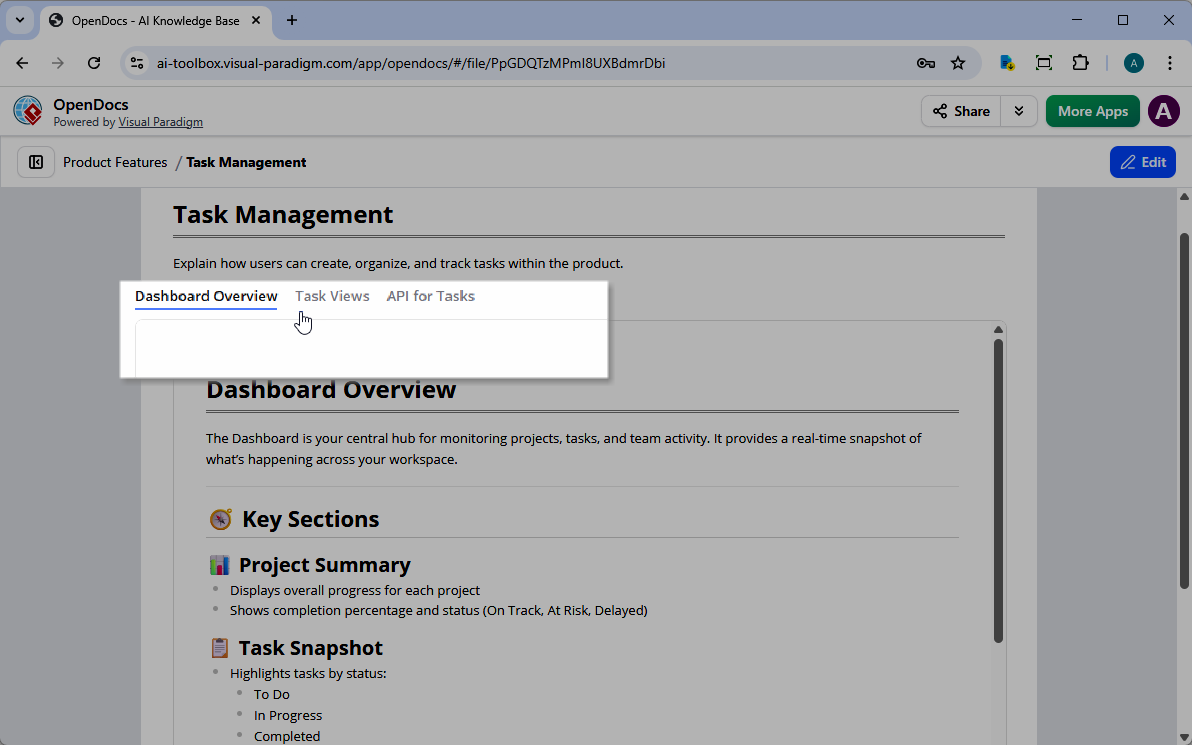
Visual Paradigm has addressed this head-on with the launch of the Tabbed Group component in OpenDocs. This feature allows users to consolidate complex information into a single, organized container, significantly reducing page clutter. For anyone managing a knowledge management platform, this is a game-changer.
Deep Dive: The Tabbed Group Component
The Tabbed Group feature is designed for advanced content categorization. Instead of forcing users to scroll through walls of text, you can now categorize data into horizontal tabs. It is the perfect solution for technical manuals, project wikis, and any comprehensive setup where space is at a premium.
How to Use Tabbed Groups in OpenDocs
Setting up your first tabbed group is intuitive and takes only a few clicks. Here is a step-by-step breakdown of my experience using it:
1. Insert the Component
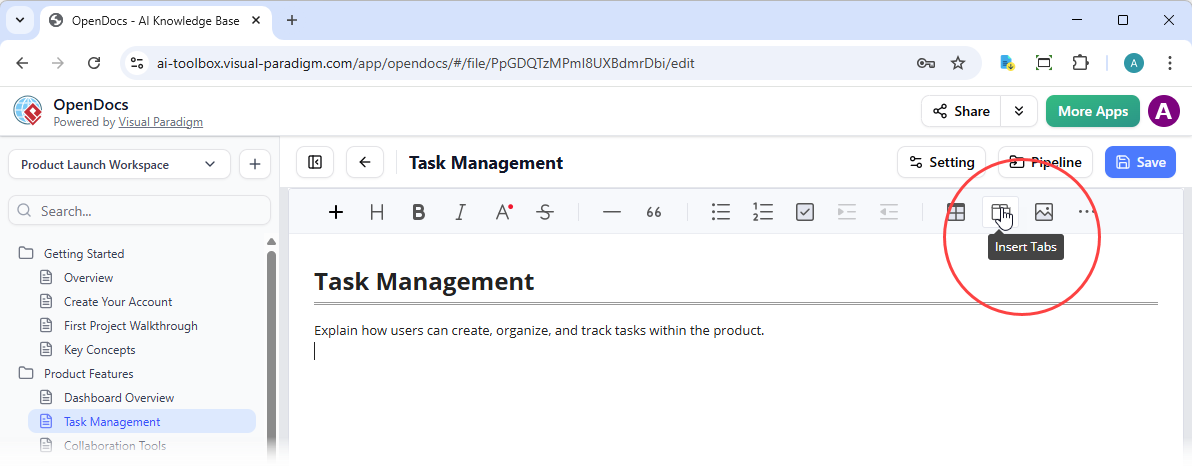
While editing your page in OpenDocs, place your cursor where you want the tabs to appear. Click the “Insert Tab” button on the top toolbar. A tabbed group container will be added to your document immediately.
2. Configure Your Content
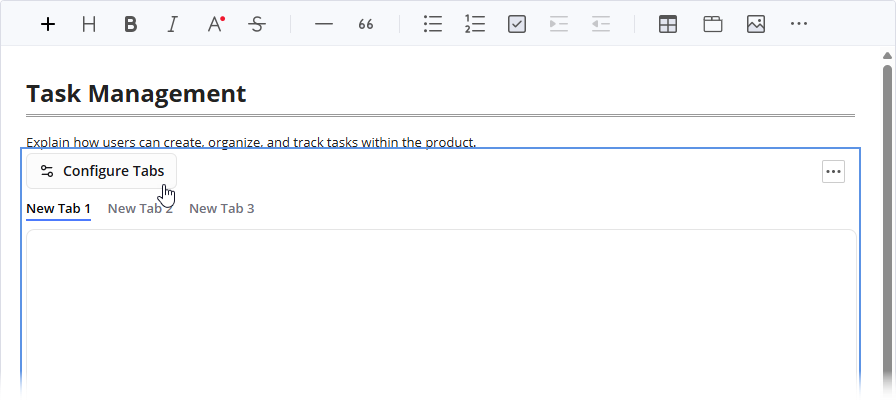
Click on the “Configure Tabs” button to open the settings window. This is where the magic happens.
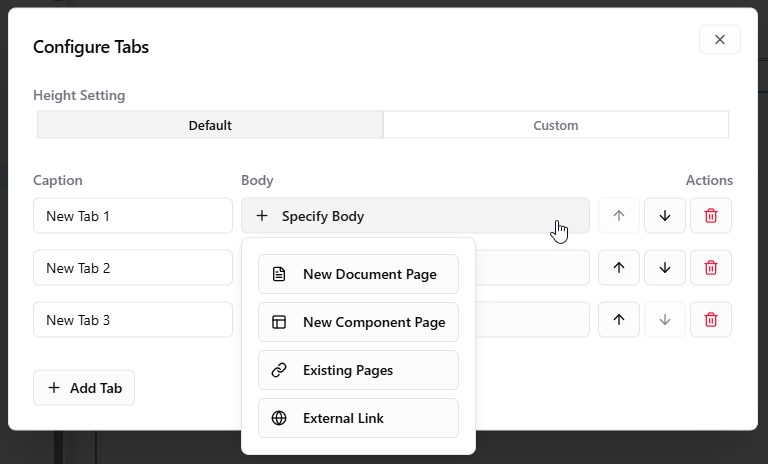
Here, you have total control over the layout:
-
Adjust Dimensions: Select “Custom” to enter a specific height in pixels (px) to ensure your content fits perfectly without awkward whitespace.
-
Add New Tabs: Click the “Add Tab” button at the bottom left to expand your group as needed.
-
Custom Captions: Edit the tab labels directly under the Caption column to match your terminology.
3. Choose Your Tab Body Type
One of the most versatile aspects of this feature is the four different content types available for your tab bodies:
-
New Document Page: Create and embed a fresh page directly within the tab. Great for keeping related sub-topics contained.
-
New Component Page: Embed specific components, such as diagrams or charts, as a dedicated tab page.
-
Existing Pages: Select multiple existing pages to create a Table of Contents (TOC) tree. This shows a navigation tree on the left and the page content on the right—ideal for related sub-topics.
-
Existing Link: Load external websites or web tools directly into the tab body via an iframe. This is incredibly useful for embedding live demos or third-party tools.
4. Save and Preview
Once you have finished configuring your tabs, simply click the “X” to return to the editor. Your content is now neatly tucked into an interactive, professional tabbed interface.
Below are some examples of how the Tabbed Group looks in action with different content types:
-
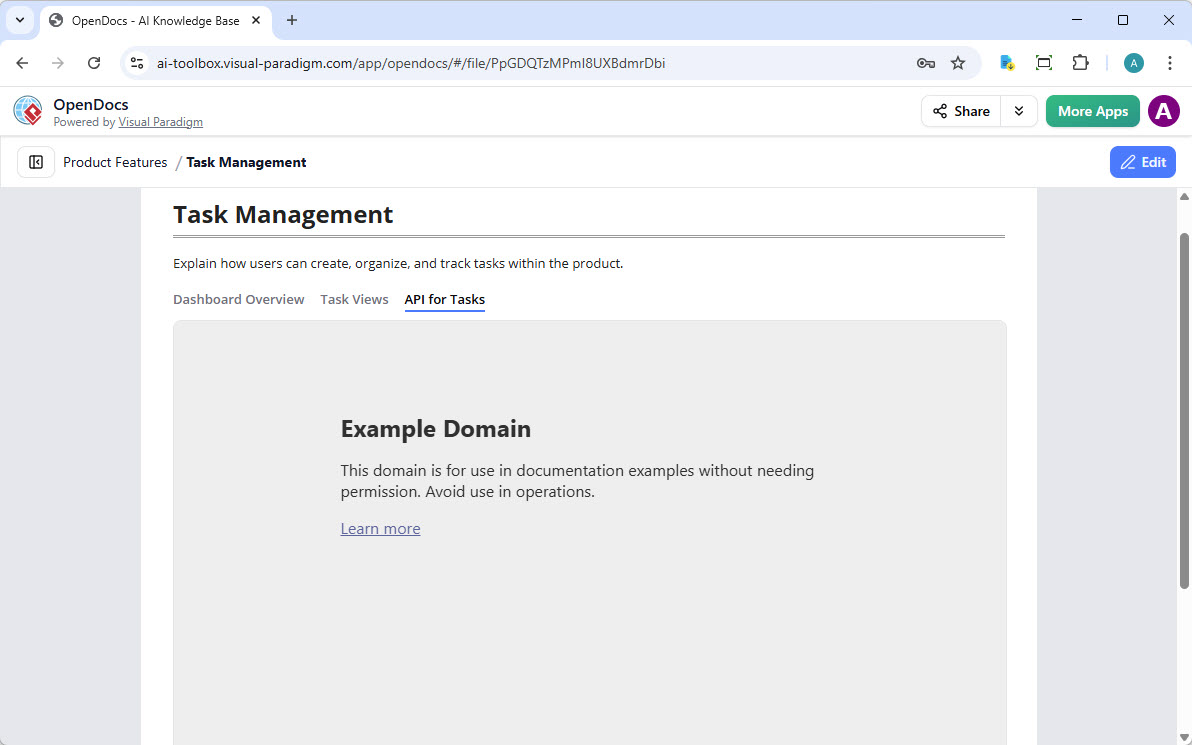 Screenshot of OpenDocs Tabbed Group – Tab body linked to a URL
 -
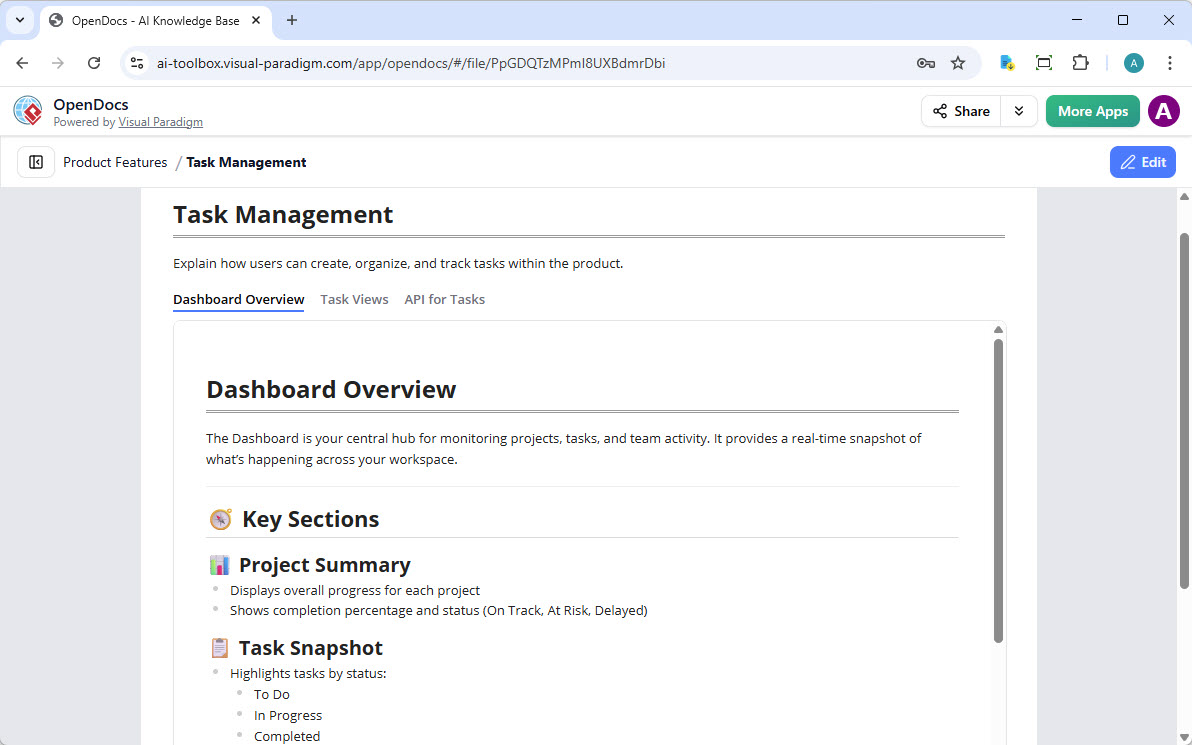 Screenshot of OpenDocs Tabbed Group – Tab body linked to a new page
 -
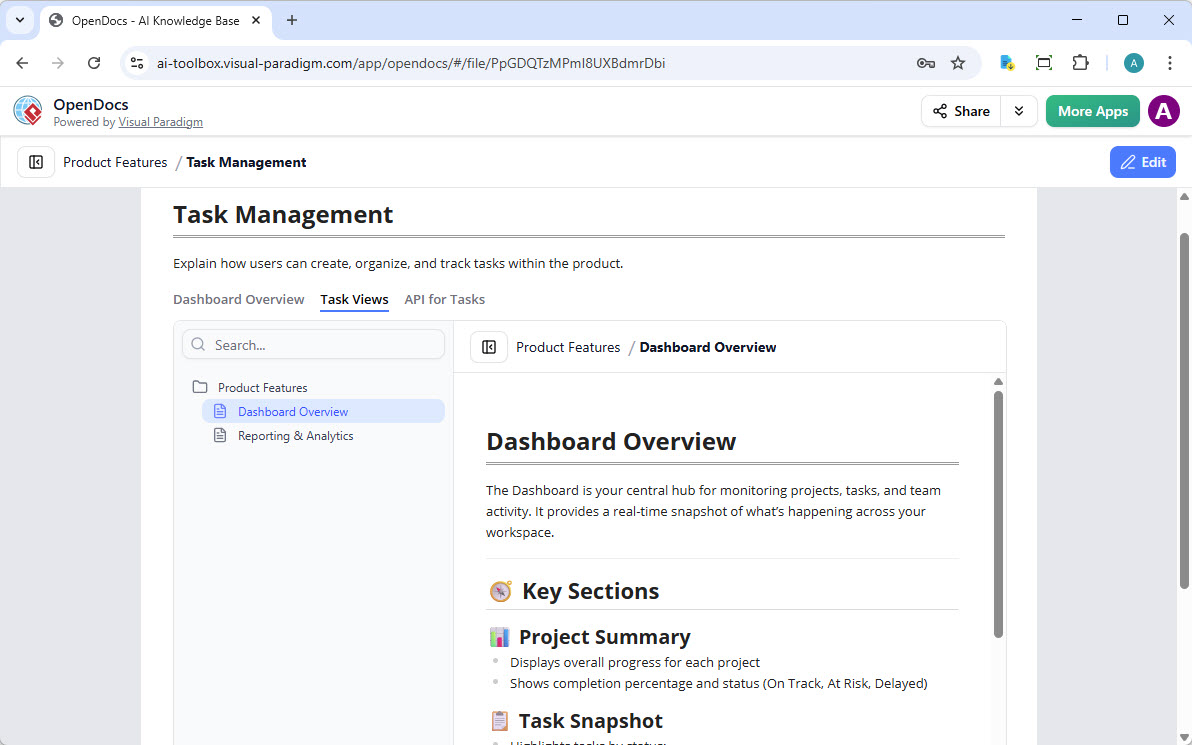 Screenshot of OpenDocs Tabbed Group – Tab body linked to existing pages
Beyond Documentation: Enter VPasCode
While organizing text is crucial, modern product management and engineering also rely heavily on visual diagrams. This is where VPasCode comes into play.
VPasCode is Visual Paradigm’s unified, cloud-native Diagram-as-Code (DaC) platform. It allows modern engineering teams to build professional diagrams entirely through text-based syntax. As someone who values version control and reproducibility, I found this approach refreshing. It eliminates traditional drag-and-drop interfaces by combining a browser-based code editor with a real-time rendering engine.
Core Capabilities That Stand Out
-
Multi-Engine Syntax Support: You can natively write code using industry-standard formats like PlantUML, Mermaid, and Graphviz inside a single sandbox. This flexibility means you aren’t locked into one proprietary format.
-
Real-Time Preview: The instant rendering of text inputs into professional visual layouts as you type streamlines the creation flow significantly.
-
Comprehensive Diagram Library: From Sequence Diagrams and ERDs to Mind Maps and C4 Models, the tool covers a wide range of architectural needs.
-
Zero Installation: Being entirely cloud-native, it requires no local configurations, making it easy to share with remote team members.
AI-Driven Features for Efficiency
For those looking to speed up their workflow, the premium AI add-ons are impressive:
-
AI Code Error Fixing: It scans, detects, and fixes syntax errors automatically with a one-click “Fix by AI” solution.
-
Natural Language Generation: You can describe system requirements in plain English, and the AI will produce clean, structured code scripts.
-
AI Diagram Translation: This feature instantly translates text labels within the underlying script, which is a huge boon for international development teams.
Seamless Integration with OpenDocs
Perhaps the most compelling feature for documentation teams is the integration between VPasCode and OpenDocs. You can connect layouts straight to Visual Paradigm’s AI knowledge management platform, pushing updates live with a single click. This eliminates the tedious process of manually exporting images and re-uploading them every time a diagram changes.
Final Thoughts: A Robust Ecosystem for Knowledge Management
Whether you are building a corporate wiki or a technical guide, the combination of the Tabbed Group component and VPasCode makes OpenDocs an even more robust knowledge management platform. By grouping related content and automating diagram maintenance, you reduce cognitive load for your users and make your documentation look professional and modern.
The Tabbed Group helps tackle the “scroll fatigue” problem, while VPasCode ensures your visual assets are as maintainable and version-controlled as your codebase. Together, they offer a streamlined, efficient workflow that any product team should consider adopting.
If you are ready to try it out, I recommend launching the OpenDocs App to start building your first tabbed group today.
References
-
VPasCode – Text-to-Diagram Platform | PlantUML, Mermaid …: Overview of Visual Paradigm’s unified, cloud-native Diagram-as-Code platform supporting multiple syntax engines.
-
How the Visual Paradigm AI Chatbot and VPasCode function as …: Insights into the integrated ecosystem of AI chatbot and diagramming tools.
-
Comprehensive Guide to VPasCode by Visual Paradigm: A detailed guide covering the features and capabilities of VPasCode.
-
Revolutionizing Diagram Maintenance: How VPasCode’s AI Auto …: Explanation of how AI auto-fix features eliminate syntax frustrations in diagramming.
-
Visual Paradigm – AI-Powered Visual Modeling Platform: Main landing page for Visual Paradigm’s AI-powered modeling tools.
-
Mastering VPasCode: The Ultimate Guide to AI-Powered Diagram as Code with Multi-Engine Support: Advanced guide on mastering VPasCode with multi-engine support.
-
Introducing VPasCode: The Ultimate Unified Text-to-Diagram Platform: Announcement and introduction to the VPasCode platform.
-
Introducing Visual Paradigm 18.1: A New Era of Unified Ecosystems and AI-Driven Innovation: Release notes highlighting new AI-driven innovations and ecosystem updates.
-
From Code to Clarity: A Beginner’s Guide to Seamless Diagramming with VPasCode and OpenDocs: Beginner-friendly guide on integrating VPasCode with OpenDocs.
-
Break Language Barriers Natively with VPasCode’s New AI Diagram Translation: Details on the AI diagram translation feature for international teams.
-
VPasCode Overview: Official overview page for the VPasCode tool.
-
Seamlessly Connect Diagramming to Documentation: VPasCode Integrates with OpenDocs: Announcement of the integration between VPasCode and OpenDocs.