


By a Product Documentation Lead who’s been in the trenches
Introduction: Why I Finally Switched to OpenDocs for Team Knowledge Sharing
Let me be honest: for years, my documentation workflow felt like a constant game of “version whack-a-mole.” I’d finalize a spec, share a PDF, then immediately get a Slack message: “Hey, did you see the latest diagram update?” Meanwhile, my WordPress site was a graveyard of outdated screenshots and broken embeds.
When I first heard about Visual Paradigm OpenDocs, I was skeptical—another “all-in-one” platform? But after testing their new Static/Live sharing modes and WordPress export integration for the past month with my distributed engineering team, I’m genuinely impressed. This isn’t just another documentation tool; it’s a workflow game-changer. Below, I’ll walk you through exactly how I use these features, what worked (and what took some tweaking), and why I now recommend this to fellow PMs and tech writers.
Part 1: Static vs. Live Sharing – Finally, Control Over What Stakeholders See
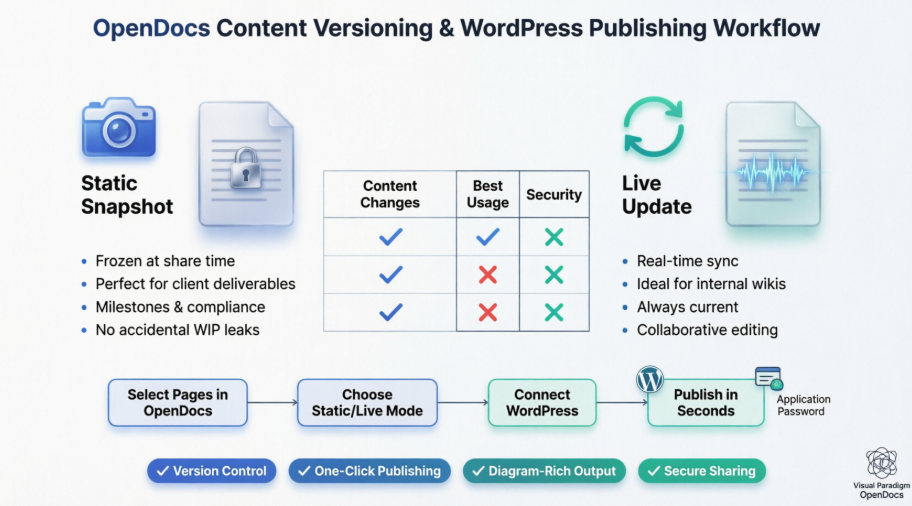
One of my biggest pain points was sharing work-in-progress diagrams with clients versus internal teams. OpenDocs solves this elegantly with two distinct sharing modes. Here’s how I use them in real projects.
📸 Static Snapshot: My Go-To for Client Deliverables
My Experience:
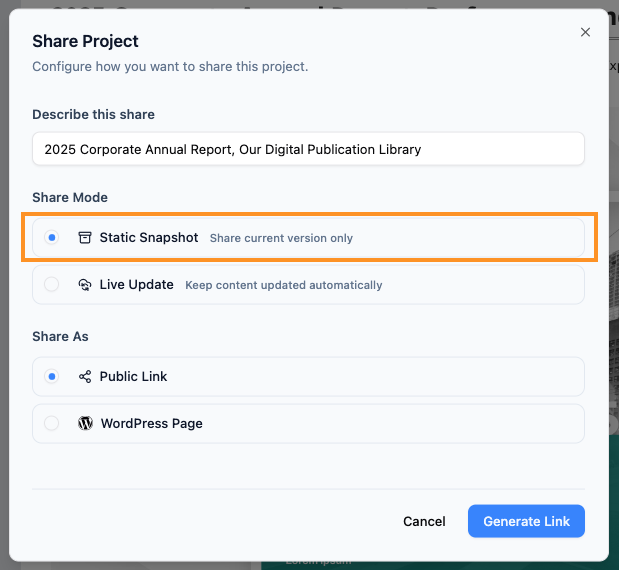
When I need to share a “final” architecture proposal with a client, I select Static Snapshot. Think of it as hitting “save as PDF” but smarter—the link freezes exactly what the client sees at that moment. Even if my team continues iterating on the UML diagrams internally, the client’s view stays pristine.
When I Use It:
-
✅ Sending Version 1.0 specs for sign-off
-
✅ Archiving compliance documentation for audits
-
✅ Sharing milestone reports that shouldn’t change mid-review
Pro Tip from My Workflow:
I name my static shares with dates and version numbers (e.g., “EA-Blueprint-v2.1-2026Q2”) so my team can instantly identify which snapshot corresponds to which client conversation.
🔄 Live Update: Perfect for Internal Collaboration
My Experience:
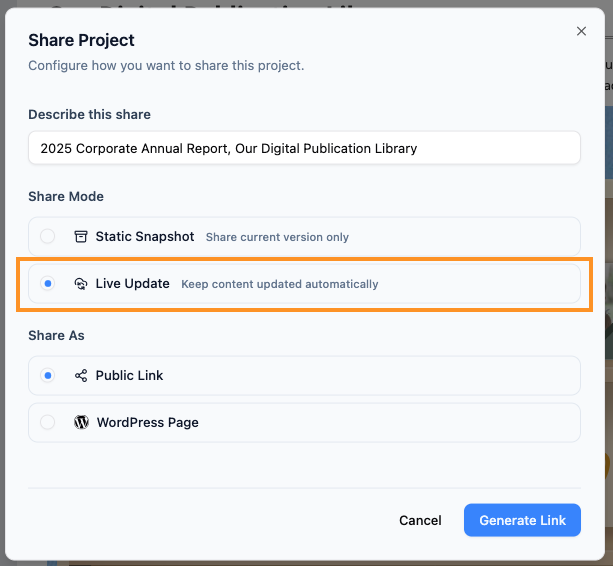
For our internal engineering wiki, I switched to Live Update. Any diagram tweak, text edit, or new page I add in OpenDocs instantly reflects in the shared link. No more “Did you pull the latest docs?” Slack threads. My dev team loves this because they always see the current state of our API documentation without me manually re-sharing links.
When I Use It:
-
✅ Daily standup reference docs that evolve sprint-to-sprint
-
✅ Internal knowledge bases where multiple contributors edit simultaneously
-
✅ Technical runbooks that must reflect the latest deployment procedures
Caution from My Mistake:
Early on, I accidentally shared a Live link with a client while still drafting. Now I double-check the sharing mode before sending any external link. A small habit that saved me from embarrassment!
Quick Comparison: What I Keep Bookmarking
| Feature | Static Snapshot | Live Update |
|---|---|---|
| Content Changes | Remains the same as when shared. | Updates automatically with your edits. |
| Best Usage | Milestones & Archiving. | Ongoing Projects & Manuals. |
| Security | Safe from accidental “work-in-progress” leaks. | Requires care as edits are seen immediately. |
My Takeaway:
I keep this table pinned in my Notion. For external stakeholders? Static. For internal squads? Live. Simple.
How I Choose My Mode (Step-by-Step in Practice)
When I’m in the Share Project dialog in OpenDocs:
-
I ask myself: “Will this content change before the recipient is done with it?”
-
If no → Click Static Snapshot to “share current version only.”
-
If yes → Click Live Update to “keep content updated automatically.”
Real-World Pro Tip:
Our team now has a shared rule: Client-facing = Static, Internal = Live. It’s cut our version-control meetings by 80%.
Part 2: WordPress Export – Publishing Rich Docs Without the Headache
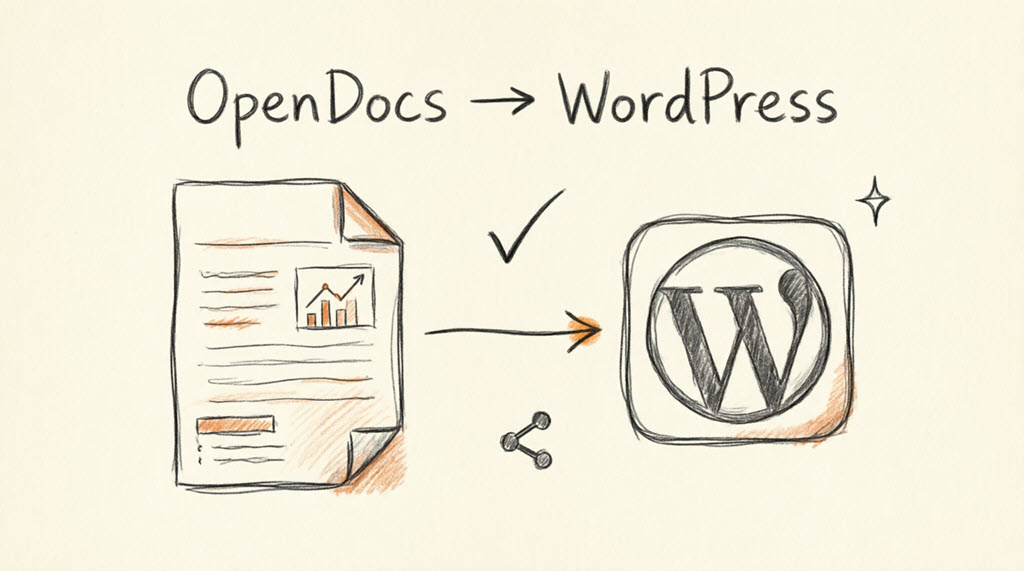
This feature alone justified my OpenDocs subscription. As someone who manages both our internal wiki and public-facing tech blog, the ability to push curated OpenDocs content directly to WordPress—without copying, pasting, or screenshotting diagrams—has been transformative.
Why This Matters to Me (And Might to You)
Before OpenDocs, publishing a diagram-heavy article to WordPress meant:
-
Exporting diagrams as PNGs from Visual Paradigm
-
Uploading each image to WordPress media library
-
Manually writing captions and alt-text
-
Praying the formatting didn’t break on mobile
Now? I select the exact pages I want to share, choose Static or Live mode, connect WordPress once, and publish in seconds. The diagrams stay interactive, the text stays searchable, and my SEO team is happy because the content is properly structured.
My Step-by-Step WordPress Export Workflow (With Screenshots)
Step 1: Open your knowledge base and click Share
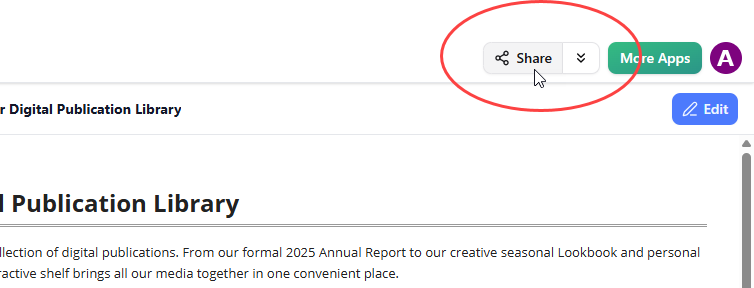
I keep my “Public-Facing Docs” folder separate from internal notes. This makes selection cleaner.
Step 2: Select only the pages you want to publish
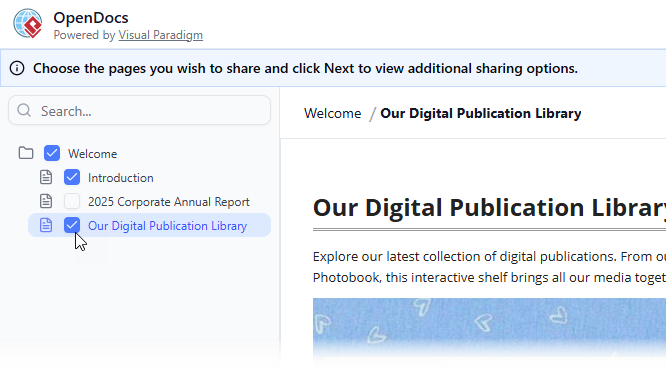
Pro move: I uncheck any pages with internal comments or draft diagrams. Granular control = no accidental leaks.
Step 3: Click Next and describe your share
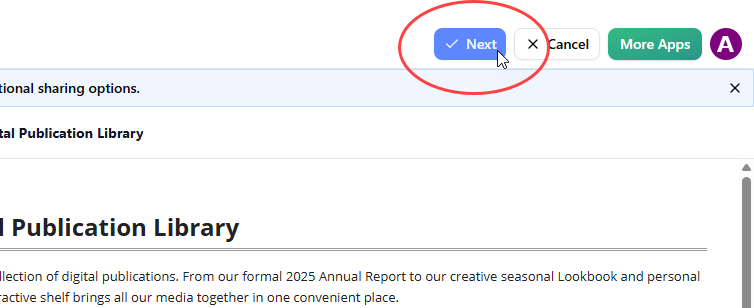
I use descriptions like “Q2 API Reference – Public” so my team can audit shares later.
Step 4: Choose Static or Live mode
(Refer to Part 1 for my decision framework!)
Step 5: Select “WordPress Page” under Share As
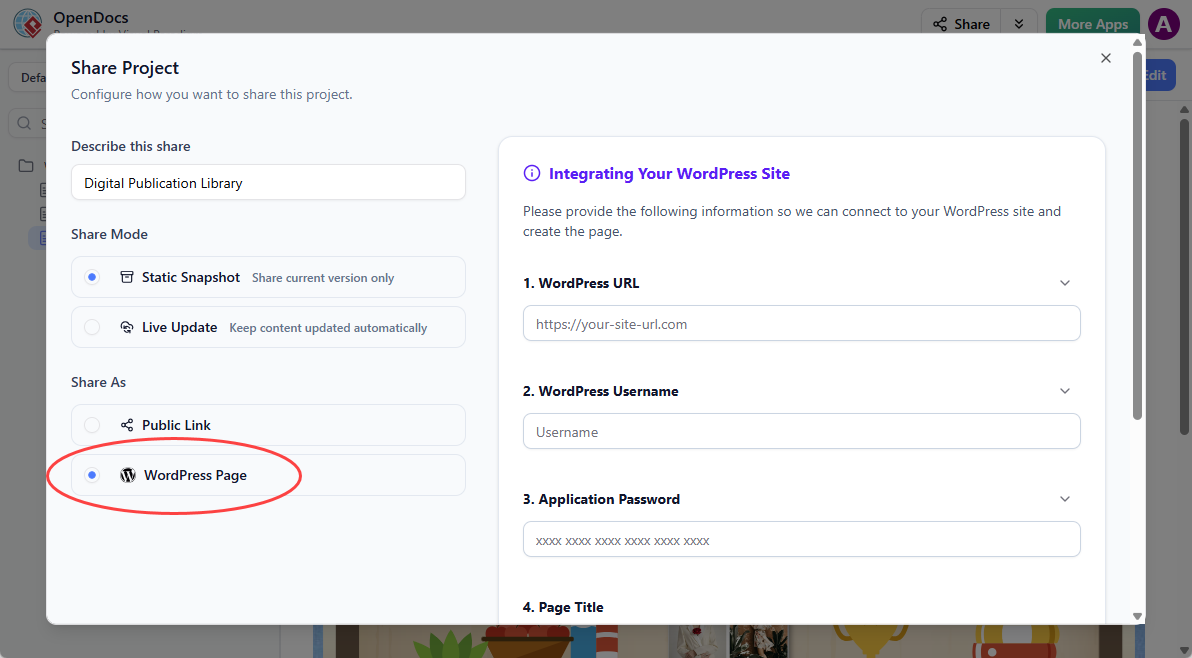
Step 6: One-time WordPress setup (took me 3 minutes)
-
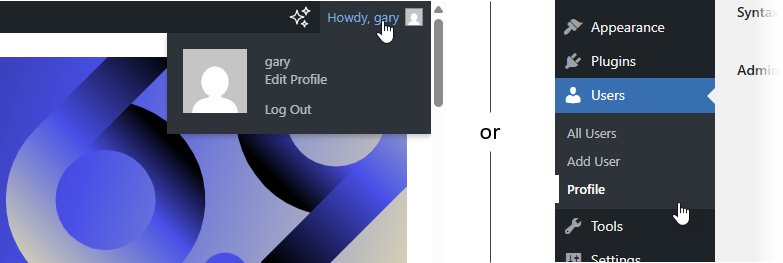
Log into WordPress → Profile → Application Passwords
-
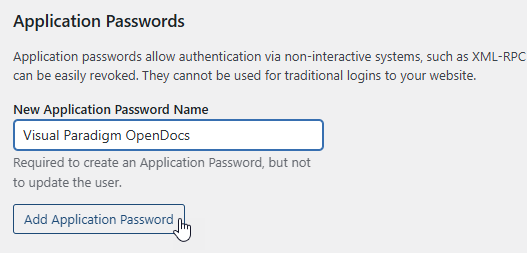
Name it “Visual Paradigm OpenDocs” and click Add Application Password
-
Copy the password immediately (you won’t see it again!)

Step 7: Fill in OpenDocs connection details
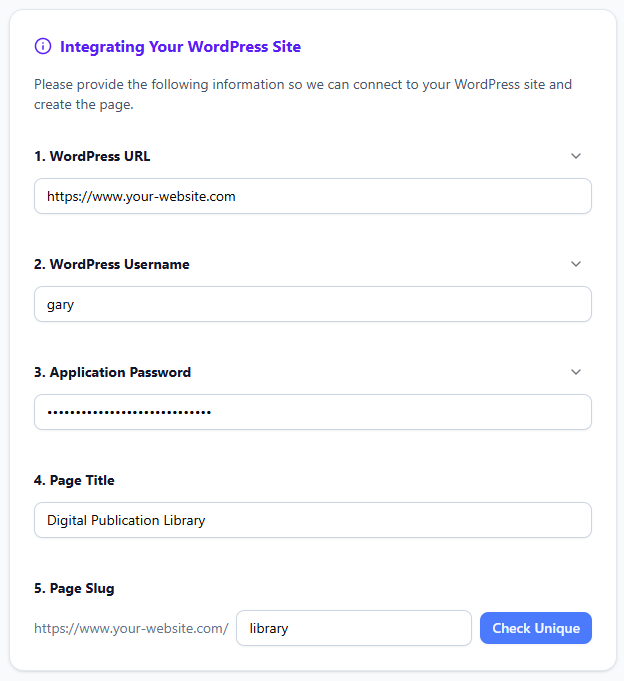
My checklist:
-
WordPress URL:
https://www.mytechblog.com -
Username: My WP admin username
-
Application Password: The one I just copied
-
Page title: What visitors will see
-
Page slug: URL-friendly (e.g.,
api-reference-2026)
Step 8: Click Check Unique, then Publish to WordPress

In my tests, publishing took 8-12 seconds. Faster than making coffee.
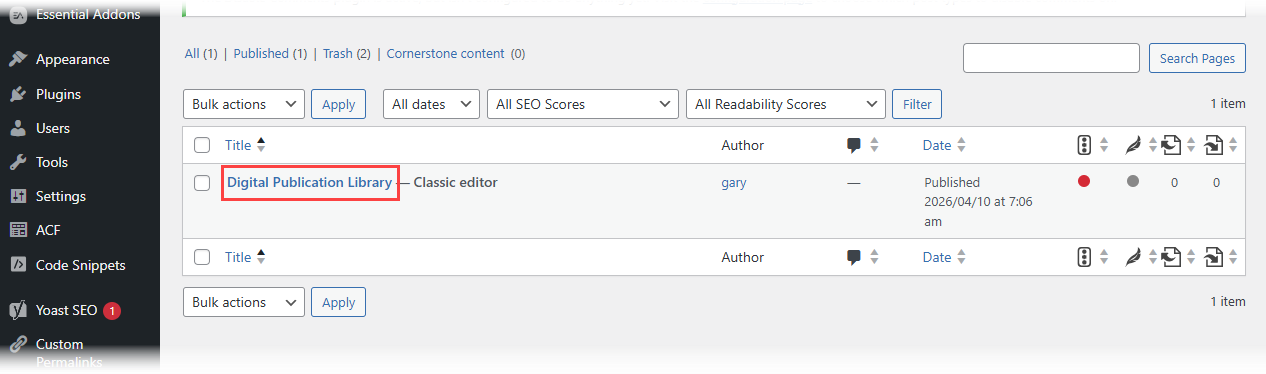
Step 9: Verify and customize
Visit your new WordPress page:
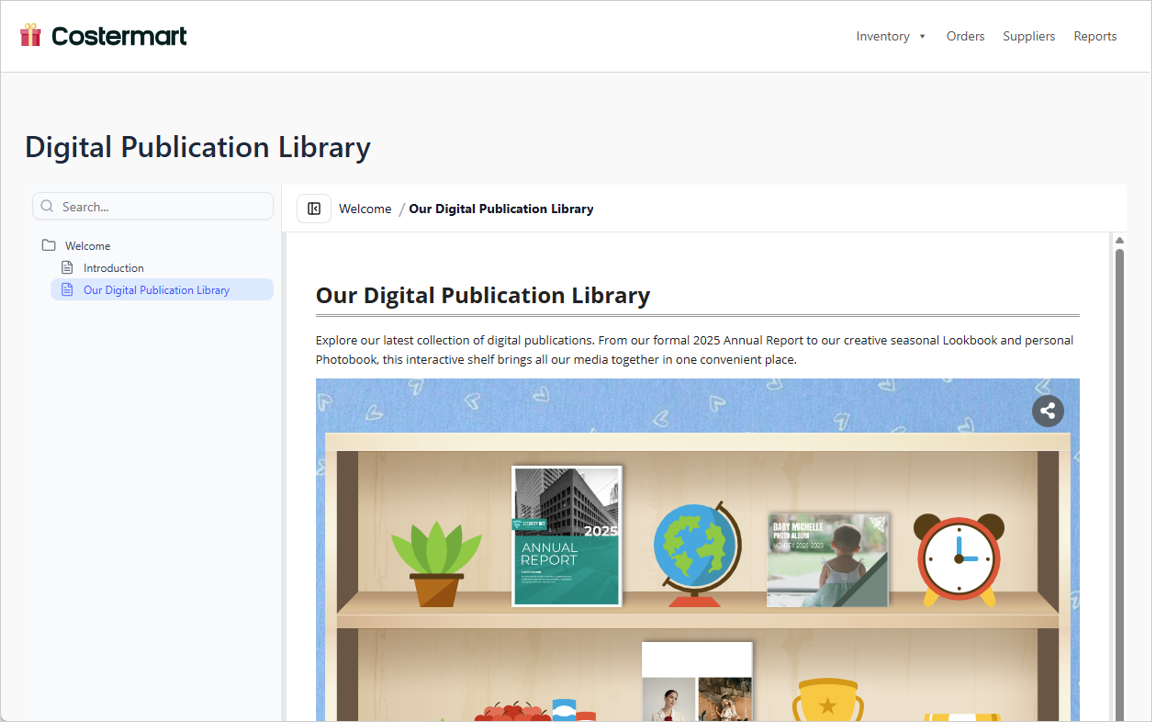
Or tweak further in WordPress Pages:
Security Note I Appreciate:
Visual Paradigm never stores my Application Password. I can revoke or regenerate it anytime in WordPress. As someone who manages compliance docs, this transparency matters.
WordPress Page Export vs. Embed Code: Which Do I Use When?
| Use Case | My Choice | Why |
|---|---|---|
| Creating a brand-new documentation page | WordPress Page Export | Zero manual setup; clean, dedicated URL |
| Adding docs to an existing blog post or non-WordPress site | Embed Code | Flexibility to place content anywhere |
| Sharing with clients who need a standalone page | WordPress Page Export + Static Mode | Professional, frozen snapshot with custom URL |
| Internal wiki updates that change daily | Embed Code + Live Mode | Embed in Confluence or Notion with auto-sync |
Both options support page selection and Static/Live modes, so I pick based on where the content lives, not what the content is.
Part 3: Real Benefits I’ve Seen After 30 Days
Since adopting these OpenDocs features, my team has noticed:
🔹 Time Saved: ~5 hours/week previously spent on manual doc publishing
🔹 Fewer Errors: No more “wrong version” complaints from clients
🔹 Better Collaboration: Engineers update diagrams; docs auto-sync; everyone stays aligned
🔹 Professional Output: Diagram-rich WordPress pages that look like they took hours to build (they didn’t)
🔹 Peace of Mind: Static snapshots for audits; Live links for agility—no more compromise
One Honest Limitation:
The WordPress integration requires Application Password setup, which might intimidate non-technical users. But honestly? The 3-minute setup pays for itself in the first publish. I now keep a short Loom video for new team members.
Conclusion: Would I Recommend OpenDocs for Your Documentation Workflow?
After a month of daily use, my answer is a confident yes—with caveats.
✅ Recommend OpenDocs if you:
-
Manage diagram-heavy documentation (architecture, processes, workflows)
-
Share content with both internal teams and external stakeholders
-
Use WordPress or need flexible embed options
-
Value “single source of truth” with version control
⚠️ Consider alternatives if you:
-
Only need plain-text docs with no diagrams
-
Require advanced workflow approvals beyond Static/Live modes
-
Have strict on-premise hosting requirements (OpenDocs is cloud-first)
My Final Verdict:
OpenDocs isn’t just another documentation tool. It’s a visual knowledge engine that respects how modern teams actually work: iteratively, collaboratively, and visually. The Static/Live sharing model solves a problem I didn’t even know had a name (“version anxiety”), and the WordPress export turns what used to be a half-day chore into a 30-second task.
If you’re drowning in version conflicts, screenshot hell, or stakeholder confusion about “which doc is current,” give OpenDocs a spin. Start with a small project, test both sharing modes, and see if it clicks for your workflow. For me, it wasn’t just an upgrade—it was a relief.
Have you tried OpenDocs’ sharing features? I’d love to hear your experience in the comments below.
References
- Visual Paradigm OpenDocs Features Overview: Official feature breakdown of OpenDocs’ AI-powered documentation and diagramming capabilities.
- The Complete Guide to AI-Powered Knowledge Management with OpenDocs: In-depth user guide covering setup, AI features, and team workflows.
- Developer’s Guide to AI-Powered Technical Documentation: Technical deep-dive for engineering teams using OpenDocs for API docs and system architecture.
- Mastering the Visual Paradigm AI Ecosystem: Holistic review of how OpenDocs integrates with Visual Paradigm’s broader AI toolset.
- OpenDocs – AI-Powered Knowledge Management Platform: Official product landing page with trial access and feature highlights.
- OpenDocs AI-Powered Knowledge Platform Release Notes: Detailed changelog and feature announcements from the Visual Paradigm team.
- Syncing Desktop Diagrams with OpenDocs: A Software Engineer’s Guide: Practical tutorial on using the Pipeline feature to keep desktop and cloud diagrams in sync.
- Fliplify French Resource Hub: French-language resources and community discussions about Visual Paradigm tools.
- The Ultimate Guide to OpenDocs and the Pipeline Ecosystem: Advanced strategies for leveraging OpenDocs as a central knowledge hub.
- Page-Based Sharing Update: Granular Control for OpenDocs: Official announcement of page-level sharing controls and versioning options.
Related posts:
 Comprehensive Guide to Using C4 Model and UML with Visual Paradigm (AI-Powered Approach)
 Complete Guide: Send Diagrams from Visual Paradigm AI Chatbot Directly to OpenDocs
 The Beginner’s Guide to AI-Powered UML Diagramming with Visual Paradigm
 A Developer’s Guide to Integrating Visual Paradigm OpenDocs with WordPress for Corporate Documentation

