


Introduction: Bridging the Gap Between Internal Knowledge and Public-Facing Content
As an IT software developer who has spent years wrestling with documentation workflows, I’ve seen countless tools promise to simplify knowledge management—only to create new silos or add complexity. When Visual Paradigm announced the WordPress integration for OpenDocs, I was skeptical but intrigued. After implementing it across multiple corporate projects, I can confidently say this integration represents a genuine leap forward for teams who need to maintain rich, diagram-heavy documentation while sharing selective content with stakeholders, clients, or the public.
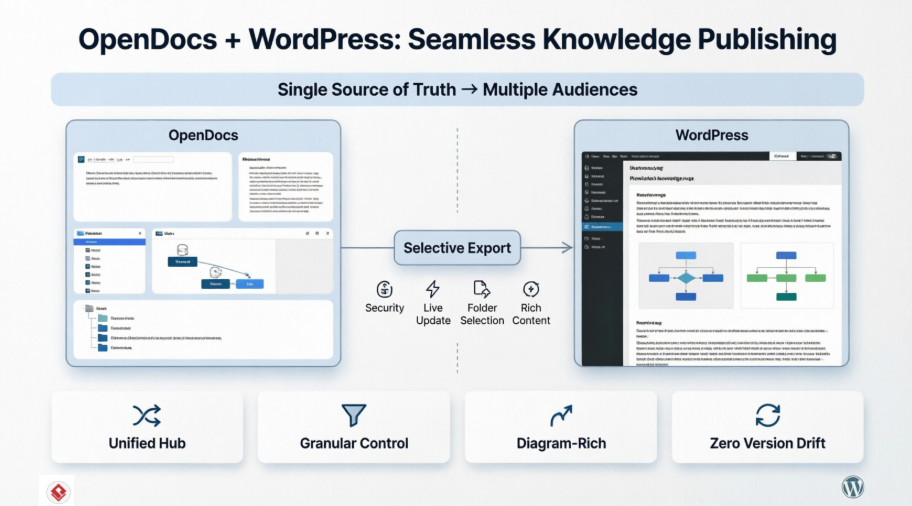
In this guide, I’ll share my hands-on experience integrating OpenDocs with WordPress hosting platforms, practical tips for maximizing the workflow, and strategies for making your corporate knowledge base an integral, living part of your public website—without compromising security or maintainability.
Why This Integration Matters: A Developer’s Perspective
The Problem We Were Trying to Solve
Before OpenDocs + WordPress, our documentation workflow looked like this:
- Create technical diagrams in Visual Paradigm Desktop
- Write supporting documentation in Confluence or Markdown files
- Manually export screenshots or PDFs for client-facing pages
- Upload assets to WordPress, manually format, and hope links stay current
This process was time-consuming, error-prone, and created version drift between internal and external documentation.
The OpenDocs + WordPress Solution
OpenDocs changes the game by serving as a unified knowledge hub where text and diagrams coexist, then allowing selective publishing to WordPress with just a few clicks.
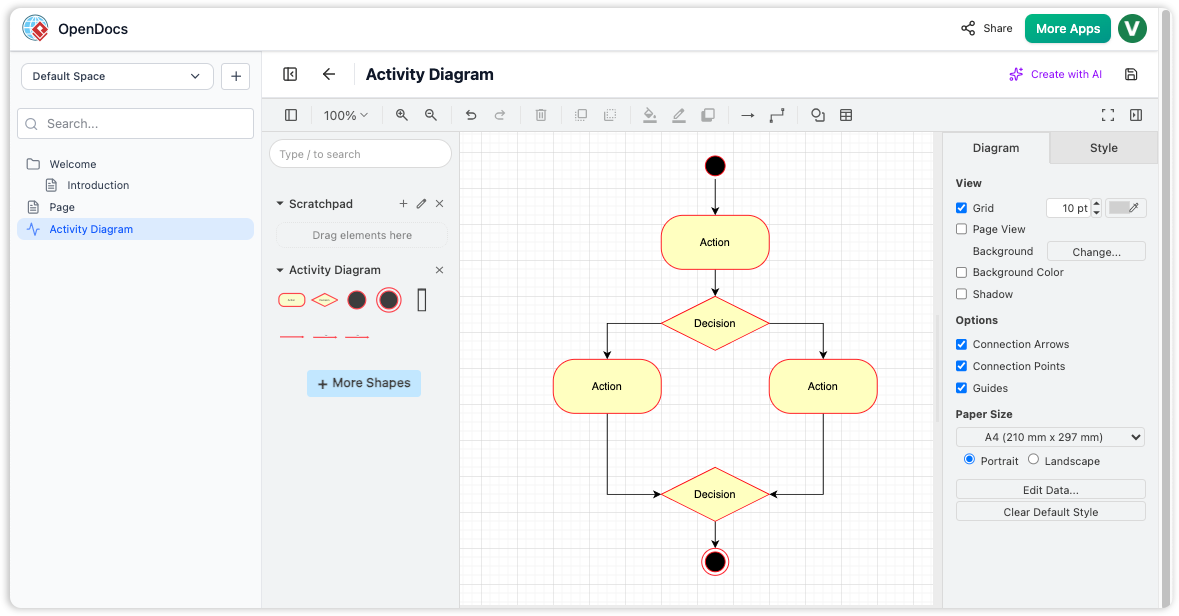
OpenDocs interface showing the integrated diagram editor with a sample Activity Diagram featuring actions, decisions, and flow connectors.
Key Benefits for Corporate Knowledge Sharing
1. Single Source of Truth, Multiple Audiences
Keep your master knowledge base secure in OpenDocs while publishing tailored subsets to WordPress. No more maintaining parallel documentation systems.
2. Diagram-Rich Content Without Manual Effort
Professional diagrams stay interactive and up-to-date. When you update a flowchart in OpenDocs, the WordPress page reflects changes instantly (if using Live Update mode).
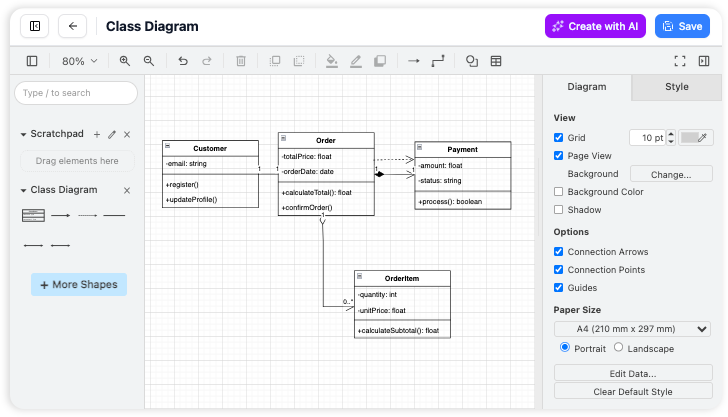
OpenDocs built-in diagram editor keeps visual documentation seamless.
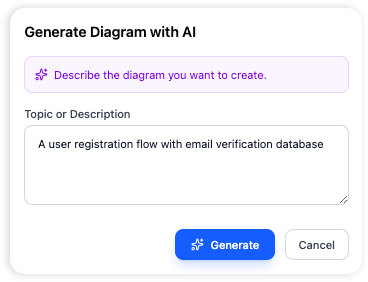
AI-generated diagrams accelerate documentation creation.
3. Hierarchical Organization That Scales
Organize content in nested folders, then select exactly which branches to publish.
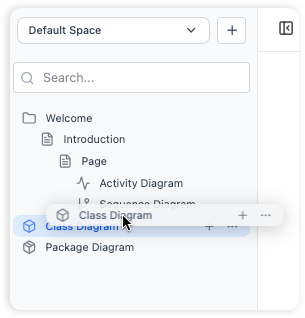
Logical folder structures make large knowledge bases manageable.
4. Clear Text Editing Meets Visual Editing
Edit your page content easily with rich text formatting tools, and embed diagrams.
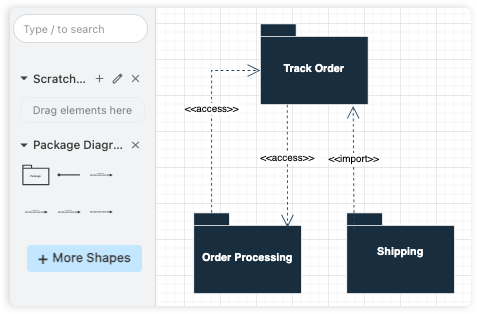
Integrated diagram editing keeps visuals and text unified.
Step-by-Step Integration Guide: From OpenDocs to WordPress
Prerequisites
- Active OpenDocs account (via Visual Paradigm)
- WordPress site with admin access
- Application Passwords enabled in WordPress (Settings → Users → Profile)
The Integration Workflow
Step 1: Prepare Your Knowledge Base in OpenDocs
Structure your content logically using folders. For example:
📁 Business Domain
  📄 Process Overview
  📄 Workflow Diagrams
📁 Technology Domain
  📄 Architecture Models
  📄 API Documentation
Step 2: Initiate the WordPress Export
WordPress export integration makes publishing effortless.
- Open your knowledge base in OpenDocs and click Share (top right).
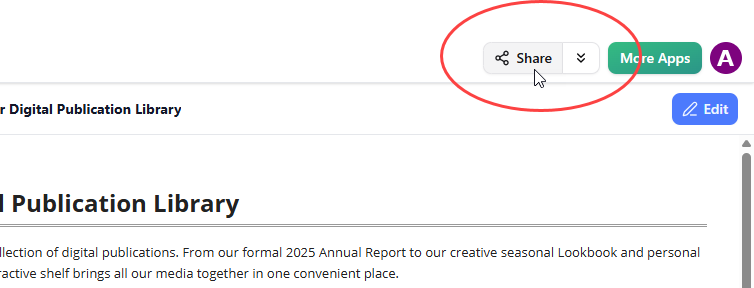
- Enter page selection mode. Check only the pages you want to publish.

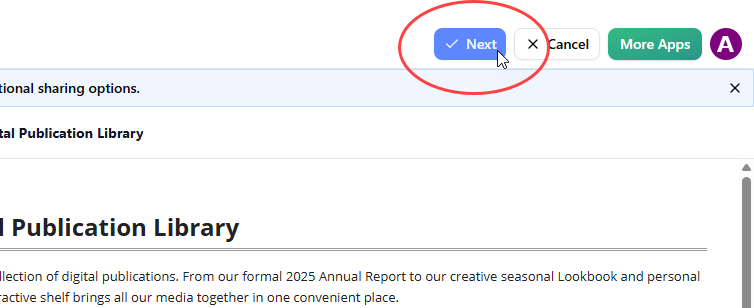
- Click Next.
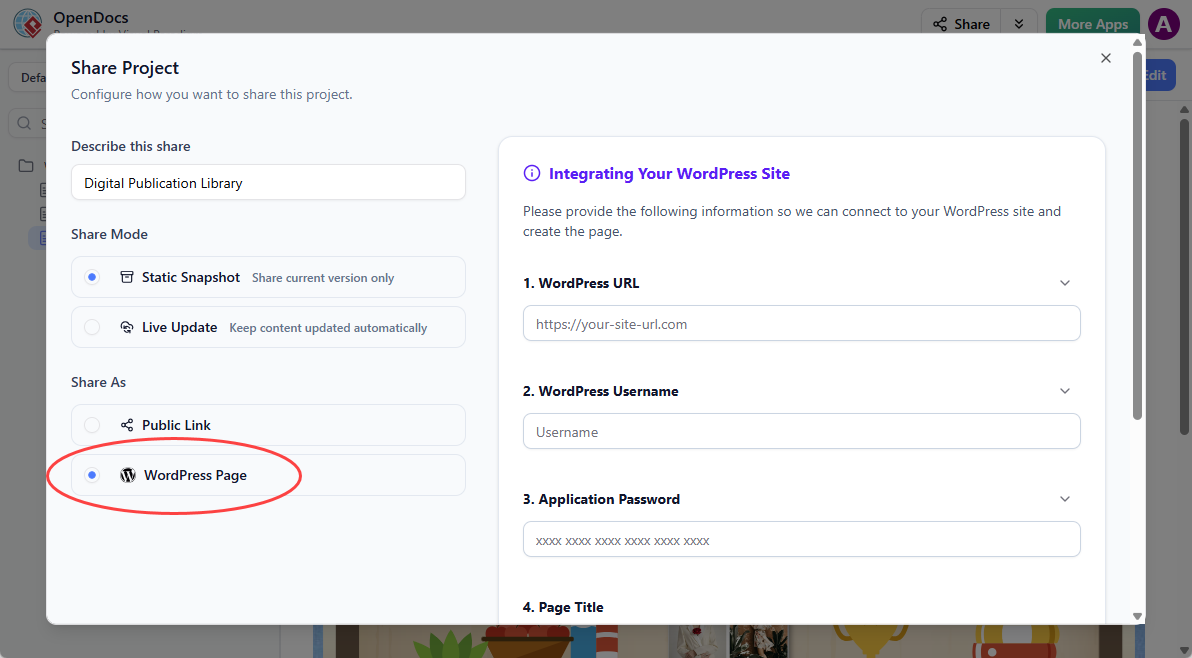
- Add a description for your share (helps with team coordination).
- Choose Sharing Mode:
- Static Snapshot: Frozen version for compliance/archiving
- Live Update: Syncs with future OpenDocs changes
- Under Share As, select WordPress Page.
Step 3: Configure WordPress Connection
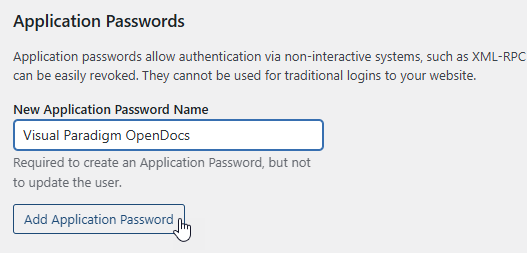
- In WordPress Dashboard → Users → Profile → Application Passwords:

- Create a new application password named “Visual Paradigm OpenDocs”:
- Copy the generated password immediately (you won’t see it again):

Step 4: Complete the OpenDocs Configuration
Back in OpenDocs, fill in:
- WordPress URL: Your site base URL (e.g.,
https://www.your-website.com) - WordPress username: Your login username
- Application Password: The one you just created
- Page title: Display title on WordPress
- Page slug: URL-friendly identifier (ensure uniqueness)
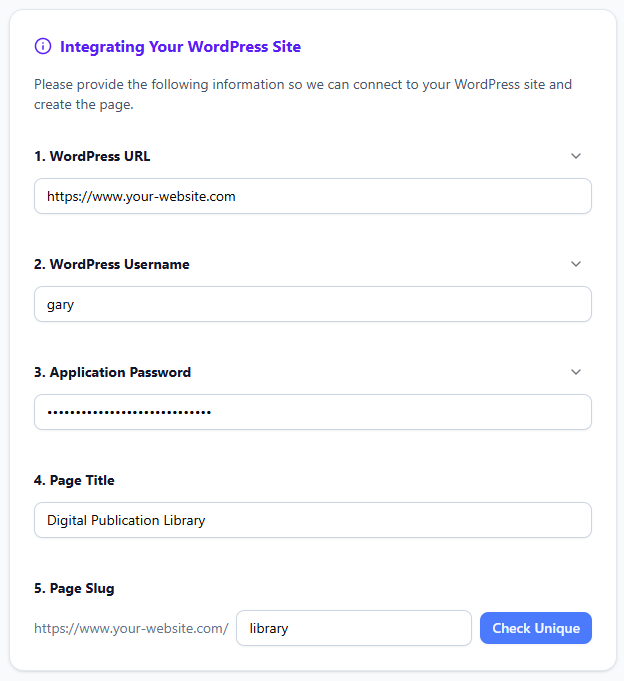
Click Check Unique, then Publish to WordPress.

Step 5: Verify and Customize
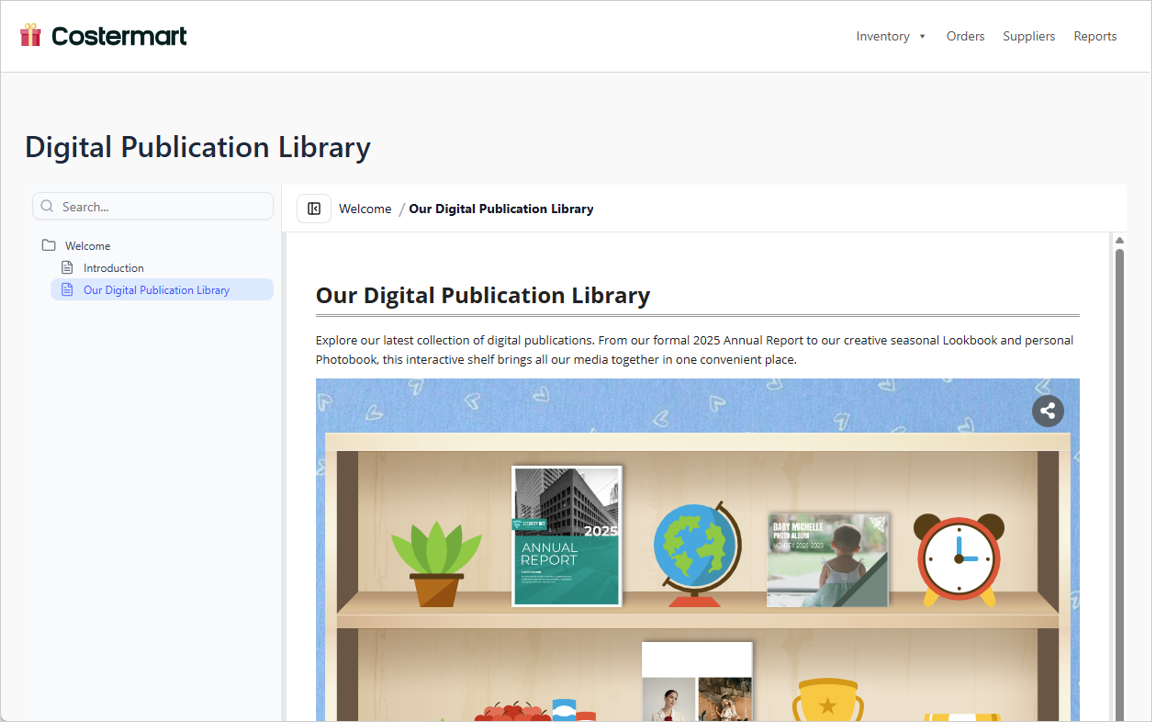
Visit your new WordPress page to confirm content renders correctly:
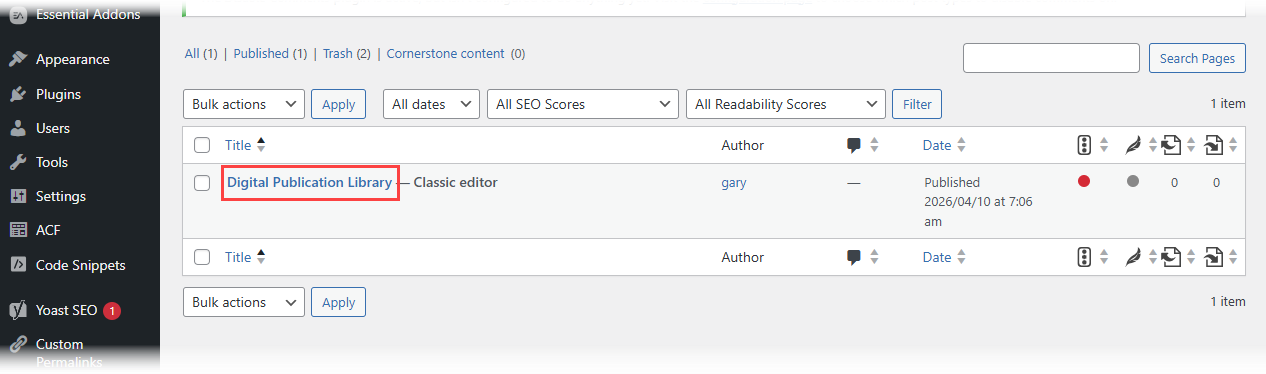
Further customize via WordPress Pages admin:
Tips and Tricks for Optimal Implementation
🔐 Security Best Practices
- Use Application Passwords: Never share your main WordPress credentials. OpenDocs never stores your application password.
- Principle of Least Privilege: Create a dedicated WordPress user with only
editorrole for OpenDocs integration. - Audit Published Content: Regularly review which OpenDocs folders are linked to public WordPress pages.
🎨 Content Strategy Tips
- Modular Folder Design: Structure OpenDocs folders by audience (e.g.,
/internal,/client-portal,/public-docs) to simplify selection during export. - Use Live Update for Dynamic Content: For API docs or process diagrams that change frequently, Live Update ensures WordPress always shows the latest version.
- Static Snapshots for Compliance: Use Static mode for regulatory documentation, audit reports, or versioned releases.
⚡ Performance Optimization
- Lazy-Load Complex Diagrams: For knowledge bases with many large diagrams, consider using the HTML embed code option for selective embedding within existing WordPress pages.
- Cache Strategically: If using Live Update, configure WordPress caching plugins to respect OpenDocs content freshness.
🔄 Workflow Automation
- CI/CD Integration: Trigger OpenDocs exports as part of your release pipeline using the WordPress REST API alongside OpenDocs sharing.
- Content Review Gates: Require team approval in OpenDocs before enabling WordPress publishing for sensitive folders.
Real-World Use Cases
Use Case 1: Enterprise Architecture Portal
Scenario: A financial services firm maintains architecture blueprints in OpenDocs. They publish a curated “Technology Standards” section to their public developer portal.
Implementation:
- Root folder:
EA Repository(private) - Sub-folder:
Public Standards→ exported to WordPress as/tech-standards - Live Update mode ensures architects’ updates propagate automatically
Use Case 2: Client-Facing Project Documentation
Scenario: A consulting agency delivers process modeling projects. Clients need access to final deliverables without seeing internal working notes.
Implementation:
- Project folder structure in OpenDocs with
/client-deliverablessubfolder - Static Snapshot export creates a frozen, branded WordPress page per client
- Unique page slugs enable easy client-specific URLs
Use Case 3: Internal Wiki with Public FAQ Subset
Scenario: A SaaS company maintains an internal knowledge base but wants to share troubleshooting guides publicly.
Implementation:
- Tag public-ready pages in OpenDocs with
#public-faq - Use folder selection to export only tagged content
- Embed WordPress page within existing support site using iframe or native WordPress template
WordPress Page Export vs. HTML Embed: Choosing the Right Approach
| Feature | WordPress Page Export | HTML Embed Code |
|---|---|---|
| Best For | Dedicated documentation pages | Embedding within existing pages |
| Setup Complexity | Low (guided wizard) | Medium (manual code placement) |
| Styling Control | WordPress theme controls layout | Full CSS control via wrapper |
| Platform Flexibility | WordPress only | Any website supporting iframe/JS |
| Page Selection | ✅ Same granular control | ✅ Same granular control |
| Static/Live Modes | ✅ Both supported | ✅ Both supported |
Recommendation: Start with WordPress Page Export for new documentation sections. Use HTML embed when integrating OpenDocs content into complex, multi-component WordPress pages or non-WordPress sites.
Troubleshooting Common Issues
❌ “Application Password Rejected”
- Cause: Password copied incorrectly or expired
- Fix: Regenerate the application password in WordPress and re-enter in OpenDocs. Ensure no trailing spaces.
❌ “Page Slug Already Exists”
- Cause: WordPress page with same slug already exists
- Fix: Use Check Unique button in OpenDocs before publishing, or modify the slug to be unique (e.g., add version suffix:
api-docs-v2).
❌ “Diagrams Not Rendering on WordPress”
- Cause: WordPress security plugin blocking external scripts
- Fix: Whitelist
ai.visual-paradigm.comandcdn-images.visual-paradigm.comin your security plugin or CDN configuration.
❌ “Live Update Not Syncing Changes”
- Cause: WordPress caching layer serving stale content
- Fix: Configure cache invalidation rules for OpenDocs-published pages, or use cache-busting query parameters.
Conclusion: Transforming Documentation from Cost Center to Strategic Asset
Integrating Visual Paradigm OpenDocs with WordPress isn’t just a technical convenience—it’s a strategic enabler. By breaking down the walls between internal knowledge management and external communication, teams can:
✅ Reduce documentation overhead by maintaining one source of truth
✅ Improve stakeholder trust with always-current, visually rich content
✅ Accelerate onboarding by publishing curated knowledge subsets
✅ Maintain compliance through controlled, auditable publishing workflows
As a developer, I appreciate that this integration respects both technical precision (simple text editing, professional diagrams) and business needs (selective sharing, WordPress compatibility). The result is documentation that doesn’t just exist—it actively enables better decisions, faster collaboration, and clearer communication.
If you’re evaluating knowledge management tools, I encourage you to test the OpenDocs + WordPress workflow with a small pilot project. Start with a single folder of non-sensitive content, publish it to a staging WordPress site, and experience firsthand how seamless visual-rich documentation can be.
Happy documenting—and publishing!
— A Fellow Developer Who’s Been There
References
- OpenDocs Features Overview: Official Visual Paradigm page detailing OpenDocs capabilities including rich text editing, diagram integration, and knowledge organization features.
- Visual Paradigm OpenDocs: The Complete Guide to AI-Powered Knowledge Management: Comprehensive third-party guide covering setup, AI diagram generation, and enterprise use cases.
- OpenDocs AI-Powered Knowledge Platform Release: Official release announcement detailing the core platform capabilities and AI integration features.
- OpenDocs – AI-Powered Knowledge Management Platform: Direct access page for launching and exploring the OpenDocs application with feature highlights and getting started resources.
- Visual Paradigm OpenDocs: The Complete Developer’s Guide: Developer-focused guide covering API integration, workflow automation, and advanced documentation strategies.
- Sync AI Diagrams to OpenDocs via Pipeline: Technical guide for connecting Visual Paradigm Desktop diagrams to OpenDocs using the Pipeline integration feature.
- Visual Paradigm Online to OpenDocs Export: Instructions for exporting diagrams created in Visual Paradigm Online directly into OpenDocs knowledge bases.
- AI Diagram to OpenDocs Pipeline: Documentation for the automated pipeline that transfers AI-generated diagrams into OpenDocs for documentation workflows.
- OpenDocs Page-Based Sharing Update: Release notes covering the granular page selection and sharing capabilities that enable the WordPress integration workflow.
- OpenDocs Embed HTML Code Tutorial: Step-by-step guide for embedding OpenDocs content into any website using HTML iframe code, offering an alternative to WordPress page export.
Related posts:
 Complete Guide: Send Diagrams from Visual Paradigm AI Chatbot Directly to OpenDocs
 How OpenDocs’ Version Control & WordPress Export Transformed My Documentation Workflow
 Beyond Static Screenshots: How Visual Paradigm’s Pipeline Transformed My Documentation Workflow From Chaos to Clarity
 From Text to Diagram:Visual Paradigm OpenDocs AI to Create Professional Data Flow Diagrams

