


Introduction
As a business analyst who has spent countless hours manually drawing diagrams in various tools, I was skeptical when I first heard about AI-powered diagram generation. Could a machine really understand my requirements and produce professional-quality diagrams? After spending the last few weeks working with Visual Paradigm OpenDocs, I’m here to share my honest experience and walk you through how this tool has transformed my documentation workflow. Whether you’re a seasoned modeler or someone who dreads creating diagrams, this guide will show you what’s possible when you combine natural language with AI-powered visual modeling.
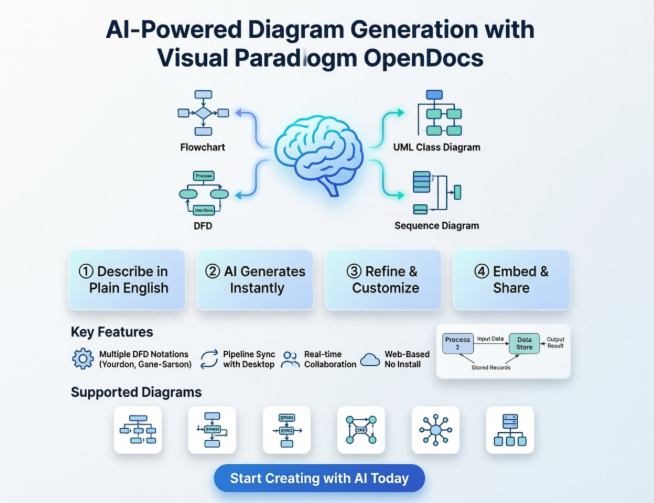
Discovering AI-Powered Diagram Generation
When I first logged into OpenDocs, I wasn’t sure what to expect. The interface looked clean and familiar—essentially a documentation editor—but the promise of AI-generated diagrams seemed almost too good to be true. Here’s what I learned through trial and error:
Getting Started Was Surprisingly Simple
I opened an existing OpenDocs page and clicked into Edit mode. The “New Diagram” button was right there in the Insert menu, just like adding any other element. But then came the moment of truth: the “Create with AI” button in the top right corner of the diagramming window.
I’ll admit, I hesitated. What if the AI misunderstood my requirements? What if I had to spend more time fixing the output than creating it from scratch? I decided to test it with something straightforward: “Create a flowchart for our customer refund process.”
Within seconds, the AI generated a complete flowchart. Was it perfect? Not entirely—I had to adjust a few layout elements and add some specific decision points we use in our organization. But it gave me a solid foundation that would have taken me 30-45 minutes to build from scratch. I saved maybe 20-30 minutes on my first attempt, which doesn’t sound revolutionary, but the real value became apparent as I continued using it.
My First Experience with AI Diagram Creation
The Learning Curve
After my initial success with the flowchart, I decided to push the AI further. I tried generating a UML Sequence Diagram with the prompt: “Show the interaction between user, web server, database, and payment gateway during an e-commerce checkout process.”
The result was impressive. The AI correctly identified:
- The external actors (User, Payment Gateway)
- The system components (Web Server, Database)
- The sequence of messages and interactions
- The return flows
What surprised me most was that the AI understood the implicit relationships. It knew that the payment gateway would need to respond before the order could be confirmed, and it included the database queries in the right sequence.
Refinement Is Key
Here’s what I’ve learned: the AI is excellent at getting you 70-80% of the way there, but you still need domain knowledge to refine the output. I found myself:
- Adjusting the layout for better readability
- Adding specific attributes to classes in UML diagrams
- Renaming elements to match our organization’s terminology
- Adding notes and constraints that the AI couldn’t infer
But even with these adjustments, I was still saving significant time compared to starting from a blank canvas.
Using the Pipeline Feature for Existing Diagrams
Bridging Desktop and Cloud
One feature that really sold me on OpenDocs was the Pipeline integration. Like many teams, we had years’ worth of diagrams created in Visual Paradigm Desktop. The thought of recreating all of them in OpenDocs was daunting—until I discovered the Pipeline.
My Workflow:
- From VP Desktop: I right-clicked on an existing diagram in my desktop project and selected “Export > Send to OpenDocs Pipeline.” It was that simple—no complex export settings, no file format conversions to worry about.
- Inside OpenDocs: While editing my documentation page, I clicked “Insert > Pipeline” and saw a list of all my diagrams that had been sent to the pipeline. I selected the one I needed, and it appeared in my document.
The Real Game-Changer
What makes this powerful isn’t just the initial import—it’s the synchronization. When I updated a diagram in VP Desktop and sent it to the pipeline again, OpenDocs showed me that a newer version was available. With one click, I could update the embedded diagram in my documentation. This solved a problem that had plagued our team for years: outdated diagrams in our documentation because someone forgot to update them after making changes to the model.
Exploring Supported Diagram Types
What I’ve Tested
Over the past few weeks, I’ve experimented with various diagram types in OpenDocs. Here’s my honest assessment:
UML Diagrams (Class, Sequence, Use Case, Activity)
- Strengths: The AI understands standard UML relationships well. For Class Diagrams, it correctly identifies associations, inheritances, and compositions based on your description.
- Limitations: Complex design patterns sometimes need manual adjustment. The AI might not always choose the most elegant design, but it gives you a working structure to refine.
Business Models (Flowcharts, BPMN, Mind Maps)
- Strengths: This is where the AI really shines. Business processes are often easier to describe in natural language, and the AI translates these descriptions accurately.
- My Experience: I created a BPMN diagram for our invoice approval process with a single prompt. The AI included all the gateways, tasks, and swimlanes I described.
Technical Architecture (Network Diagrams, ERDs, Deployment Diagrams)
- Strengths: Great for initial architecture documentation. The AI can generate ERDs from descriptions of entities and their relationships.
- Tip: Be specific about cardinality and constraints in your prompts for better results.
Deep Dive: Creating Data Flow Diagrams with AI
Why DFDs Matter
As someone who regularly documents system requirements and business processes, Data Flow Diagrams (DFDs) are essential tools in my arsenal. They help me visualize how data moves through a system, identify processes, external entities, data stores, and data flows. Before OpenDocs, creating DFDs was a manual, time-consuming process. Now, it’s transformed.
The Announcement That Caught My Attention
When Visual Paradigm announced full Data Flow Diagram support in OpenDocs, including support for multiple notations (Yourdon DeMarco, Yourdon & Coad, and Gane Sarson), I was eager to test it. The promise of AI-powered DFD generation from simple text descriptions seemed like exactly what I needed.
My First AI-Generated DFD
I decided to test the AI DFD generator with a real project: documenting an online library system. My prompt was:
“Create a DFD for an online library system where users search books, borrow them, and the system updates inventory and sends notifications.”
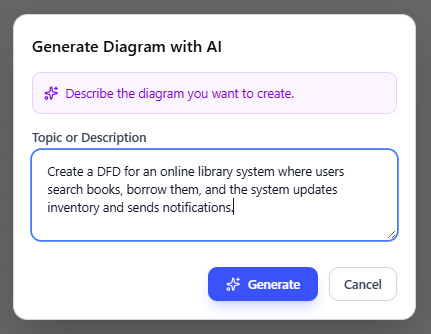
The Result
Within seconds, the AI generated a complete Data Flow Diagram. Here’s what impressed me:
- Correct Identification of Elements:
- External Entities: User, Notification System
- Processes: Search Books, Borrow Books, Update Inventory, Send Notifications
- Data Stores: Book Catalog, Borrowing Records, Inventory Database
- Data Flows: Search Query, Book Results, Borrow Request, Confirmation, Notification
- Proper DFD Notation: The AI used the correct symbols for each element type, following standard DFD conventions.
- Logical Flow: The data flows made sense and followed the sequence I described.
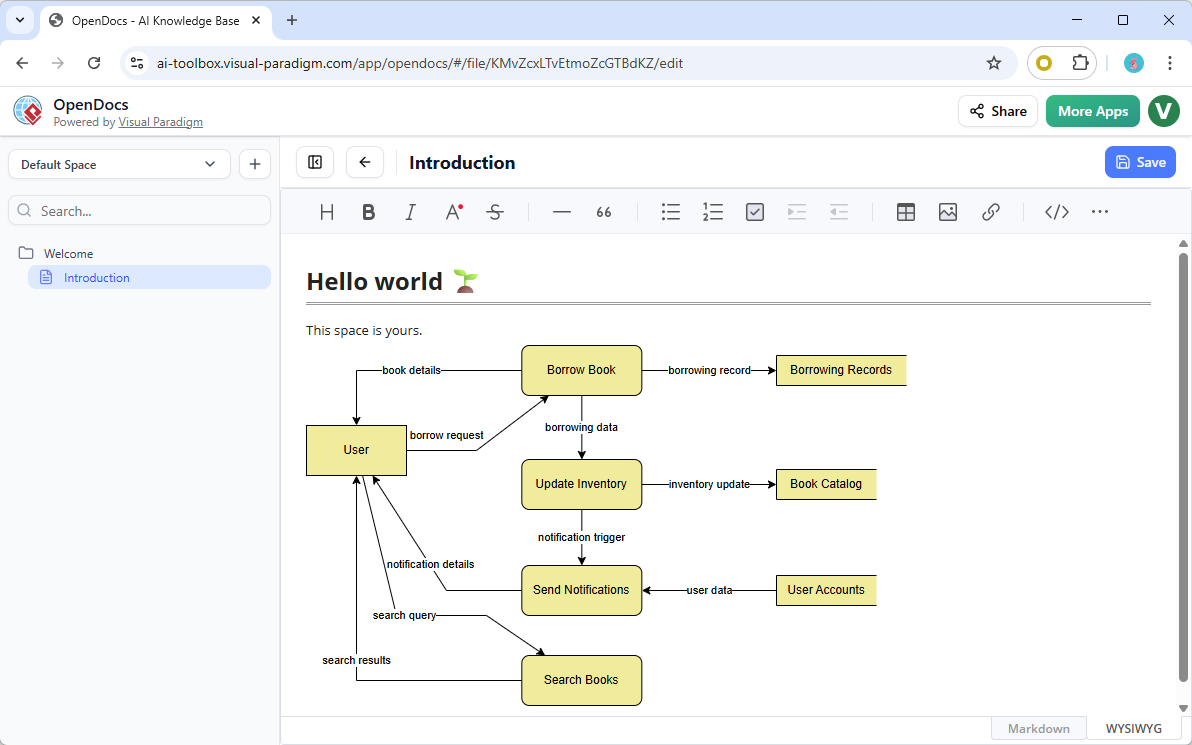
Manual Refinement
Of course, it wasn’t perfect out of the box. I needed to:
- Adjust the layout for better readability
- Add a few data flows I had implied but not explicitly stated
- Rename some elements to match our organization’s terminology
- Add level numbers to processes for a multi-level DFD structure
But here’s the key: these refinements took me maybe 10-15 minutes, compared to the 45-60 minutes it would have taken to create the entire diagram from scratch.
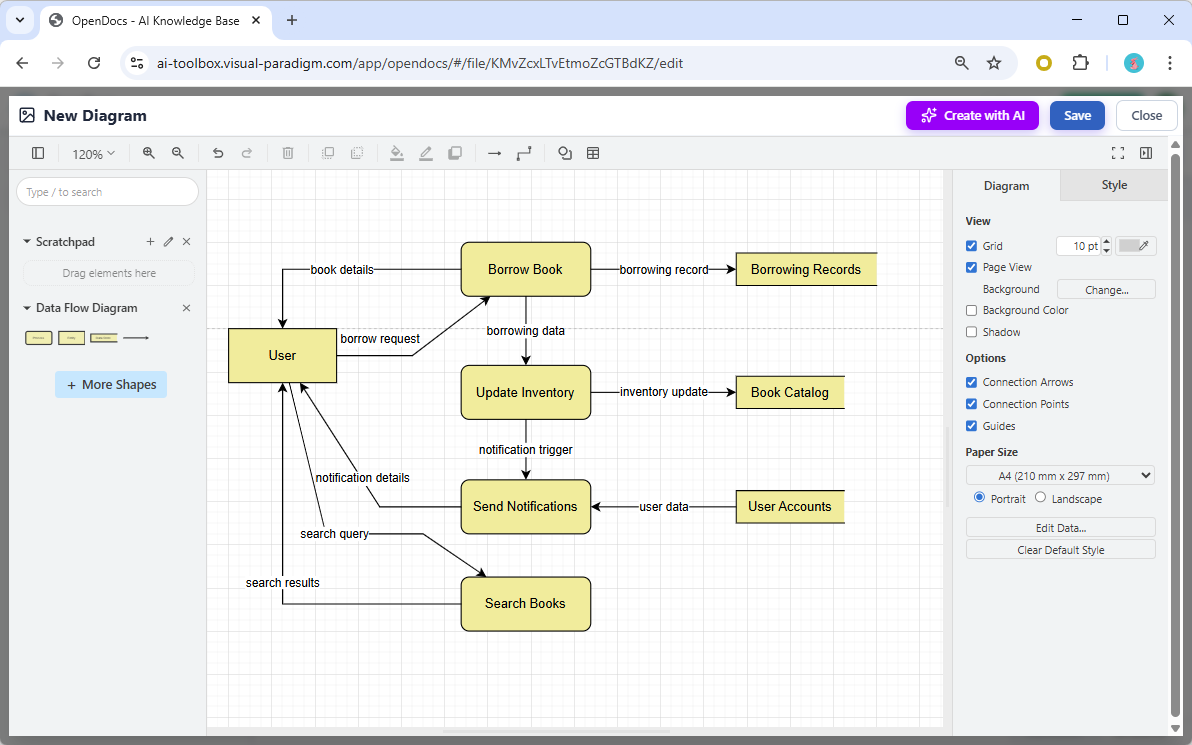
Supported DFD Notations
I experimented with different DFD notations to see how they looked:
- Yourdon DeMarco DFD: Clean and simple, great for high-level overviews
- Yourdon & Coad DFD: Similar to DeMarco but with slight notation differences
- Gane Sarson DFD: More detailed process symbols, excellent for complex systems
The ability to switch between notations (or choose the right one from the start) is valuable when working with different stakeholders who may have preferences or standards.
How I Use DFDs in OpenDocs
I’ve found two primary ways to incorporate DFDs into my documentation:
- Embedded Diagram Components: For requirements documents or system specifications, I embed the DFD directly into the page. This keeps the diagram close to the related text, making it easy for readers to understand the context.
- Dedicated Component Pages: For complex systems or when I need to share a DFD with stakeholders who only need to see the diagram (not the full documentation), I create a standalone Component Page. This is perfect for detailed analysis or when I want to focus discussion on the data flows themselves.
Real-World Impact
Since adopting AI-powered DFD generation, I’ve noticed several benefits:
- Faster Iteration: I can quickly generate multiple versions of a DFD to explore different system designs or process flows.
- Better Collaboration: Team members who aren’t familiar with DFD notation can describe what they need in plain language, and I can generate a starting point for discussion.
- Consistency: The AI helps ensure I’m following proper DFD conventions, reducing the chance of notation errors.
- Documentation Quality: My requirements documents are more visual and easier to understand, leading to fewer misunderstandings during development.
My Workflow and Tips
Prompt Engineering for Better Results
After generating dozens of diagrams, I’ve developed some strategies for writing effective AI prompts:
- Be Specific but Not Overly Detailed:
- ❌ “Create a sequence diagram”
- ✅ “Create a sequence diagram showing user login with authentication service and database”
- ❌ “Create a sequence diagram with every single message including error handling and edge cases”
- ✅ “Create a sequence diagram for user login including successful authentication and invalid password scenarios”
- Identify Actors and Systems Clearly:
- Mention all external entities, systems, and components
- Specify relationships: “The web server communicates with the database to retrieve user data”
- Describe the Flow:
- Use action verbs: “User submits form, system validates input, database stores record”
- Indicate sequence: “First… then… finally…”
- Specify the Diagram Type and Notation:
- “Create a Gane Sarson DFD for…”
- “Generate a UML Class Diagram showing…”
Common Pitfalls I Encountered
- Vague Prompts: The more ambiguous your description, the more the AI has to guess. This leads to more manual corrections.
- Assuming the AI Knows Your Domain: The AI doesn’t know your organization’s specific terminology or business rules. Always review and adjust.
- Over-Complexity in One Prompt: For very complex systems, I’ve found it better to generate diagrams in layers—start with a high-level view, then generate detailed sub-diagrams.
Integration with My Team’s Workflow
We’ve integrated OpenDocs into our documentation process:
- Business Analysts: Use AI to quickly generate initial diagrams from requirements
- Developers: Refine technical diagrams and ensure accuracy
- Reviewers: Comment directly on the OpenDocs pages, keeping feedback close to the diagrams
- Stakeholders: Access up-to-date diagrams without needing Visual Paradigm Desktop installed
Advanced Features I Discovered
Real-Time Collaboration
One feature I didn’t expect to use as much as I do is the real-time collaboration. Multiple team members can edit a diagram simultaneously, which has been invaluable during requirements workshops. We can generate a DFD live while discussing the system with stakeholders, making adjustments on the fly.
Version History
OpenDocs maintains version history for diagrams, which has saved me more than once. When a stakeholder asked, “What did this diagram look like last month?” I could pull up the previous version without having to maintain separate files.
Export Options
While I primarily work within OpenDocs, I’ve found the export options useful for:
- Including diagrams in presentations (PNG/SVG export)
- Sharing with external consultants who don’t have OpenDocs access
- Archiving specific versions for compliance purposes
Conclusion
After several weeks of intensive use, I can confidently say that Visual Paradigm OpenDocs has fundamentally changed how I approach diagram creation and documentation. The AI-powered diagram generation isn’t a magic bullet that eliminates all manual work, but it’s a powerful assistant that handles the heavy lifting of initial diagram creation.
What I Love:
- The time savings are real—what used to take hours now takes minutes for the initial draft
- The ability to describe what I need in natural language and get a professional diagram is genuinely impressive
- The Pipeline integration bridges the gap between my existing desktop models and cloud-based documentation
- The DFD support, with multiple notation options, has become an essential part of my requirements documentation toolkit
What Could Be Better:
- The AI still needs human oversight and domain expertise to produce accurate, organization-specific diagrams
- Complex design patterns sometimes require significant manual adjustment
- There’s a learning curve to writing effective prompts
My Recommendation:
If you’re creating diagrams regularly—whether you’re a business analyst, software architect, developer, or project manager—OpenDocs is worth exploring. The AI features alone justify the investment, but when you add the collaboration features, Pipeline integration, and comprehensive diagram support, it becomes a compelling platform for visual documentation.
Start small: try generating a simple flowchart or DFD from a text description. Once you see how quickly you can go from idea to visual model, you’ll understand why I’ve made this tool a central part of my workflow.
The future of diagramming isn’t about replacing human expertise—it’s about amplifying it. And based on my experience, Visual Paradigm OpenDocs is doing exactly that.
References
- Visual Paradigm OpenDocs Features: Official landing page for OpenDocs featuring AI-powered knowledge management and diagram generation capabilities.
- OpenDocs AI Tool Documentation: Comprehensive guide to AI-powered diagram generation in OpenDocs with step-by-step instructions and examples.
- Visual Paradigm OpenDocs: The Complete Developer’s Guide: Third-party comprehensive guide covering AI-powered technical documentation features and best practices.
- AI Diagram to OpenDocs Pipeline Release: Official announcement of the Pipeline feature enabling synchronization between Visual Paradigm Desktop/Online and OpenDocs.
- OpenDocs Platform Overview: Detailed overview of OpenDocs capabilities including diagram embedding, collaboration features, and integration options.
- From Model to Manual: Syncing Visual Paradigm Desktop with OpenDocs: Software engineer’s practical guide to synchronizing desktop diagrams with OpenDocs documentation.
- OpenDocs AI Diagram Generation Tutorial: Video tutorial demonstrating AI-powered diagram creation in OpenDocs from natural language descriptions.
- AI Profile Diagram Generation for OpenDocs: Release notes covering AI support for UML profile diagrams and enhanced UML diagram generation.
- AI-Powered Diagram Generation Guide: Detailed documentation on transforming natural language into visual models instantly.
- Diagram to OpenDocs Pipeline Feature: Announcement of the Pipeline export feature for seamless diagram integration from VP Desktop/Online.
- OpenDocs Pipeline Integration Demo: Video demonstration of using the Pipeline feature to sync diagrams between desktop and cloud.
- Sync AI Diagram to OpenDocs Pipeline Guide: Complete guide for synchronizing AI-generated diagrams with OpenDocs using the Pipeline feature.
- OpenDocs Pipeline Workflow Tutorial: Step-by-step video tutorial on the complete workflow from diagram creation to OpenDocs integration.
- Pipeline Synchronization Guide: Technical documentation on maintaining diagram consistency across Visual Paradigm platforms.
- Advanced Pipeline Features: Guide to advanced synchronization features and version management in the Pipeline.
- OpenDocs Supported Diagram Types: Complete list of supported diagram types including UML, BPMN, flowcharts, and technical architecture diagrams.
- AI Deployment Diagram Generator: Release announcement for AI-powered deployment diagram generation in OpenDocs.
Related posts:
 Complete Guide: Send Diagrams from Visual Paradigm AI Chatbot Directly to OpenDocs
 A Developer’s Guide to Integrating Visual Paradigm OpenDocs with WordPress for Corporate Documentation
 How OpenDocs’ Version Control & WordPress Export Transformed My Documentation Workflow
 Beyond Static Screenshots: How Visual Paradigm’s Pipeline Transformed My Documentation Workflow From Chaos to Clarity

